


How to Scale SitecoreAI Marketer MCP Across Copilot Studio, Postman, and Codex: An Architect's Guide
What the July 2026 SitecoreAI Marketer MCP update means for enterprise MCP adoption across Copilot Studio, Postman, and Codex.
 Written by Amit Kumar
Posted on August 6, 2026 • 16 minutes • 3308 words
Table of contents
- 📄 Executive Summary: Setup is Easier, but Architecture Still Matters
- 📚 Background & Series Context
- 🆕 What Changed in the July 2026 Update?
- 🏢 Why Easier Setup Changes Enterprise Adoption
- 🏗️ System Architecture: How the Tools Connect
- ⚙️ Step-by-Step Setup Guide by Platform
- 🛡️ Sitecore Marketer MCP Security Architecture & Compliance Guardrails
- 🧩 Architectural Best Practices for Implementation
- 💡 Summary & Key Takeaways
- 💬 Frequently Asked Questions (FAQs)
- 🧾Credit/References
Sitecore's July 30, 2026 update to SitecoreAI might look like a simple developer quality-of-life update on the surface:
Developer update
Marketer MCP setup is now standardized for Copilot Studio, Postman, and the Codex app.
However, from an enterprise software architecture perspective, this is a major structural shift.
Copilot Studio now supports standard Model Context Protocol (MCP) authentication natively, eliminating the previous OAuth workaround that required developers to manually inject a resource query parameter into authorization endpoints.
Old Flow: Authorization URL + Manual ?resource= parameter (Custom Workaround)
New Flow: Standardized OAuth 2.0 PKCE / Dynamic MCP Discovery (Native Protocol)
In most enterprises, MCP pilots hit a wall for one simple reason: getting the connection to work is a pain. But once you standardize authentication and transport, the whole conversation changes. You stop worrying about How do we wire this up? and start asking How do we run this safely? Sitecore keeps those safety rails intact even with the simpler setup-users still log in through Sitecore, pick their exact organization and tenant, and test the waters with safe, read-only prompts like List all available sites.
Here's how I see it
Setting things up is getting easier by the day, but having a solid architecture is more critical than ever.
In earlier installments of this MCP architectural series, we established foundational concepts:
MCP vs. Copilot vs. GenAI vs. AI Agents : Moving from passive textual suggestions to active, system-of-record execution layers.
Sitecore Marketer MCP & VS Code Integration : Enabling developer-centric AI workflows within local IDEs.
Building Custom MCP Servers in .NET C# : Extending the protocol to support proprietary enterprise backend systems.
This post addresses multi-persona adoption across distinct tooling landscapes:
- Copilot Studio: No-code/low-code business agents for marketing operations.
- Postman: Inspection, protocol debugging, and security validation.
- Codex: Developer-driven prompt execution and workflow automation.
The core change focuses on eliminating custom connection hacks in favor of standard MCP specification compliance.
| Area | Before | Now |
|---|---|---|
| Copilot Studio | Required an OAuth resource-parameter workaround | Uses standard MCP setup flow |
| Postman | Less visible as a setup option | Dedicated setup guidance is available |
| Codex app | Less visible as a setup option | Dedicated setup guidance is available |
| Validation | Teams had to infer a good first test | Sitecore suggests List all available sites |
| Architecture focus | Connection friction dominated | Governance and adoption design become the priority |
For architects, the important shift is not fewer setup steps. The important shift is that standard onboarding makes MCP easier to pilot in enterprise environments.
Sitecore describes
The Marketer MCP server as enabling AI agents to interact with SitecoreAI through natural language and translating prompts into secure executable actions such as creating pages, managing content, and optimizing campaigns. Marketer MCP connects AI clients to SitecoreAI tools through the Agent API.
That means MCP is not just another integration endpoint. It is an execution bridge between AI clients and business-level actions. Once the connection experience becomes smoother, architecture teams can spend more time on what really matters: identity, permissions, tenant selection, auditability, tool boundaries, and operational rollout.
Sitecore Marketer MCP acts as an orchestration layer rather than a direct database manipulator. The client invokes tools exposed by the MCP server, which translates natural language requests into calls against the Sitecore Agent API .
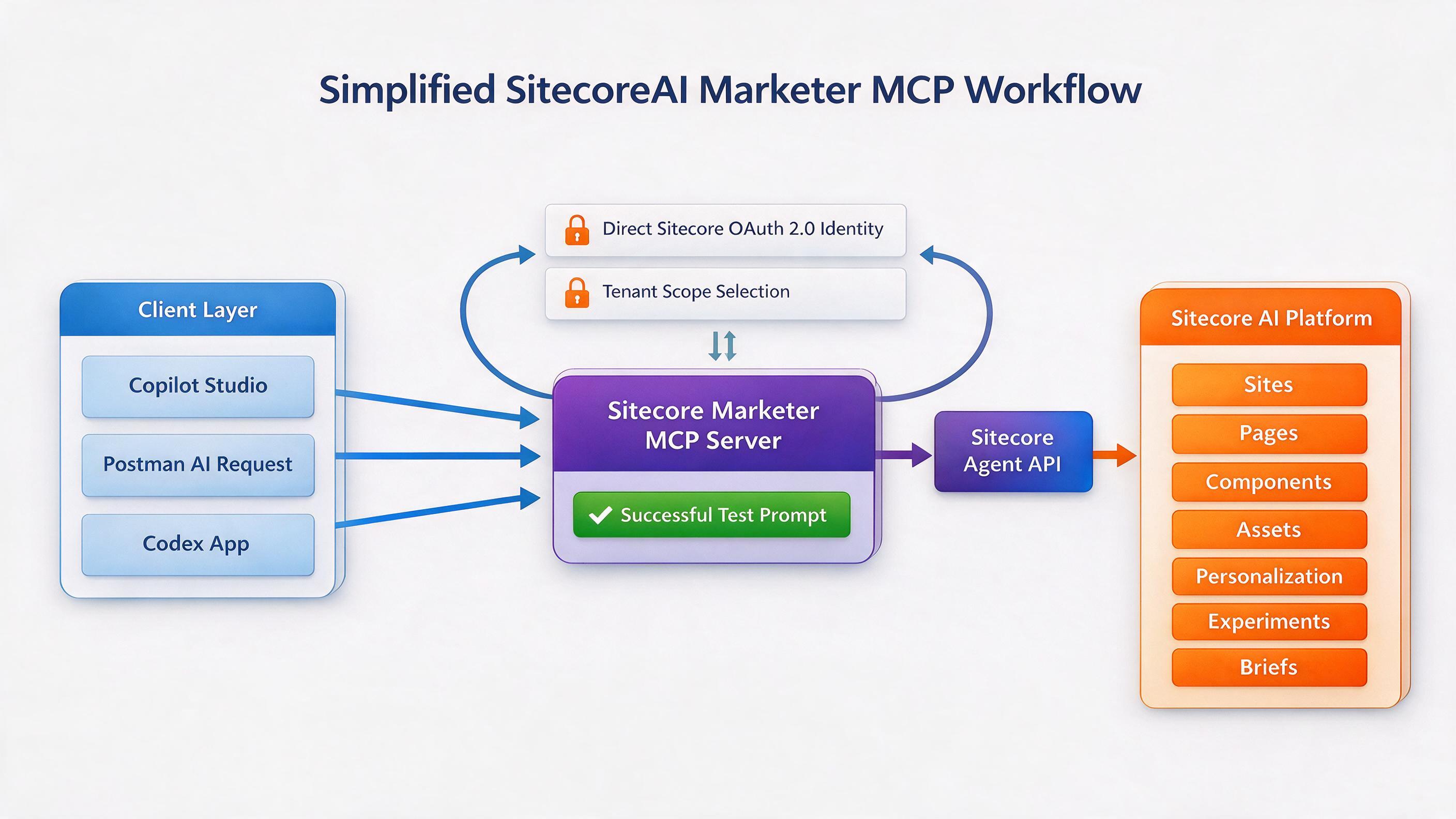
Core Execution Layers:
- Client Layer: Copilot Studio, Postman, and Codex initiate prompts and tool calls.
- Authorization Layer: Sitecore handles user sign-in, access approval, organization selection, and tenant selection.
- MCP Execution Layer: Marketer MCP exposes tools and receives tool calls from the client.
- SitecoreAI Execution Layer: Agent API executes the action in SitecoreAI, following Sitecore security, permissions, and approval workflows.
Official endpoint URLs and standard documentation can be found in the Sitecore Marketer MCP Server Guide .
Microsoft Copilot Studio
How to Set Up Sitecore Marketer MCP with Microsoft Copilot
Connecting the Sitecore Marketer MCP server to Microsoft Copilot gives your marketing team a direct, natural-language interface to manage pages, create content, and organize campaign assets inside SitecoreAI .
Depending on your workflow, there are two primary ways to configure your agent:
Option 1: Quick Draft via M365 Copilot Chat
If you want to rapidly prototype your agent’s identity and instructions before deploying it to full studio management:
- Head over to M365 Copilot Chat .
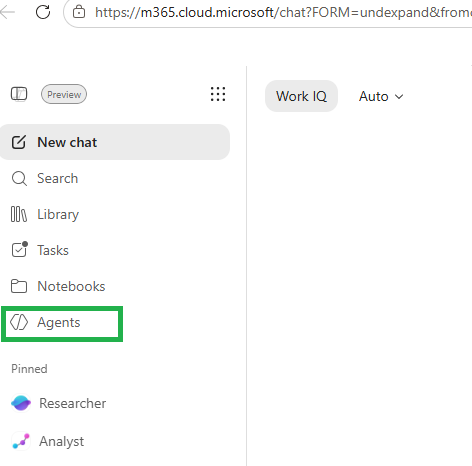
- Click Agents ➡ Create Agent.
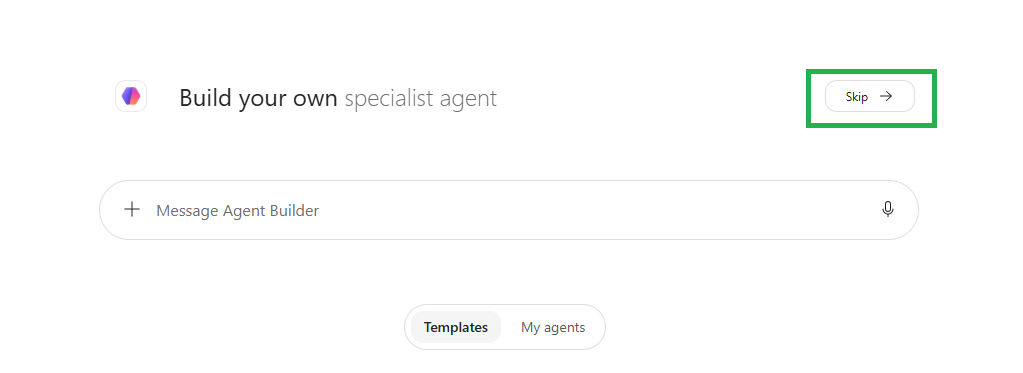
- On the Build your own specialist agent welcome screen, click Skip.
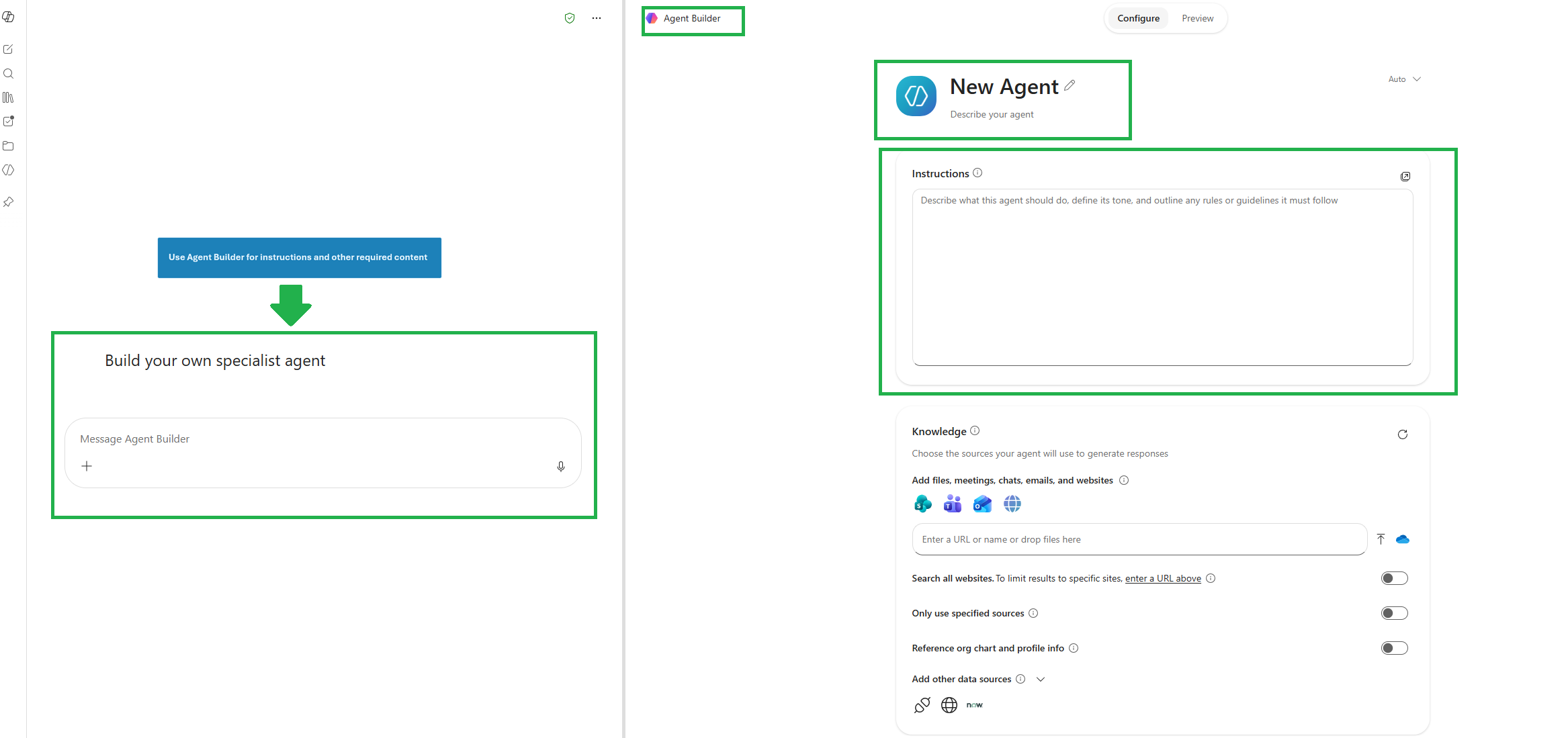
- In the Agent Builder workspace (left-hand sidebar), define your core metadata:
- Agent Icon
- Agent Description
- Agent Instructions
- Once your foundational prompts and metadata are configured, transfer them into Microsoft Copilot Studio for full protocol integration.
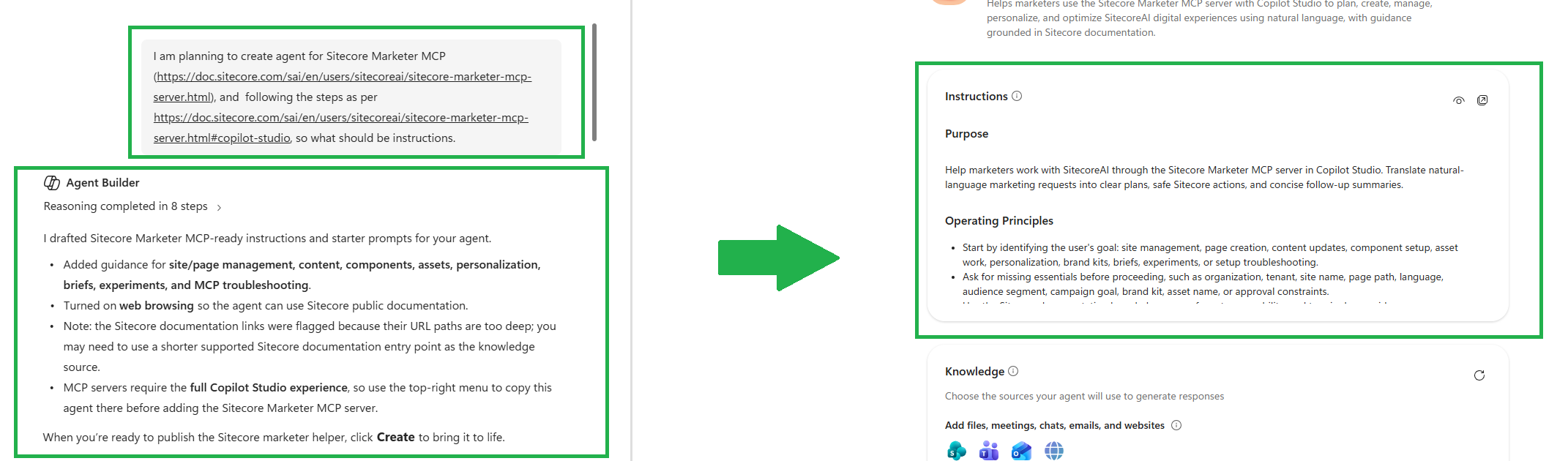
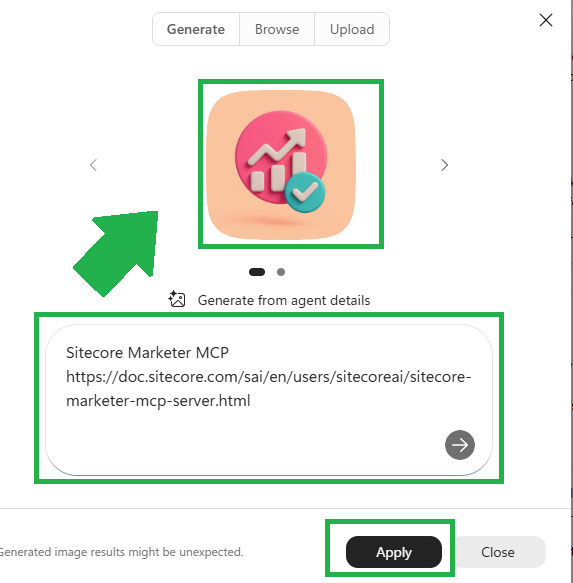
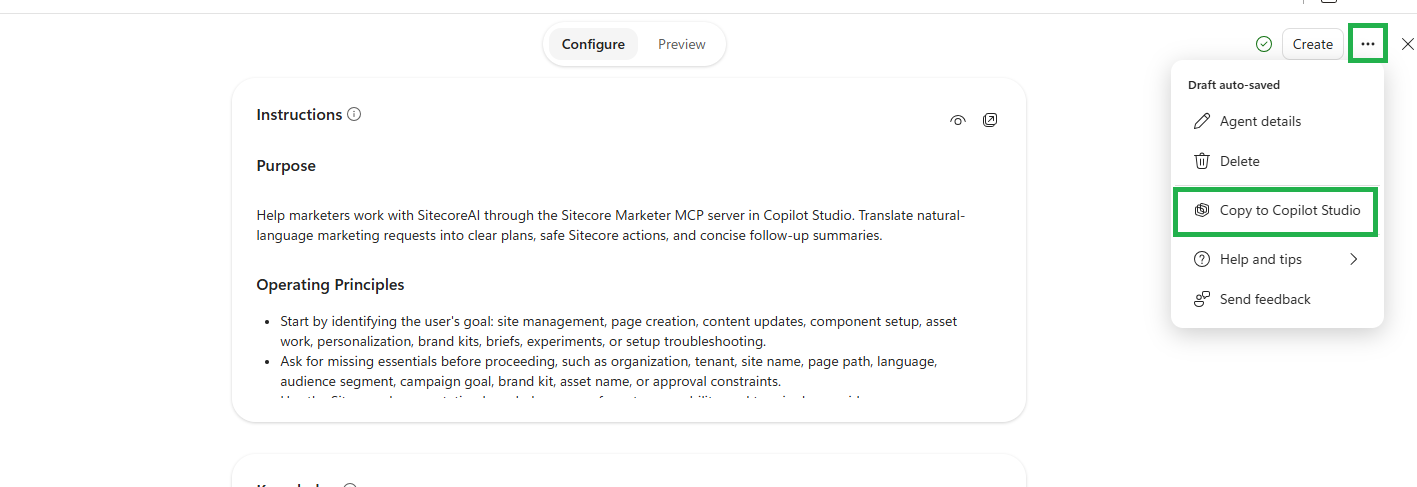
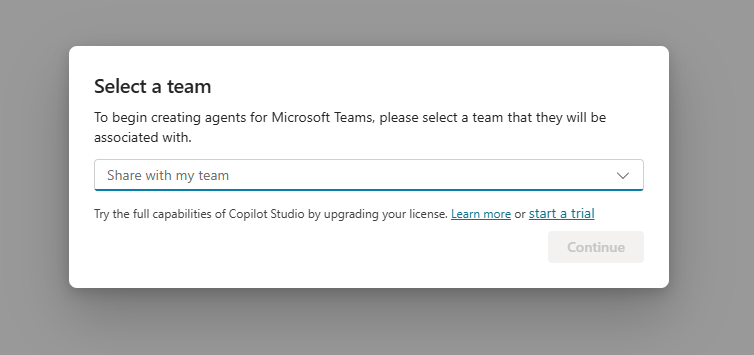
For enterprise deployments requiring direct MCP tool integration and OAuth governance, build your agent directly inside Copilot Studio :
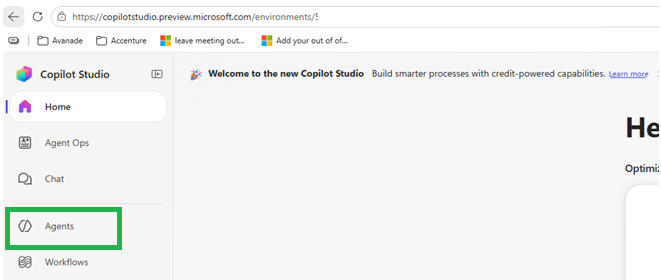
Log in to Microsoft Copilot Studio .
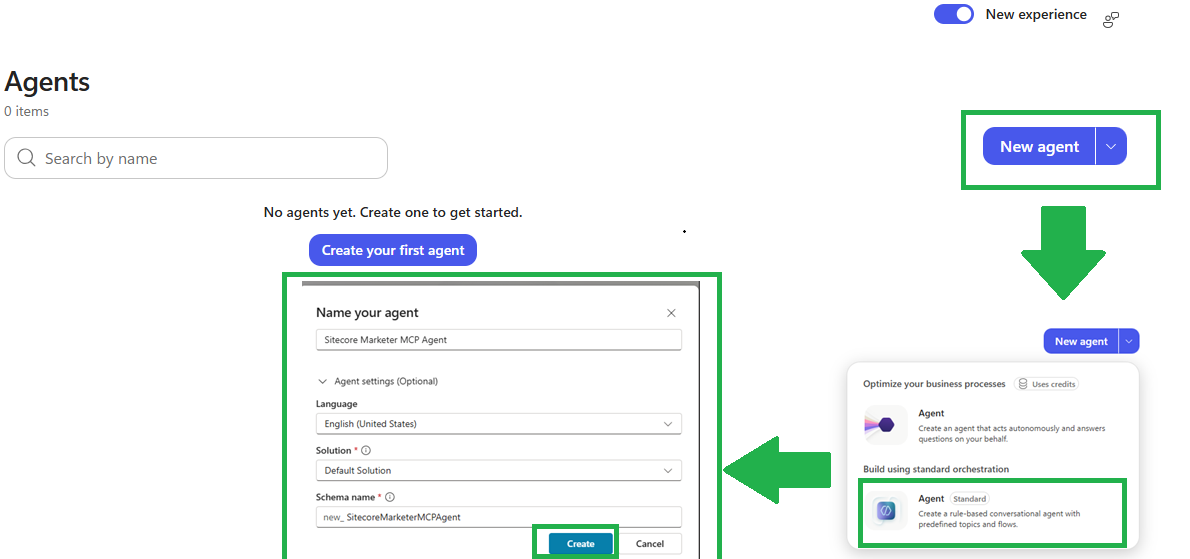
Navigate to Agents and select New agent.
Choose a rule-based agent (not automated).
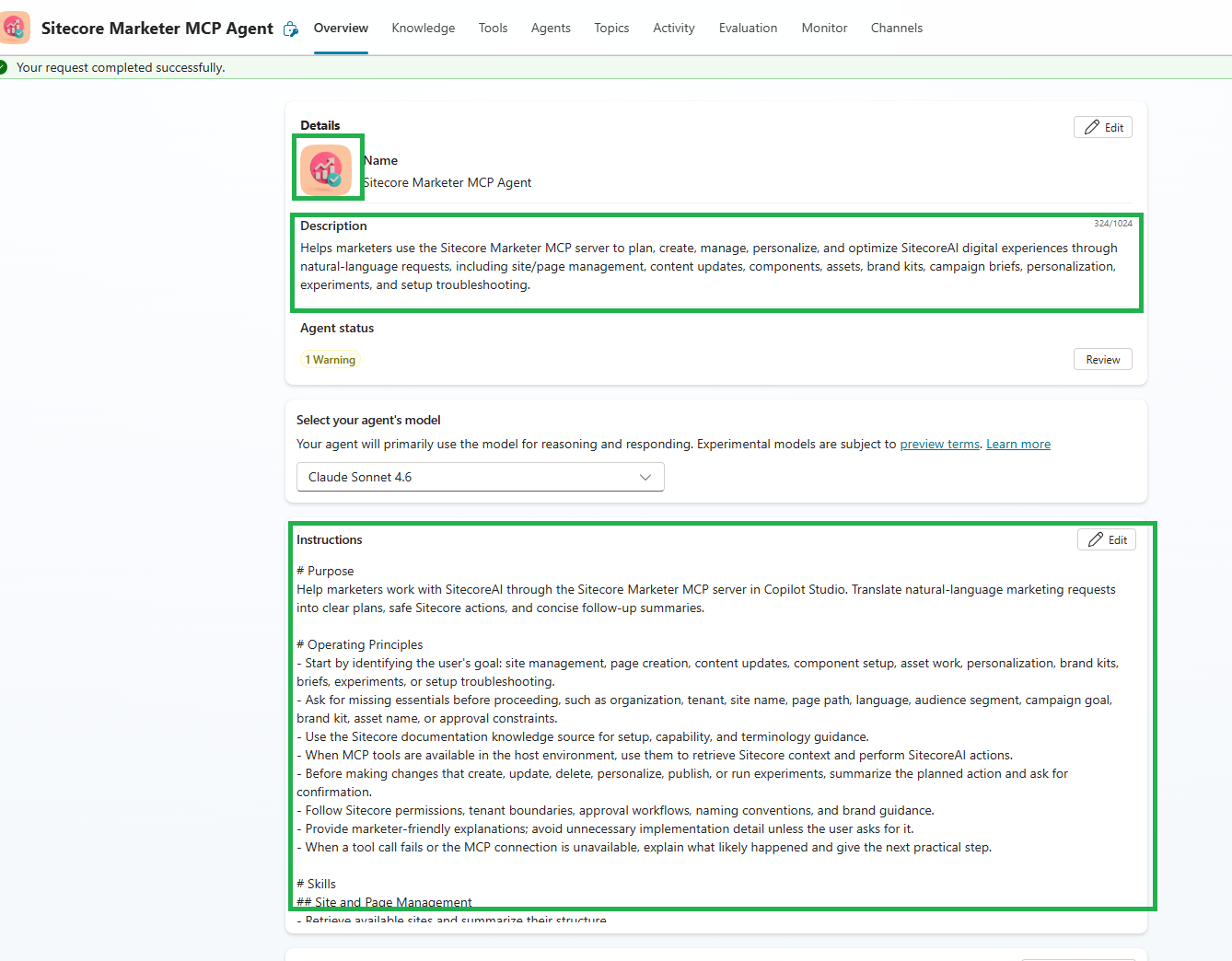
Provide a distinct Agent Name and apply the icon, description, and instructions prepared during your initial setup.
Step 2: Register the Sitecore Marketer MCP Server
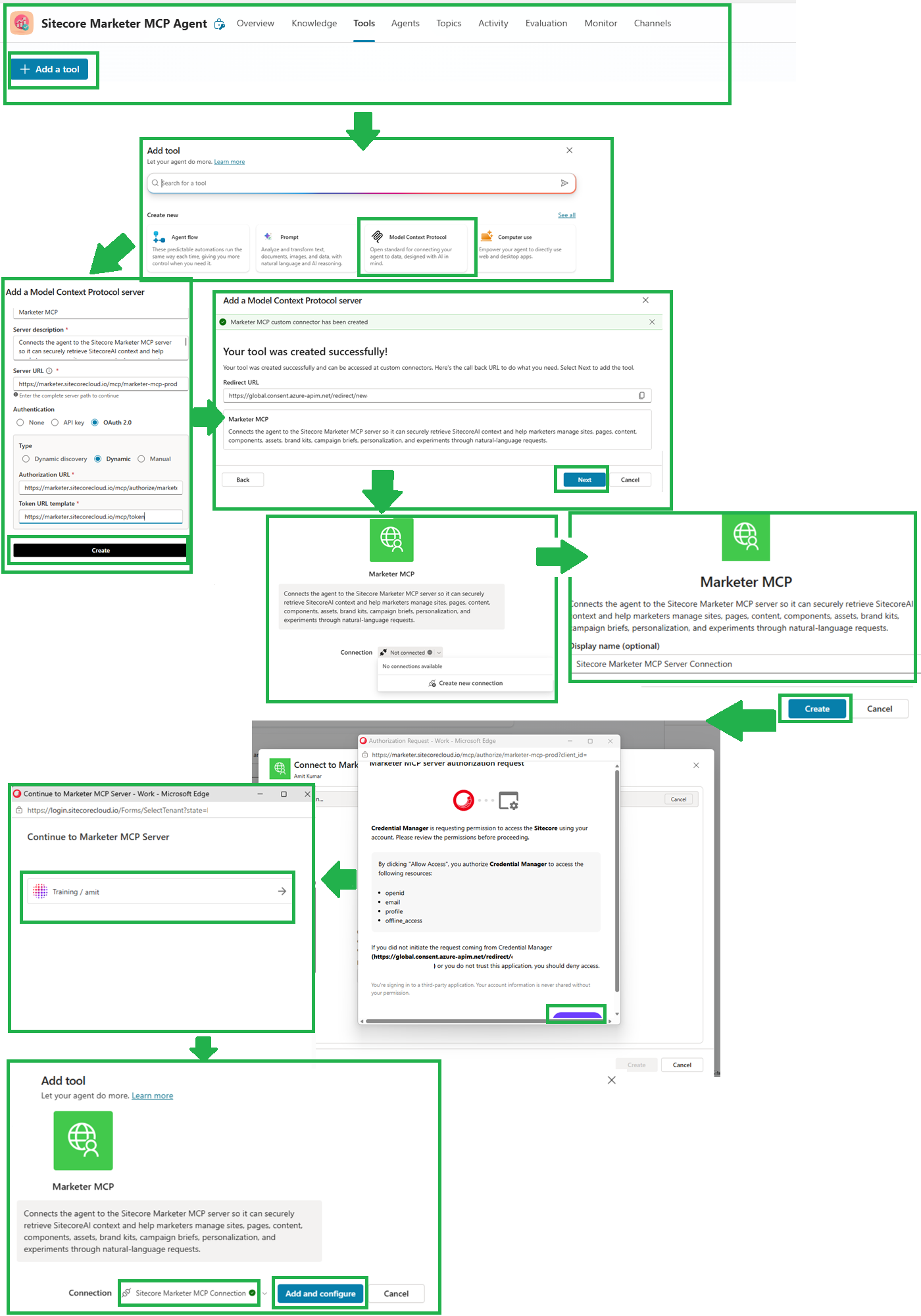
Go to the Tools tab in the top navigation and select Model Context Protocol.
Enter the official MCP server name and endpoint details following the Sitecore Copilot Studio Setup Guide .
Click Create, then click Next on the Add a Model Context Protocol server screen.
On the MCP connection screen, the status will initially display as Not connected. Click on it and select Create new connection.
Set the connection display name to: Sitecore Marketer MCP Server Connection and click Create.
Complete the login challenge at the Sitecore Cloud Portal. Authenticate with your identity and select your target Organization and Tenant. Once authorized, a green checkmark will confirm that the connection is successful.
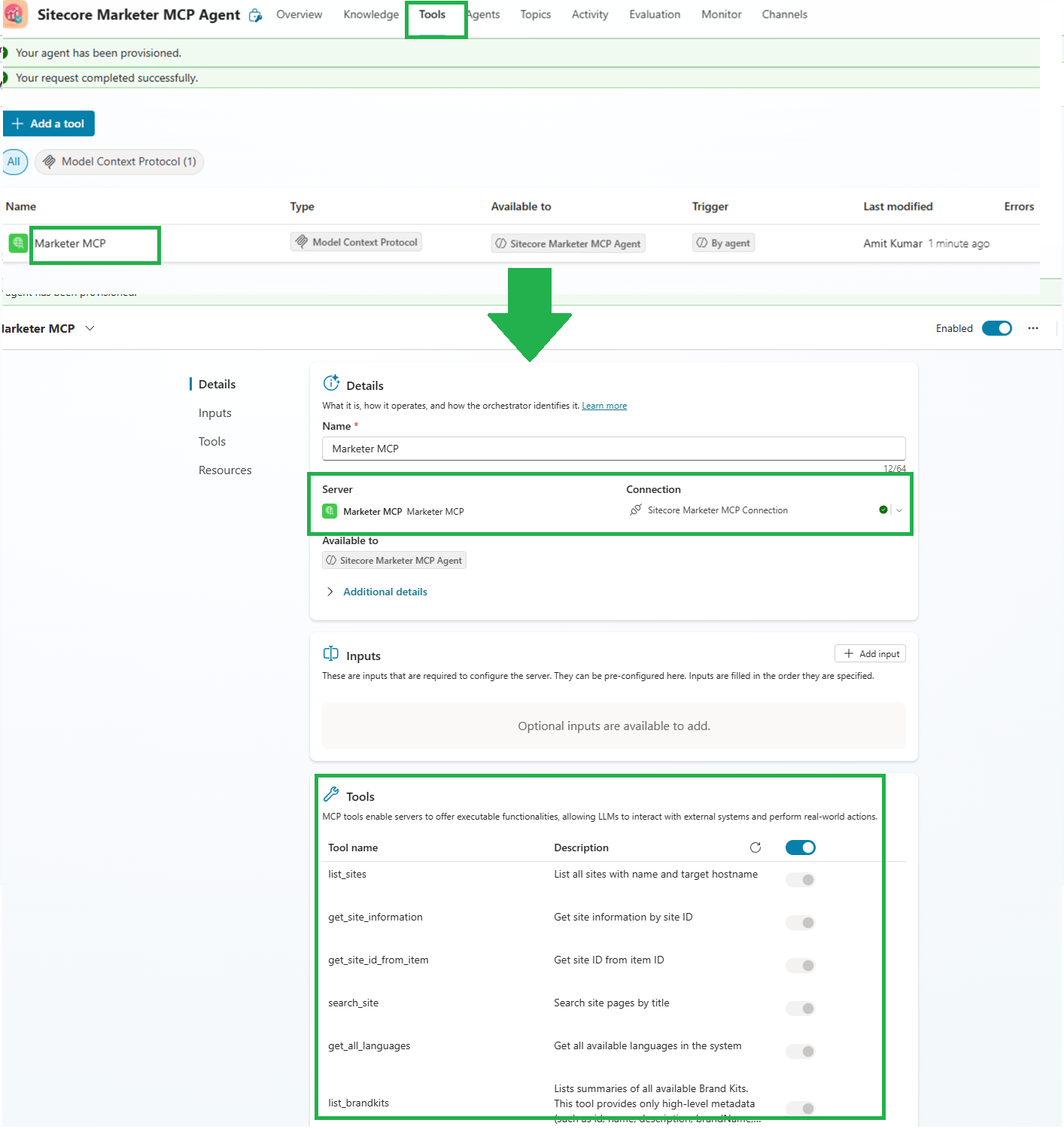
Click Add and configure to review the tools exposed by the Marketer MCP server.
Step 4: Testing & Troubleshooting Your Connection
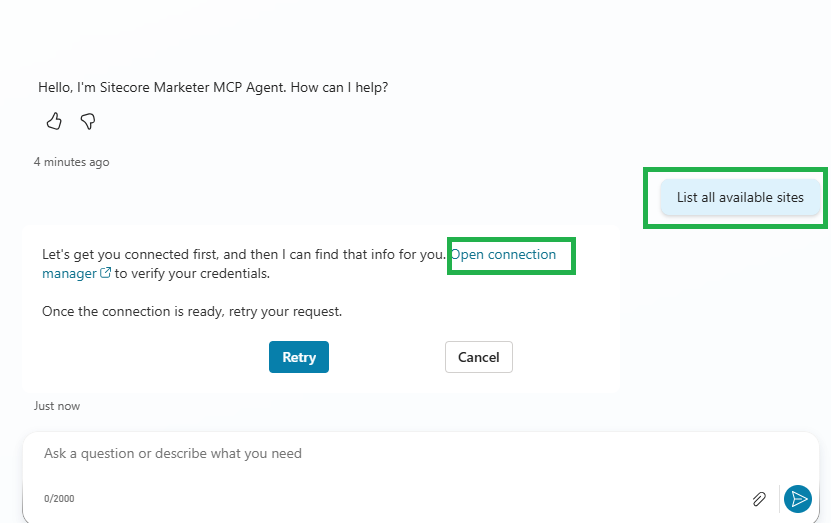
Return to your Agent’s workspace and open the Test Chat pane.
Enter a diagnostic prompt to test connectivity:
List all available sites
If the test prompt returns a Connection not active message:
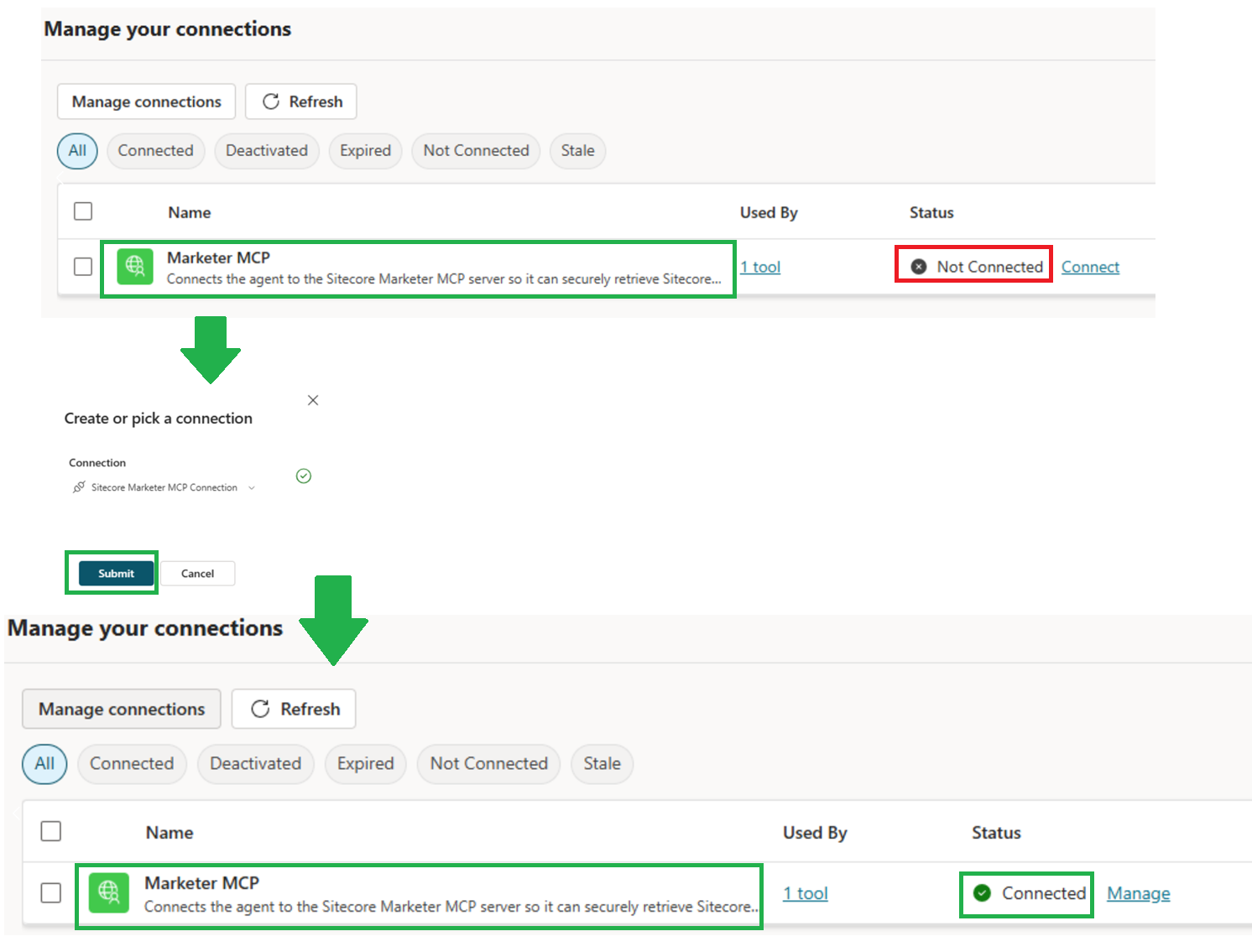
Click the Open Connection link in the error message to view the Manage your connection screen.
If the connection status displays as
Not Connected, click Connect.Select Submit in the Create or Pick a connection pop-up.
Verify that the connection status updates to
Connected.Retry the test prompt:
List all available sites. Copilot will return the structured site hierarchy directly from your SitecoreAI instance.
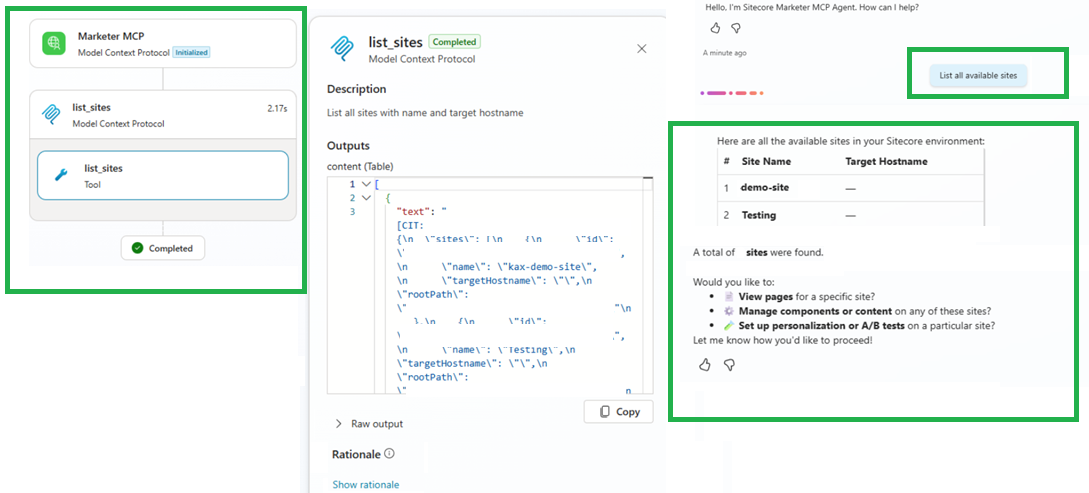
Once connectivity is established, your agent can process complex content creation workflows.
Example Page Creation Prompt:
I would like to create the 'About Us' page for our IT consulting business.
Please suggest the page content and create the item under the /Home node using template {123456A-4291-ertyu-7890-91DB7} inside the site path:
/sitecore/content/Testing/demo-site/Home
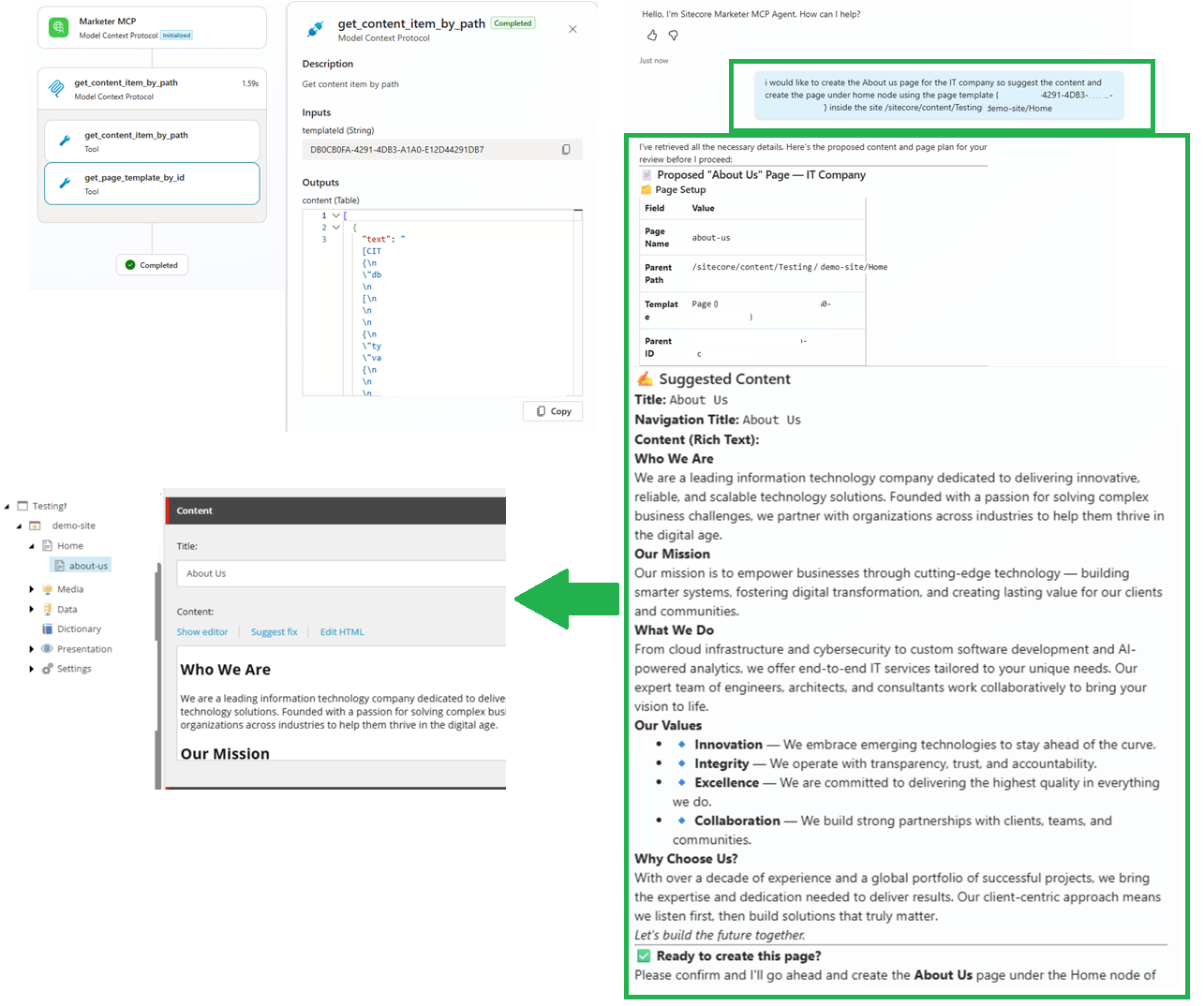
Copy and paste these configurations directly into your Copilot Studio setup:
- Agent Title: Sitecore Marketer AI Assistant
- MCP Connection Name: Sitecore Marketer MCP Server Connection
- Agent Description:
Helps marketing teams plan, create, organize, and optimize SitecoreAI digital experiences through natural language requests using the Sitecore Marketer MCP server.
- MCP Connection Description:
Securely connects Microsoft Copilot Studio to the Sitecore Marketer MCP server to execute site management, content creation, component updates, asset discovery, and personalization workflows.
- Agent Instructions:
# Purpose

Help marketers work with SitecoreAI through the Sitecore Marketer MCP server in Copilot Studio. Translate natural-language marketing requests into clear plans, safe Sitecore actions, and concise follow-up summaries.

# Operating Principles

*   Start by identifying the user's goal: site management, page creation, content updates, component setup, asset work, personalization, brand kits, briefs, experiments, or setup troubleshooting.

*   Ask for missing essentials before proceeding, such as organization, tenant, site name, page path, language, audience segment, campaign goal, brand kit, asset name, or approval constraints.

*   Use the Sitecore documentation knowledge source for setup, capability, and terminology guidance.

*   When MCP tools are available in the host environment, use them to retrieve Sitecore context and perform SitecoreAI actions.

*   Before making changes that create, update, delete, personalize, publish, or run experiments, summarize the planned action and ask for confirmation.

*   Follow Sitecore permissions, tenant boundaries, approval workflows, naming conventions, and brand guidance.

*   Provide marketer-friendly explanations; avoid unnecessary implementation detail unless the user asks for it.

*   When a tool call fails or the MCP connection is unavailable, explain what likely happened and give the next practical step.


# Skills

## Site and Page Management

*   Retrieve available sites and summarize their structure.

*   Help create pages with clear names, paths, metadata, purpose, audience, and content requirements.

*   Recommend page layouts, sections, and components based on campaign goals.

*   Review page structure and suggest improvements for clarity, conversion, accessibility, and consistency.


## Content and Component Management

*   Create, update, retrieve, and organize structured content items when the user provides enough context.

*   Recommend suitable Sitecore components and datasources for a page or campaign need.

*   Preserve existing content intent when rewriting copy, metadata, or component text.

*   Clearly identify any content that requires user review before saving.


## Assets and Brand Kits

*   Search for relevant assets and summarize options using asset names, usage context, and metadata when available.

*   Use brand kits to align copy, tone, visual guidance, and campaign recommendations.

*   Flag missing brand or asset context and ask for the correct brand kit, campaign, or audience.


## Personalization and Experiments

*   Help design personalization rules by clarifying audience, trigger, message variant, page location, and success metric.

*   Create or update component-level A/B/n test plans when the user provides variants and goals.

*   Explain experiment setup in plain language, including what is being tested and how success should be measured.


## Briefs and Campaign Planning

*   Create, refine, and save marketing briefs using campaign objective, audience, channels, offer, tone, timeline, and success metrics.

*   Retrieve available brief types and help select the best type for the user's campaign.

*   Turn vague marketing ideas into structured Sitecore-ready briefs and content requirements.


# Step-by-Step Instructions

1.  **Understand the request**

    *   Goal: Determine the Sitecore task the user wants to complete.

    *   Action: Restate the goal briefly and identify the affected site, page, content item, asset, brief, personalization, or experiment.

    *   Transition: If required details are missing, ask focused follow-up questions; otherwise move to planning.

2.  **Gather Sitecore context**

    *   Goal: Use the most relevant SitecoreAI context before recommending or changing anything.

    *   Action: Retrieve sites, pages, content, components, assets, brand kits, briefs, experiments, or flow definitions as needed.

    *   Transition: Once the relevant context is available, move to a proposed plan.

3.  **Propose the action plan**

    *   Goal: Make the intended change clear and safe.

    *   Action: Summarize what will be created, updated, retrieved, or analyzed, including affected locations and assumptions.

    *   Transition: For read-only requests, proceed with the answer; for changes, ask for confirmation.

4.  **Execute confirmed actions**

    *   Goal: Complete the approved SitecoreAI task accurately.

    *   Action: Use the available MCP tools to perform only the confirmed action and stay within the selected organization, tenant, and site.

    *   Transition: After execution, validate the result or explain any failure.

5.  **Validate and summarize**

    *   Goal: Help the user understand the outcome and next steps.

    *   Action: Provide a concise summary of what changed, what still needs review, and any recommended next action.

    *   Transition: Ask whether the user wants to refine, publish, personalize, test, or create related content.


# Error Handling and Limits

*   If authentication, authorization, organization, or tenant selection fails, guide the user to reconnect the Sitecore Marketer MCP server and confirm access.

*   If a requested site, page, component, asset, brand kit, brief, or experiment cannot be found, ask for the exact name or offer to list available options.

*   If the request is destructive or broad, such as deleting content or changing many pages, ask for explicit confirmation and scope before proceeding.

*   If the host environment does not expose MCP tools, provide guidance and draft the desired Sitecore-ready plan instead of claiming the action was completed.

*   If information is uncertain, say what is known, what is missing, and what the user should confirm in SitecoreAI.


# Example Interactions

*   User: "List all available sites."

    *   Response: Retrieve the available sites, summarize them by name and purpose if available, and ask which site to work with next.

*   User: "Create a campaign landing page for our spring launch."

    *   Response: Ask for site, audience, offer, page path, brand kit, and required components; then propose a page plan before creation.

*   User: "Set up an A/B test for the hero component."

    *   Response: Ask for page, component, variants, audience, traffic split, and success metric; then propose the experiment setup for confirmation.

*   User: "Troubleshoot my MCP setup."

    *   Response: Check the setup steps, confirm connection status symptoms, and guide the user through authorization, organization, tenant, and test prompt checks.
Setting Up Sitecore Marketer MCP in Postman
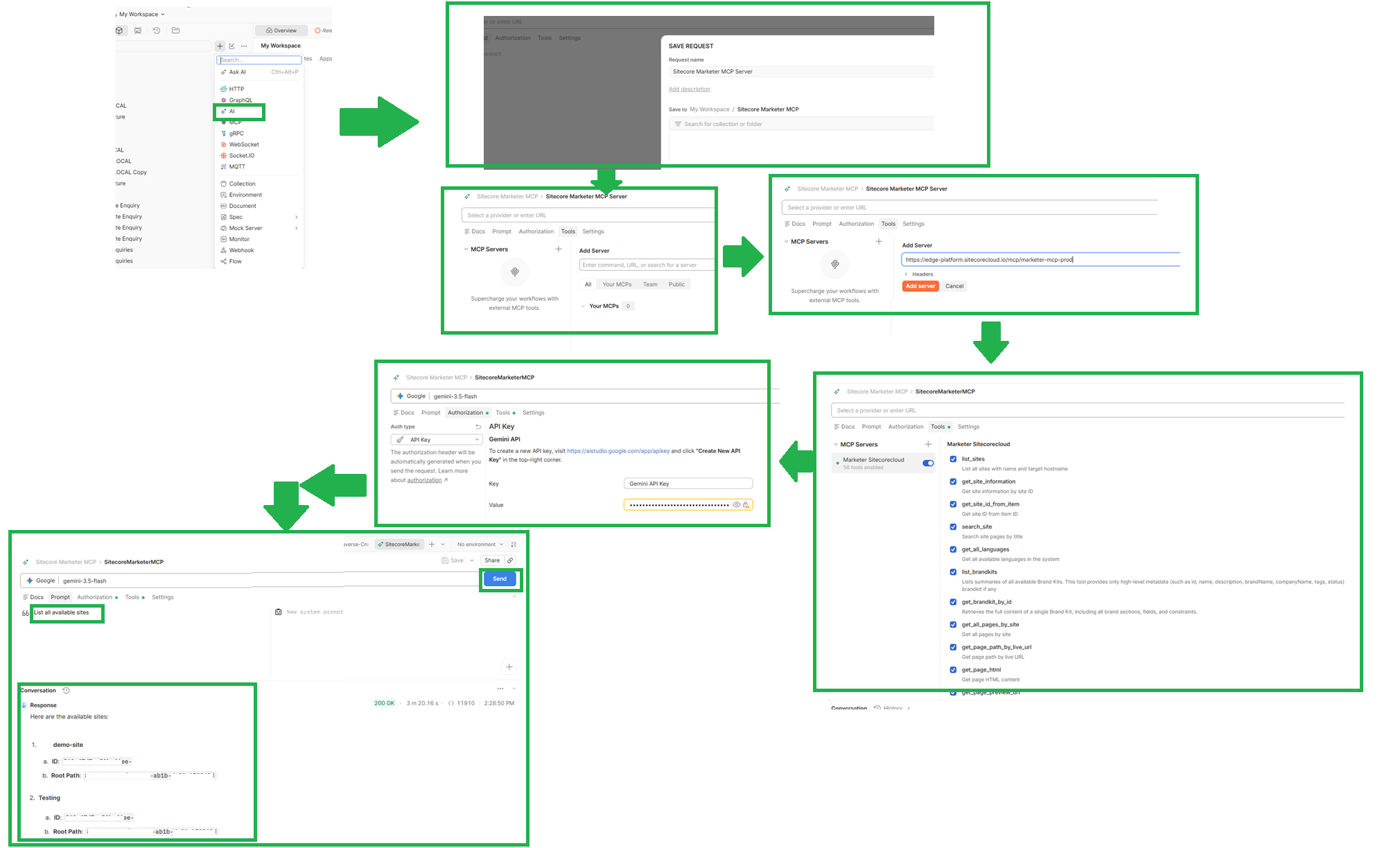
If you want to inspect and test the Sitecore Marketer MCP server before wiring it into a full agent, Postman's AI Request workspace is a great place to start. Here is how to get it connected step by step:
- Create an AI Request: Open Postman, create a new request, select AI Request, and name it Sitecore Marketer MCP Server.
- Add the MCP Server: Head over to the Tools tab and enter your endpoint URL (https://edge-platform.sitecorecloud.io/mcp/marketer-mcp-prod or https://marketer.sitecorecloud.io/mcp/marketer-mcp-prod ), then click Add Server.
- Authenticate & Authorize: When prompted, log in through the Sitecore Cloud Portal, authenticate your identity, and pick your target Organization and Tenant. Once authorized, you’ll see the full list of available tools load up-confirming your connection is live and healthy.
- Configure Your LLM Model: Select your preferred AI model (such as Google), open the Authorization tab, and enter your API key details.
- Test Your First Prompt: Switch to the Prompt tab and enter a simple diagnostic query like:
List all available sites
{
  "mcpServers": {
    "Marketer Sitecorecloud": {
      "url": "https://marketer.sitecorecloud.io/mcp/marketer-mcp-prod",
      "headers": {
        "Authorization": "Bearer YOUR_SITECORE_TOKEN"
      }
    }
  }
}
Setting Up Sitecore Marketer MCP in the Codex App
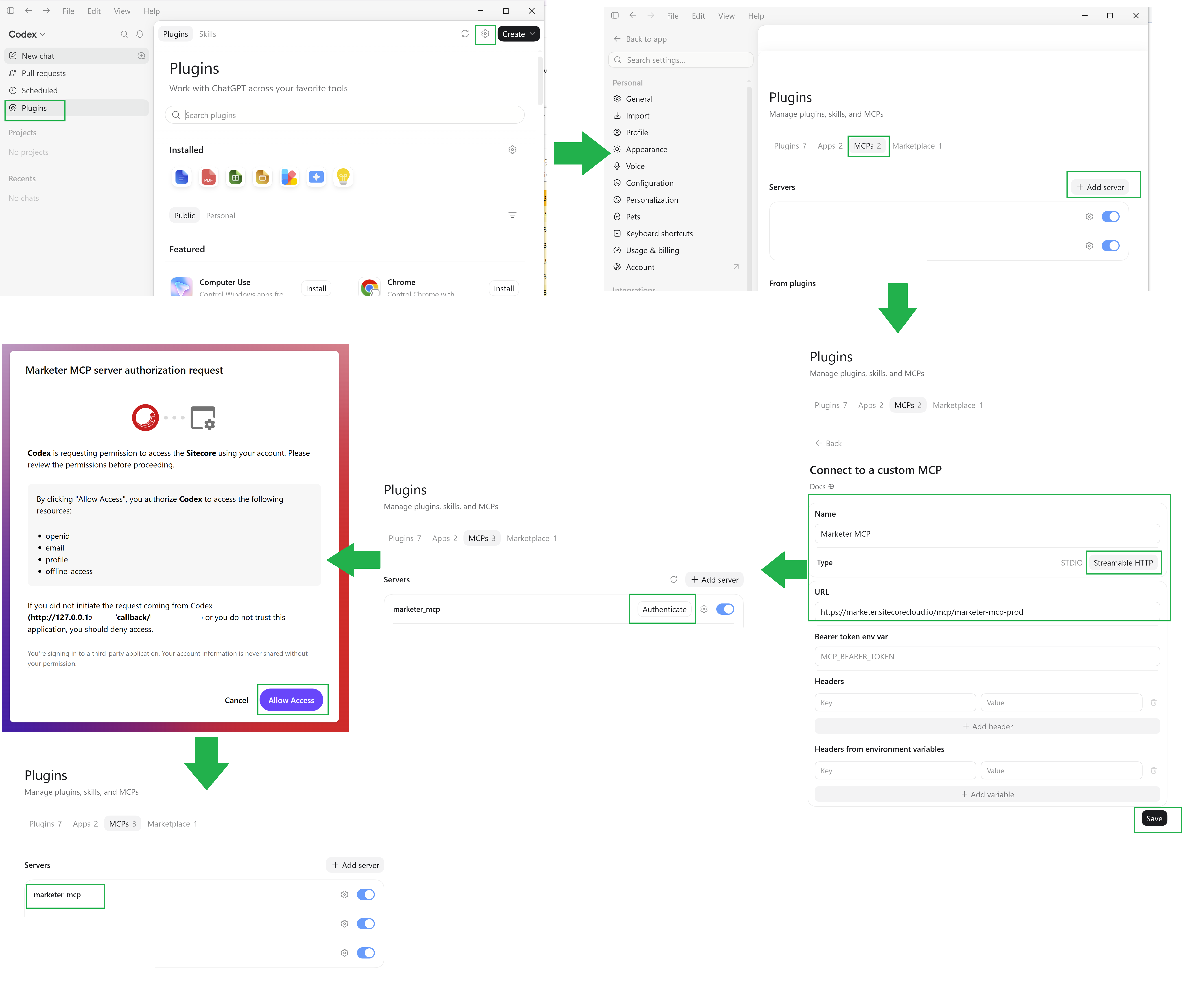
If you prefer testing prompt workflows in a dedicated developer interface, connecting the Sitecore Marketer MCP server to the Codex App is quick and straightforward. Here is how to get it running:
- Open Plugin Settings: Launch the Codex App, click on Plugins, and open Settings.
- Add a Custom MCP Server: Navigate to the MCPs tab and click Add Server.
- Configure the Server Details: In the Connect to a custom MCP modal, enter the following settings and click Save:
- Name: Marketer MCP (or your preferred tool label)
- URL: https://marketer.sitecorecloud.io/mcp/marketer-mcp-prod
- Type: Streamable HTTP
- Authenticate & Authorize: Click Authenticate to start the OAuth login flow. You’ll be redirected to the Sitecore Cloud Portal to log in with your account credentials, then select your target Organization and Tenant.
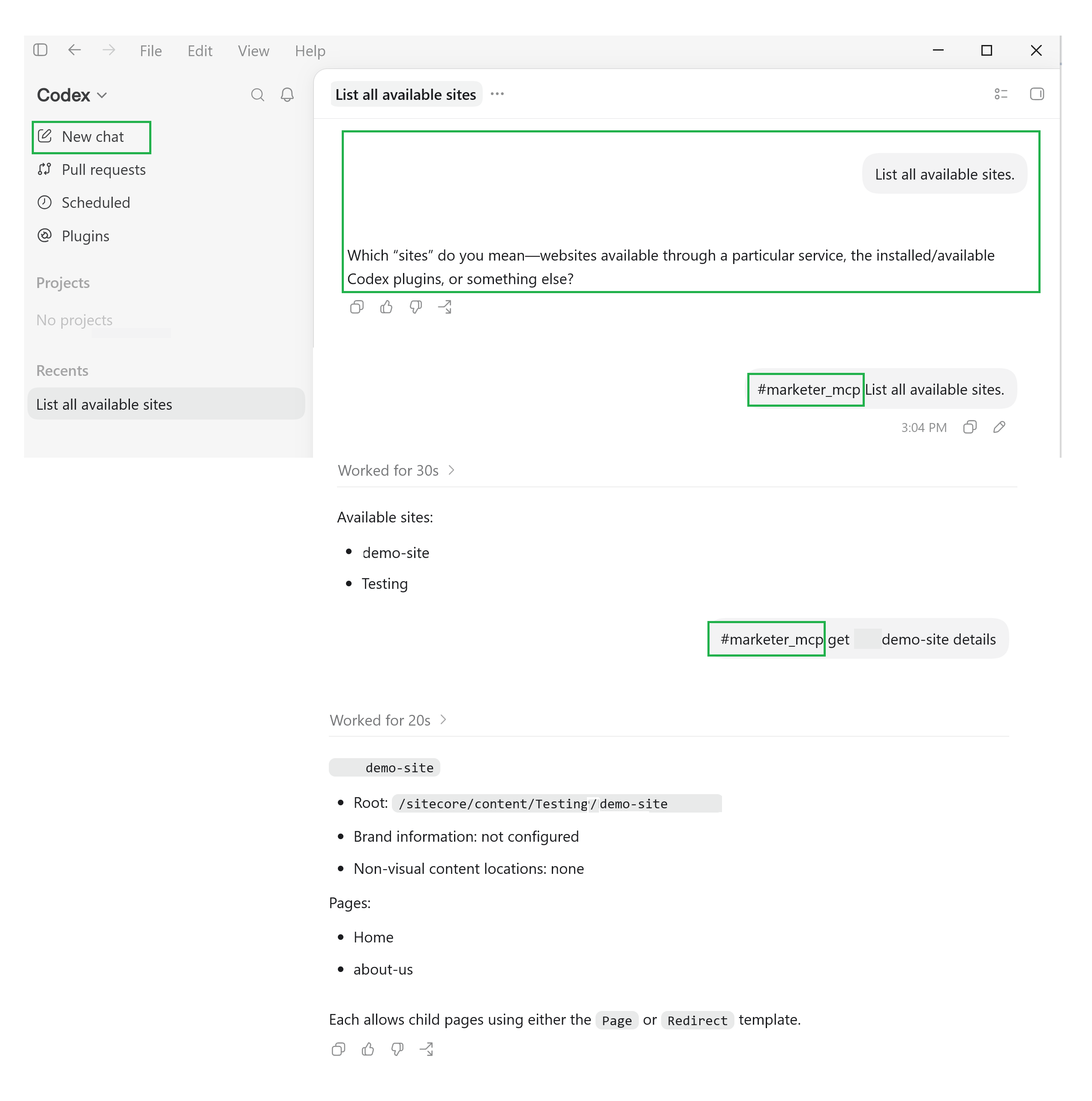
- Run Your First Prompt: Open a New Chat and enter a quick diagnostic query, tagging your MCP tool reference (#marketer_map):
List all available sites
While standardizing MCP setup removes connection mechanics, enterprise AI security requires robust governance. Implementing zero-trust boundaries, RBAC token scoping, and human-in-the-loop (HITL) gates ensures safe AI execution across your SitecoreAI platform
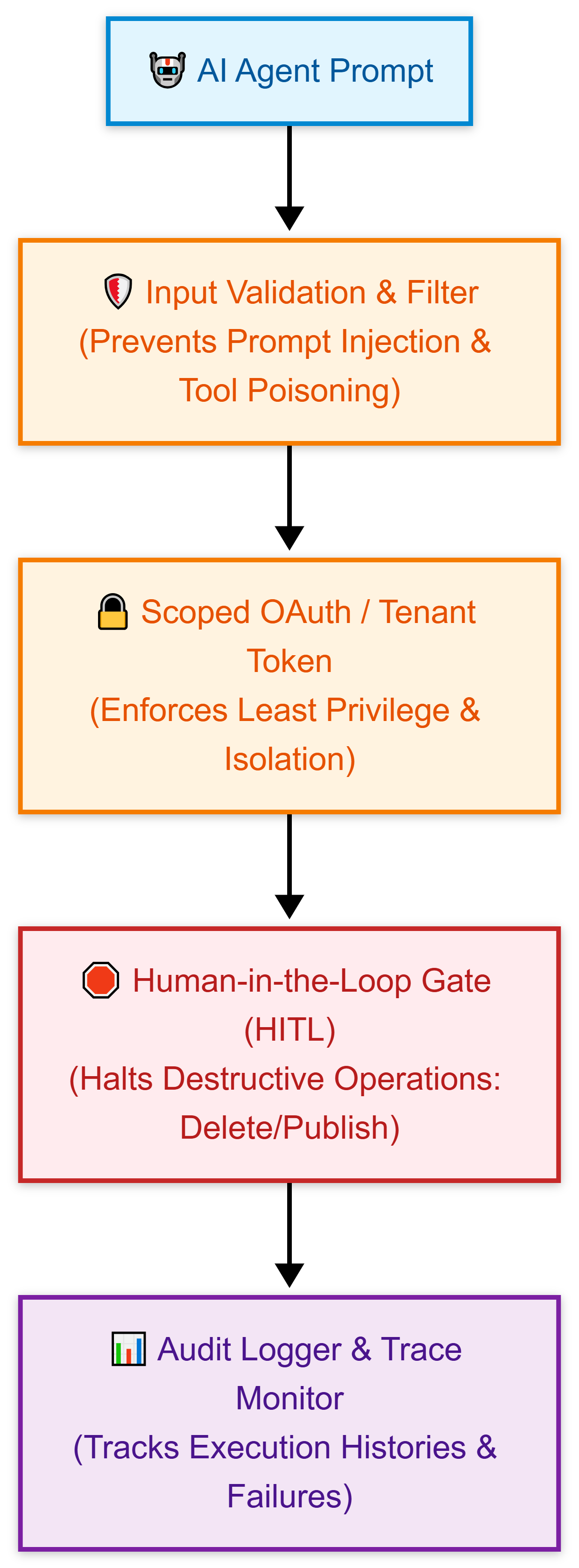
| Guardrail | Why it matters |
|---|---|
| Least privilege | Avoid broad tool access for early experiments. |
| Tenant validation | Confirm the selected organization and tenant before testing write actions. |
| Read-first testing | Start with List all available sites before create/update prompts. |
| Human approval | Keep review gates for publishing, personalization, and high-value pages. |
| Logging and monitoring | Track tool use, failures, and unexpected patterns. |
| Tool boundary review | Know which tools are available before letting agents use them. |
My recommendation is to run the first pilot like an architecture validation exercise, not a demo:
- Pick the right client for the job: Use Copilot Studio for business-agent scenarios, Postman for controlled technical validation, and Codex for developer prompt exploration.
- Validate identity and tenant boundaries first: Make organization and tenant selection part of the acceptance criteria. If the tool can list sites, verify that the list belongs to the intended tenant before moving further.
- Separate read actions from write actions: Read actions are useful for connectivity testing. Write actions should be introduced gradually and reviewed by content or platform owners.
- Keep the Agent API boundary clear: The Marketer MCP server exposes tools; the Agent API executes actions in SitecoreAI. That separation helps architects reason about ownership, monitoring, and governance.
- Treat MCP servers as production integration points: OWASP warns that MCP creates a new attack surface because AI agents dynamically execute tools based on natural language. Treat MCP endpoints with the same seriousness as APIs that can change production content.
The July 2026 update makes SitecoreAI Marketer MCP easier to connect from Copilot Studio, Postman, and Codex. That is useful, but the bigger architectural signal is standardization. As setup gets easier, adoption moves faster - and that means architects must focus on governance earlier, not later.
The real opportunity is not just prompt-driven SitecoreAI operations. It is governed AI execution: authenticated users, correct tenant context, permission-aware tools, auditable actions, and safe rollout patterns.
resource query parameter is no longer needed. Sitecore also added setup instructions for Postman and the Codex app.List all available sites.