


SitecoreAI Layout Control in Marketer MCP & Agent API: A Postman Guide
Place, move and remove components, check content references, and revert agent jobs in SitecoreAI (Sitecore XM Cloud) with Postman
 Written by Amit Kumar
Posted on October 20, 2026 • 21 minutes • 4325 words
Table of contents
- 💡 Quick Takeaway
- 📊 Introduction: Why This SitecoreAI Update Matters
- 🧩 Background and Architecture Overview
- 🧪 Hands-on Postman Walkthrough for the SitecoreAI Agent API
- Set Up Your Postman Collection
- Get Your Access Token (JWT)
- Check What Uses a Content Item (get_content_references)
- Add a Component Before or After Another (add_component_on_page)
- Move a Component (move_component_on_page)
- Delete a Content Item Safely (delete_content)
- Remove a Component and Check the A/B Test Report (remove_component_on_page)
- Review and Undo a Job
- ✅ Best Practices
- ⚠️ Common Pitfalls
- 🚀 Performance Considerations
- 🔐 Security Considerations
- 🛠️ Troubleshooting
- 🧑💻 Real-world Example: Retiring a Promo Banner
- 💬 Frequently Asked Questions (FAQs)
- 🏁 Summary
- ➡️ Next Steps
- 📣 Call To Action
- 📚 Credit and References
On October 12, 2026, Sitecore shipped Marketer MCP and Agent API improvements for SitecoreAI (Sitecore XM Cloud). Here is the short version:
- 🎯 Place components exactly where you want them: add a component before or after an existing one instead of guessing at positions in SitecoreAI.
- 🔀 Move components: reposition them within or across placeholders on the base page layout.
- 🔍 Check references before you delete: a referrers endpoint shows which pages and components use an item.
- 🧪 See what an A/B test is about to lose: removals and deletions report the affected experiments back to you.
- ↩️ Remove orphaned components: safely delete broken components that point to missing or non-existent datasource items.
Verified against Sitecore's Agent API v2.0 reference
Every endpoint, header and field name in this guide comes from Sitecore’s published docs.
Where the official docs stay quiet, this post speaks up. A prime example: deleting a component reports affected A/B tests rather than failing the call - meaning you need to inspect the response payload every single time.
The docs don’t clearly explain which parameters are required to add or move components on a page, but this guide breaks down every single property and payload detail you need.
If you have been following my Model Context Protocol series , you know the pattern. The Marketer MCP server is a thin, AI-friendly layer over the SitecoreAI Agent API. An agent picks a tool, the tool calls an endpoint, and the work happens in SitecoreAI under your existing permissions.
Creating new pages and adding components worked fine, but editing existing layouts felt clumsy. Where does the new component land? What breaks if I delete this datasource? And is someone running an A/B test on that banner?
The October 12 changelog
answers those questions with five tools:
- get_content_references
- add_component_on_page
- move_component_on_page
- remove_component_on_page
- delete_content
I wanted to see the raw HTTP behind each one, because that tells you how these tools behave when an agent drives them at scale.
Sitecore states that each Marketer MCP tool corresponds to an Agent API endpoint. The flow looks like this:
- You prompt an MCP client such as VS Code Copilot, Claude or Cursor.
- The client picks a Marketer MCP tool.
- The MCP server calls the Agent API on your behalf.
- SitecoreAI applies its normal roles, approvals and audit rules.
That is why Postman is such a good way to learn this. You see exactly what the tool will send, and you can test safely before you let an agent loose.
| SitecoreAI MCP Tool | Agent API Endpoint | What To Watch |
|---|---|---|
| get_content_references | GET /api/v1/content/{itemId}/referrers | You will need the site name, which you can grab directly from the site grouping item. |
| add_component_on_page | POST /api/v1/pages/{pageId}/components | you can use either insertBeforeComponentId or insertAfterComponentId. |
| move_component_on_page | PATCH /api/v1/pages/{pageId}/components/{componentInstanceId}/position | you can use either insertBeforeComponentId or insertAfterComponentId. |
| remove_component_on_page | DELETE /api/v1/pages/{pageId}/components/{componentId} | Response lists affectedExperiments. |
| delete_content | DELETE /api/v1/content/{itemId} | remove_references and affectedComponents drive the cleanup. |
The base URL for every call in this guide is:
https://edge-platform.sitecorecloud.io/stream/ai-agent-api
Create a Postman environment with the variables below. Mark the secret as a secret-type variable, and never commit an exported environment.
| Variable | Example Value | Notes |
|---|---|---|
| baseUrl | https://edge-platform.sitecorecloud.io/stream/ai-agent-api | Production Agent API server. |
| client_id | Your automation client ID | From SitecoreAI Deploy. |
| client_secret | Your automation client secret | Use a secret-type variable. |
| siteName | Your SitecoreAI site name | Required by the referrers call. |
| pageId, itemId, componentId | GUIDs from your tenant | Fetch them with the Sites and Pages endpoints. |
To create the client, open SitecoreAI Deploy in the Sitecore Cloud Portal, go to Credentials > Environment > Create credentials > Automation, and copy the secret straight away, since you cannot view it again. You need to be an Organization Admin or Owner.
curl -X POST 'https://auth.sitecorecloud.io/oauth/token' \
  --header 'Content-Type: application/x-www-form-urlencoded' \
  --data-urlencode 'client_id={YOUR_CLIENT_ID}' \
  --data-urlencode 'client_secret={YOUR_CLIENT_SECRET}' \
  --data-urlencode 'grant_type=client_credentials' \
  --data-urlencode 'audience=https://api.sitecorecloud.io'
The response contains access_token and expires_in: 86400. Rather than copy and paste the token, drop this into the collection’s Pre-request Script tab so Postman refreshes it for you:
const expiresAt = Number(pm.collectionVariables.get("jwt_expires_at") || 0);

if (!pm.collectionVariables.get("jwt") || Date.now() > expiresAt) {
  pm.sendRequest({
    url: "https://auth.sitecorecloud.io/oauth/token",
    method: "POST",
    header: { "Content-Type": "application/x-www-form-urlencoded" },
    body: {
      mode: "urlencoded",
      urlencoded: [
        { key: "client_id", value: pm.environment.get("client_id") },
        { key: "client_secret", value: pm.environment.get("client_secret") },
        { key: "grant_type", value: "client_credentials" },
        { key: "audience", value: "https://api.sitecorecloud.io" }
      ]
    }
  }, (err, res) => {
    if (err || res.code !== 200) {
      console.error("Token request failed", err || res.text());
      return;
    }
    const json = res.json();
    pm.collectionVariables.set("jwt", json.access_token);
    // refresh 5 minutes early
    pm.collectionVariables.set("jwt_expires_at", Date.now() + (json.expires_in - 300) * 1000);
  });
}
Set the collection Authorization type to Bearer Token with the value {{jwt}}.
Two things to set up in Postman: the token and the job ID
1. Token: request it once, reuse it for 24 hours.
The JWT from Sitecore Cloud is valid for 24 hours, and Sitecore recommends caching it instead of requesting a new one for every call. The pre-request script above does this for you. If you get a 401, the token has expired, so request a new one.
2. Job ID: one label per logical change, so you get one undo.
Create a jobId collection variable (for example retire-fall-promo-2026) and send x-sc-job-id: {{jobId}} on every call that changes content. Sitecore groups those calls into one job, so a single POST /api/v1/jobs/{jobId}/revert undoes them all and you can also then list what the job did (GET /api/v1/jobs/{jobId}/operations). Use a new ID for each unrelated task. Sitecore only specifies “a unique identifier”, so any unique string works.
Check what depends on an item before you touch it.
Here, we check the inbound references for the datasource item named Text 1 inside the SitecoreAI Content Tree:
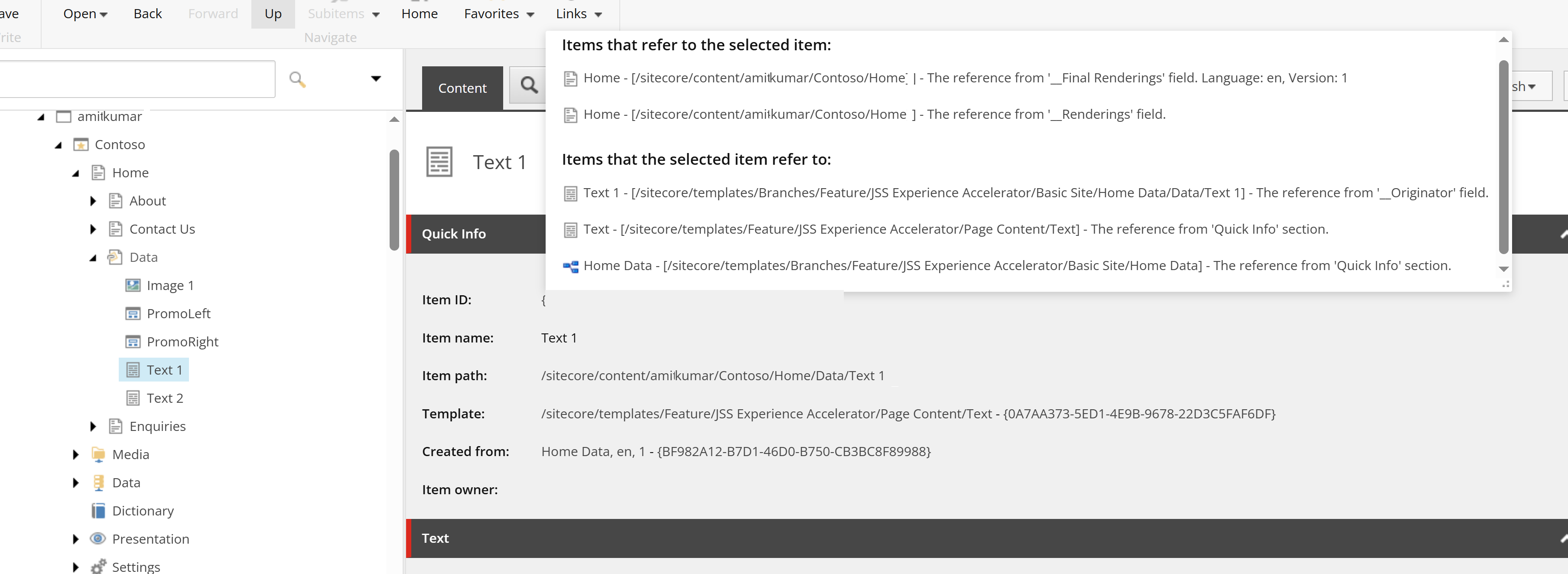
To check the item references for the datasource named Text 1 programmatically, execute the following GET request:
| Postman Property | Value |
|---|---|
| HTTP Method | GET |
| Request URL | {{baseUrl}}/api/v1/content/{{itemId}}/referrers |
| Query Params | site={{siteName}} (required), language=en |
| Headers | Authorization: Bearer {{jwt}} |
Postman API Response (HTTP 200 OK):
{
  "total_places": 1,
  "items": [
    {
      "id": "00000000-0000-0000-0000-000000000",
      "name": "Home",
      "path": "/sitecore/content/amitkumar/Contoso/Home",
      "via": "__Final Renderings",
      "kind": "page",
      "page_item_id": "00000000-0000-0000-0000-000000000",
      "page_url": "/"
    }
  ]
}
Read total_places, and never treat null as zero
total_places returns the complete count of references across the site, while items provides the actual array of referencing locations.
A null means the server could not answer. It does not mean “nothing references this”, so never read it as safe to delete.
When an AI assistant (such as Copilot Studio, Cursor, or VS Code) needs to check these dependencies, it invokes the corresponding get_content_references tool over JSON-RPC:
Marketer MCP Tool Prompt:
#get_content_references provide the Text1 item references from the contoso site
Marketer MCP Tool Response:
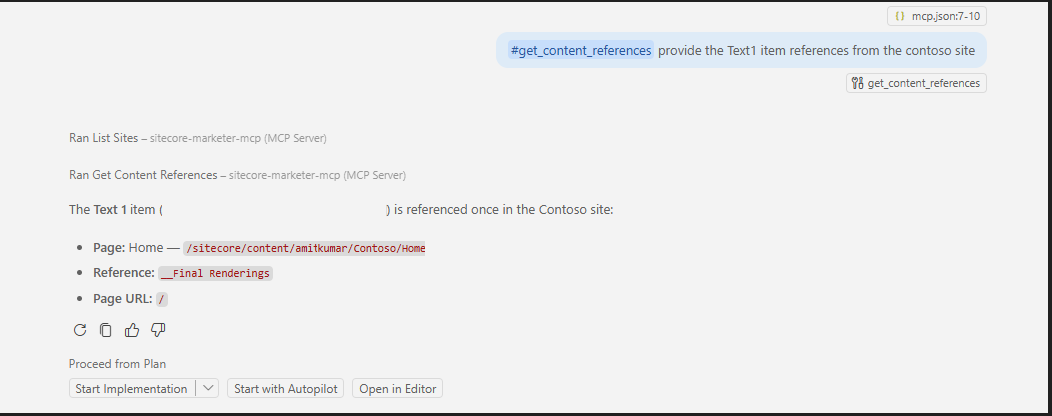
How They Work Together: MCP vs. Agent API
Key Difference: The Agent API gives you raw data for code and automation, while the Marketer MCP tool turns those details into a clear summary that an AI assistant can safely read and act on.
Rather than appending renderings blindly to the end of a layout or manually calculating zero-based presentation indexes, the add_component_on_page operation inserts components relative to existing elements using deterministic spatial anchors (before or after).
See It in SitecoreAI
Below is the current page structure in SitecoreAI before adding the new component:
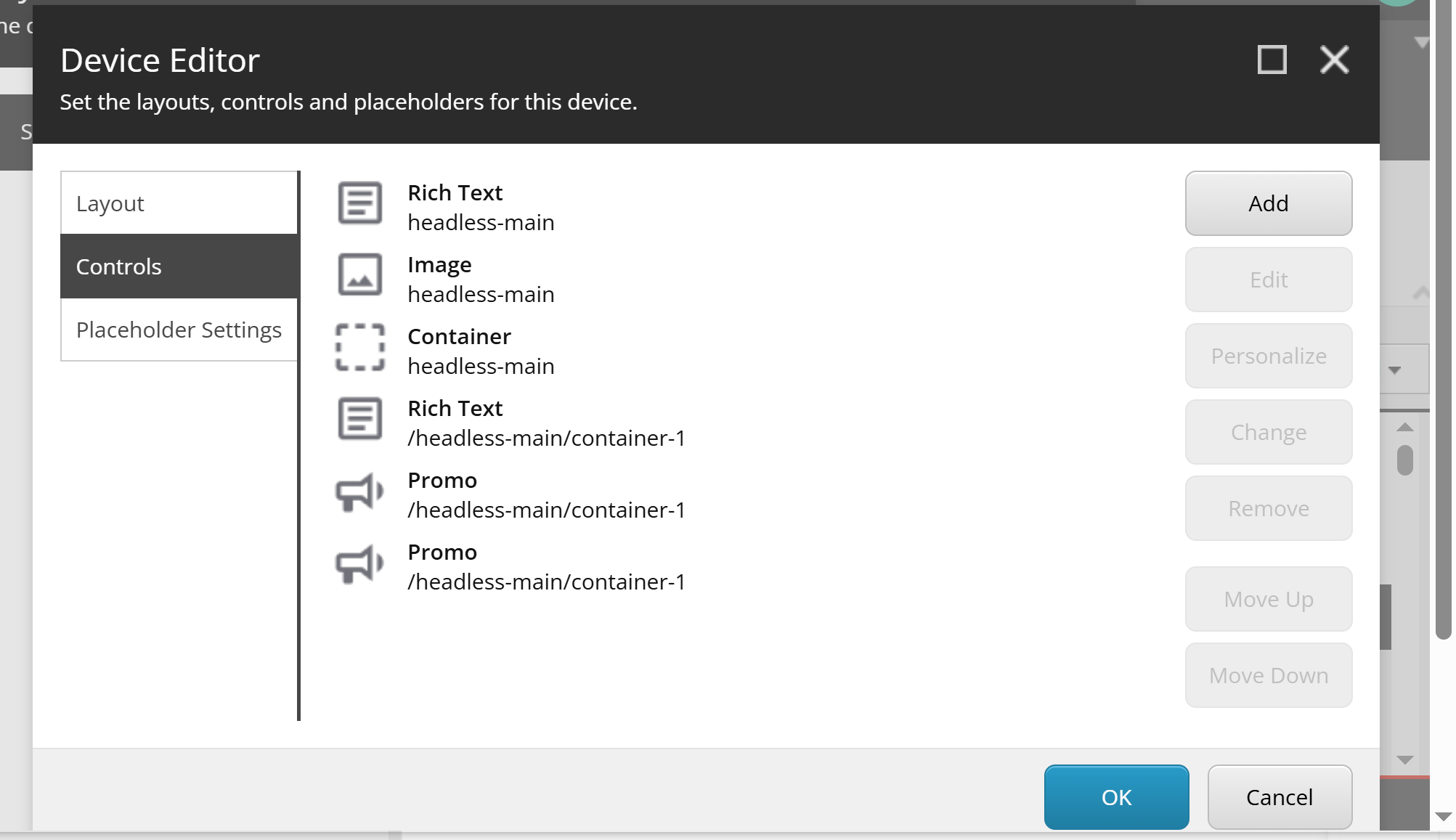
To add a component relative to another item (insertBeforeComponentId or insertAfterComponentId), you must provide the target element’s Component Instance ID (id). If this parameter is omitted, SitecoreAI appends the component to the very bottom of the placeholder.
You can retrieve the Component Instance ID in two ways:
- Via Sitecore Marketer MCP: Ask your AI assistant with an explicit prompt:
get list of components from page
/sitecore/content/amitkumar/Contoso/Homeand include the component instance IDs.
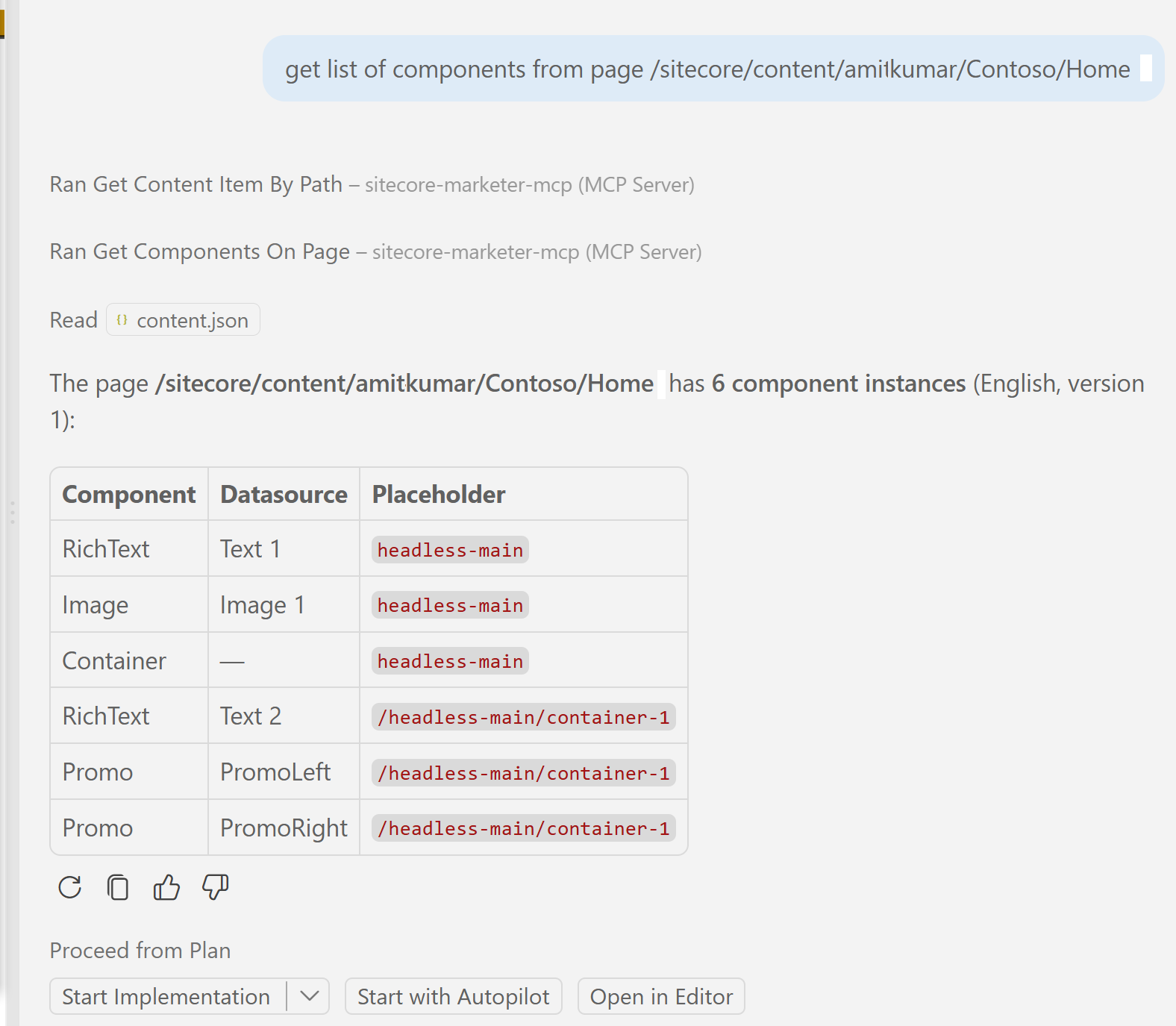
- Via SitecoreAI Agent API: Execute the deterministic
GETrequest below.
| Postman Property | Value |
|---|---|
| HTTP Method | GET |
| Request URL | https://edge-platform.sitecorecloud.io/stream/ai-agent-api/api/v1/pages/{{pageId}}/components |
| Query Params | language=en, version=1, variantId=00000000000000000000000000000001_00000000000000000000000000000002, includeRenderingDetails=true |
| Headers | Authorization: Bearer {{JWT_TOKEN}}x-sc-job-id: job-1234Accept: application/json |
cURL Equivalent:
curl -i -X GET \
  'https://edge-platform.sitecorecloud.io/stream/ai-agent-api/api/v1/pages/0000000000000000000000000000000/components?language=en' \
  -H 'Authorization: Bearer <YOUR_JWT_HERE>' \
  -H 'x-sc-job-id: job-1234'
Sample API Response (HTTP 200 OK):
{
  "pageId": "0000000000000000000000000000000",
  "pageName": "Home Page",
  "pagePath": "/sitecore/content/Home",
  "version": 1,
  "language": "en",
  "route": "/home",
  "layoutEditingKind": "Standard",
  "template": {
    "id": "0000000000000000000000000000000",
    "name": "Article Page"
  },
  "components": [
    {
      "id": "00000000-0000-0000-0000-000000000101",
      "componentId": "00000000-0000-0000-0000-000000000201",
      "componentName": "RichText",
      "dataSource": "local:/Data/Text 1",
      "dataSourceItem": {
        "itemId": "00000000-0000-0000-0000-000000000301",
        "name": "Text 1",
        "path": "/sitecore/content/Tenant/Site/Home/Data/Text 1",
        "template": "Text",
        "fields": {
          "Text": "<p>Enterprise-Grade Agility with SitecoreAI.</p>"
        }
      },
      "placeholder": "headless-main",
      "parameters": {
        "GridParameters": "{7465D855-992E-4DC2-9855-A03250DFA74B}",
        "FieldNames": "{F7E889BA-D657-4DB8-B1AD-F766AECC7074}",
        "Styles": "{BD396F09-FD42-4D60-B489-EFD70926B07A}"
      },
      "deviceId": "00000000-0000-0000-0000-000000000401",
      "layoutId": "00000000-0000-0000-0000-000000000501",
      "editable": true
    }
  ]
}
Identifying the Anchor Component
Key Finding: To insert your new component relative to an existing element, locate the target entry under components[] and copy its root id attribute (e.g., 00000000-0000-0000-0000-000000000101). Pass this value into insertBeforeComponentId or insertAfterComponentId when calling add_component_on_page - they are mutually exclusive, so you must choose only one anchor parameter, otherwise you will get error Value error, Provide only one of the insertBeforeComponentId or insertAfterComponentId
To add the component programmatically, dispatch a POST request to the SitecoreAI Agent API.
📮 Postman Configuration
| Configuration Property | Value / Setting | Description |
|---|---|---|
| HTTP Method | POST | Injects the component and creates its backing datasource item. |
| Request URL | https://edge-platform.sitecorecloud.io/stream/ai-agent-api/api/v1/pages/{{pageId}}/components | Layout mutation endpoint. |
Path Variable (pageId) | 0000000000000000000000000000000 | Unique identifier (GUID) of the target page. |
| Headers | Authorization: Bearer {{JWT_TOKEN}}Content-Type: application/jsonx-sc-job-id: job-add-sidebar-promo-001 | Bearer auth, JSON body header, and audit Job ID. |
| Body Format | raw ➡ JSON | All payload attributes belong in the body (do not put these in the Params tab). |
Request body (raw, JSON):
{
  "componentRenderingId": "86a03271-dff4-470a-92bd-b68c67de2e25",
  "placeholderPath": "headless-main",
  "componentItemName": "homePageRichText-1",
  "language": "en",
  "fields": {
    "Text": "<p>1-Your rich text content goes here.</p>"
  },
  "insertAfterComponentId": "9c6d53e3-fe57-4638-af7b-6d68304c7a94"
}
Sample API Response (HTTP 201 Created):
A successful call returns 201 with componentId, pageId, placeholderId and, where relevant, datasourceId (The datasource item would be created as local item). Keep that componentId, because the move and remove calls need it. If you followed my previous VS Code integration article
, the structure is identical except for the new spatial before/after anchor.
{
  "componentId": "00000000-0000-0000-0000-000000000101",
  "pageId": "00000000-0000-0000-0000-000000000002",
  "placeholderId": "headless-main",
  "datasourceId": "00000000-0000-0000-0000-000000000301"
}
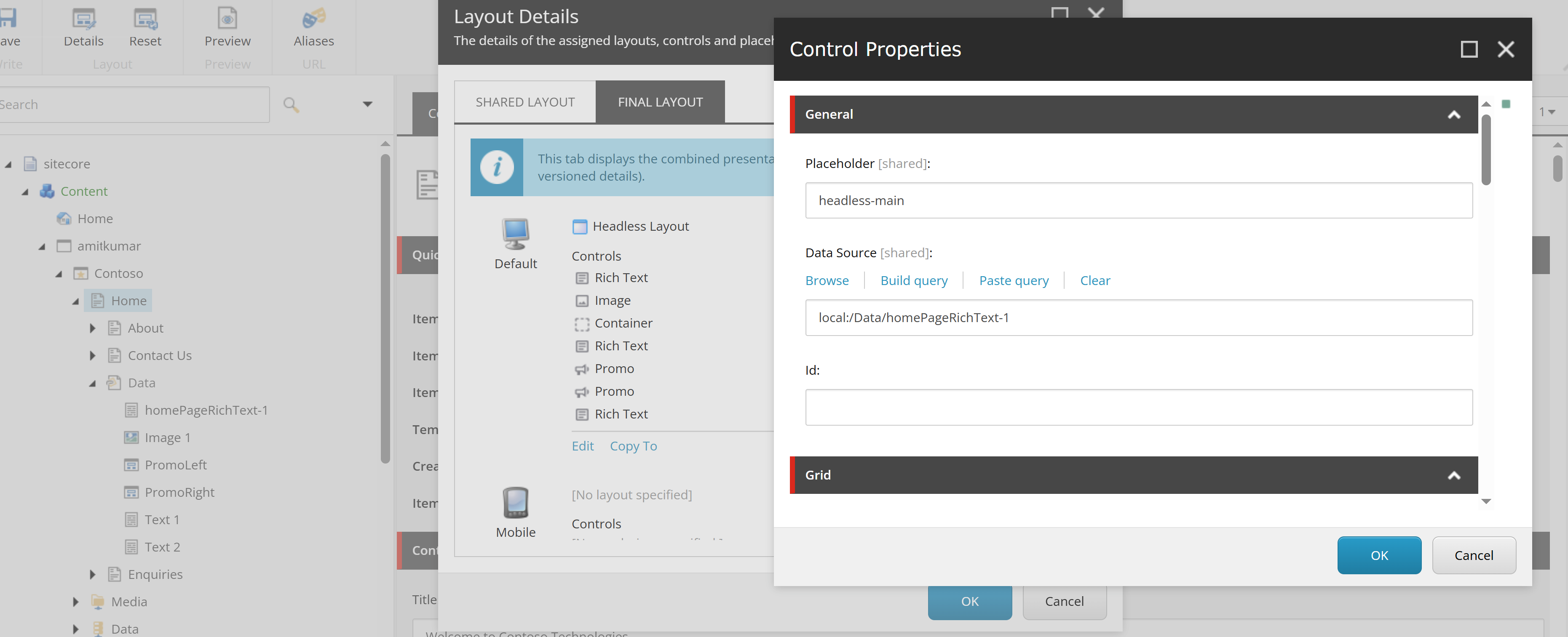
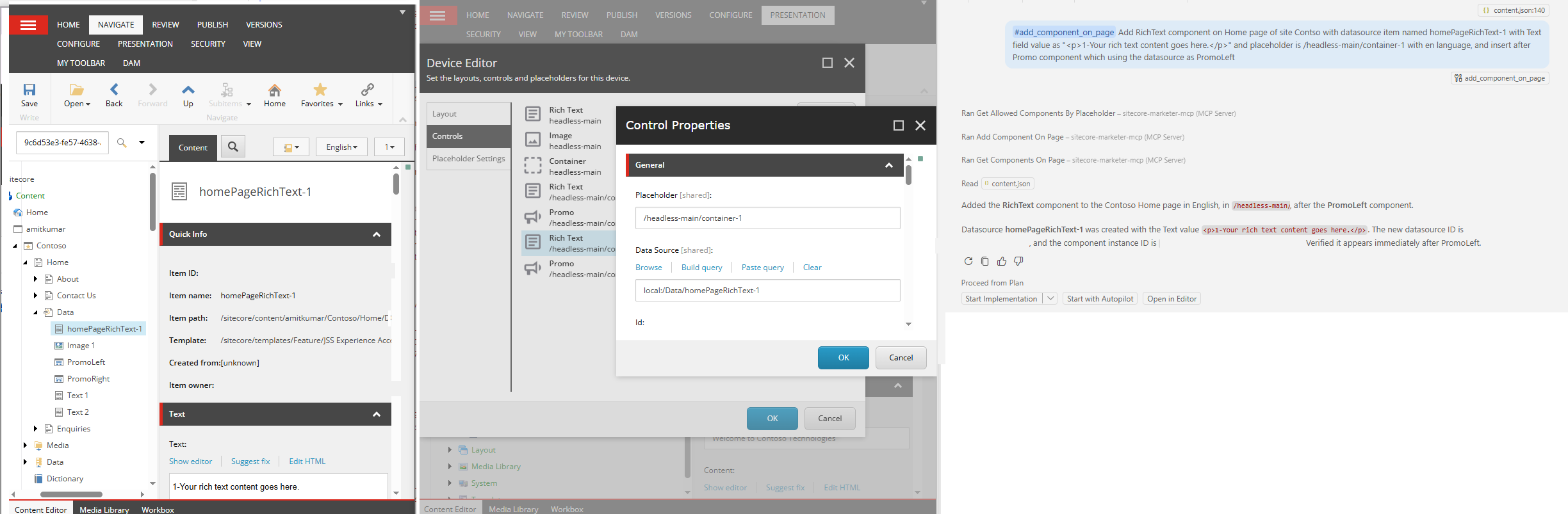
When an autonomous AI agent in Copilot Studio, Cursor, or VS Code executes this step, it invokes the corresponding add_component_on_page tool over JSON-RPC:
Marketer MCP Tool Prompt:
#add_component_on_page Add RichText component on Home page of site Contso with datasource item named homePageRichText-1 with Text field value as "<p>1-Your rich text content goes here.</p>" and placeholder is headless-main with en language, and insert after Promo component which using the datasource as PromoLeft
Marketer MCP Tool Response:
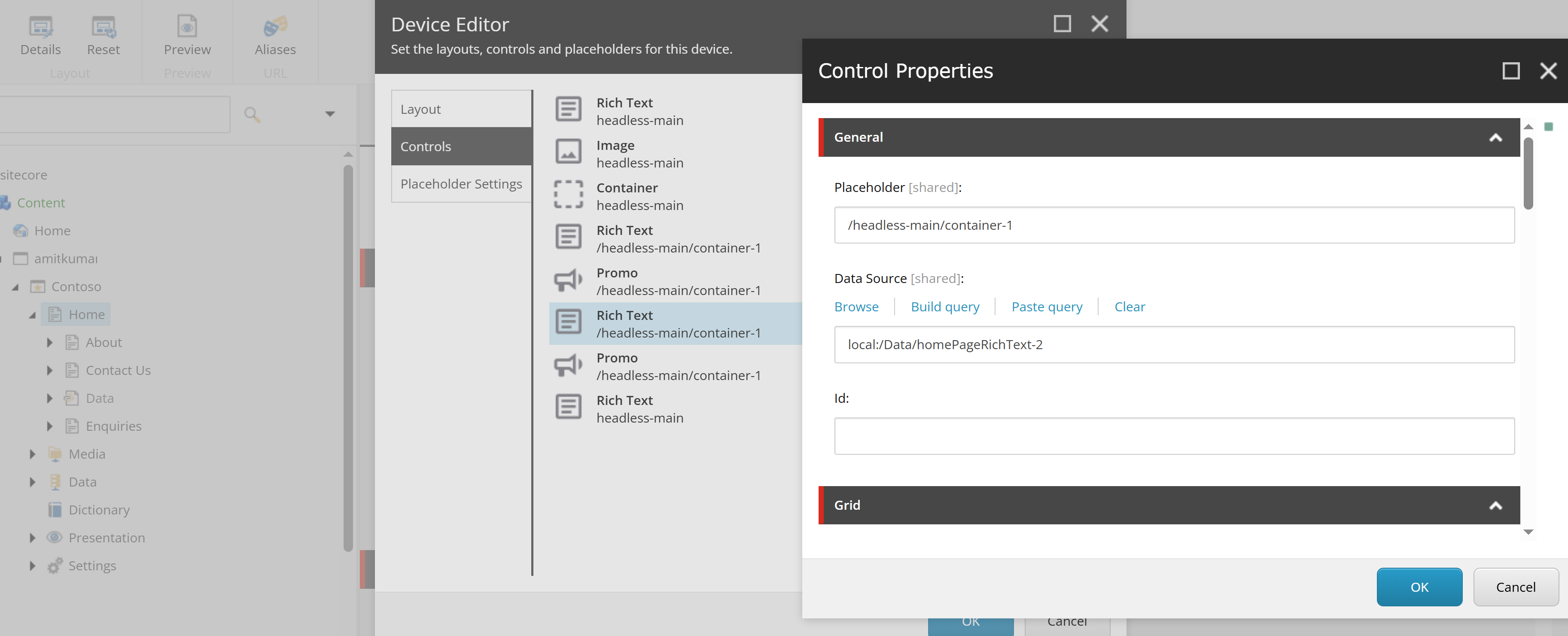
The move_component_on_page operation repositions an existing component instance on the base page layout between compatible, editable placeholders.
How to Get the Component Instance IDs
Anchor & Target Identification:
To move a component, you need both the target component instance ID (the item being moved) and the anchor component instance ID (insertAfterComponentId or insertBeforeComponentId).
You can retrieve these instance IDs by following the Add a Component Before or After Another section above using the SitecoreAI Agent API endpoint (Retrieve components on a page) or by asking the Sitecore Marketer MCP tool:
get the list of components from page
/sitecore/content/amitkumar/Contoso/Homeand include the component instance IDs.
To move the component programmatically, dispatch a PATCH request to update its layout position:
| Postman Property | Value |
|---|---|
| HTTP Method | PATCH |
| Request URL | {{baseUrl}}/api/v1/pages/{{pageId}}/components/{{componentId}}/position |
| Headers | Authorization: Bearer {{jwt}}x-sc-job-id: {{jobId}}Content-Type: application/json |
Request Body (raw ➡ JSON):
{
  "targetPlaceholderPath": "/headless-main/container-1",
  "insertBeforeComponentId": "3a6f45e9-9459-42d1-981f-0f2c97404bbd",
  "language": "en"
}
cURL Equivalent:
curl -i -X PATCH \
  'https://edge-platform.sitecorecloud.io/stream/ai-agent-api/api/v1/pages/00000000-0000-0000-0000-000000000/components/00000000-0000-0000-0000-000000000101/position' \
  -H 'Authorization: Bearer <YOUR_JWT_HERE>' \
  -H 'x-sc-job-id: job-1234' \
  -H 'Content-Type: application/json' \
  -d '{
    "targetPlaceholderPath": "/headless-main/container-1",
    "insertBeforeComponentId": "3a6f45e9-9459-42d1-981f-0f2c97404bbd",
    "language": "en"
  }'
API Response Status Codes
| Status | Meaning |
|---|---|
| 200 | Moved. |
| 400 | Invalid move, or the target placeholder constraints were not met. |
| 404 | The page, component instance or anchor was not found. |
| 403 | Your role cannot update this page. |
Sample Response Payload (HTTP 200 OK):
{
  "success": true,
  "pageId": "00000000-0000-0000-0000-000000000",
  "componentInstanceId": "00000000-0000-0000-0000-000000000101",
  "sourcePlaceholderPath": "/headless-main",
  "targetPlaceholderPath": "/headless-main/container-1"
}
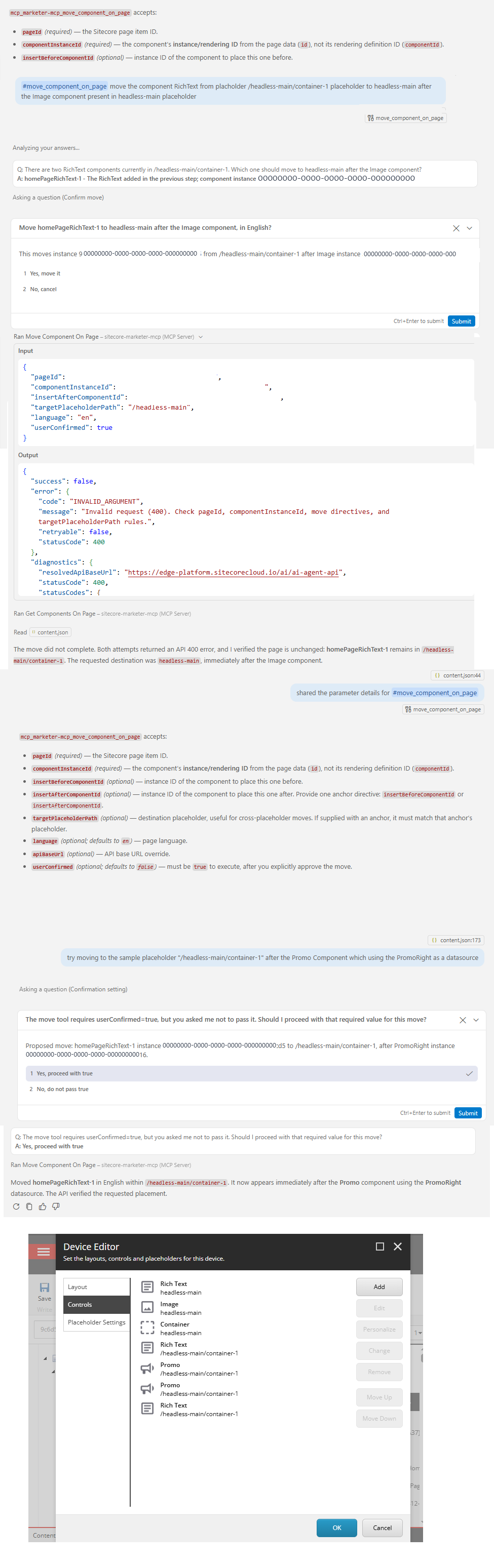
When an AI assistant (such as Copilot Studio, Cursor, or VS Code) repositions components on your behalf, it executes the equivalent move_component_on_page tool over JSON-RPC:
Marketer MCP Tool Prompt:
#move_component_on_page move the component RichText from placholder headless-main/container-1 placeholder to headless-main after the Image component present in headless-main placeholder
Marketer MCP Tool Response:
Real-World Gotcha: Cross-Placeholder Moves
A Lesson from Hands-On Testing:
While testing move_component_on_page in the Marketer MCP tool, I attempted to move a component out of a nested container (headless-main/container-1) up to the root placeholder (headless-main).
Even though all parameter values were correctly defined, the tool returned an error and blocked the move. To get the operation to succeed, I kept the move scoped within the exact same placeholder (headless-main/container-1).
If you encounter unexpected errors when moving components, keep your reordering confined to the same placeholder scope.
Error Details:
{
  "success": false,
  "error": {
    "code": "INVALID_ARGUMENT",
    "message": "Invalid request (400). Check pageId, componentInstanceId, move directives, and targetPlaceholderPath rules.",
    "retryable": false,
    "statusCode": 400
  },
  "diagnostics": {
    "resolvedApiBaseUrl": "https://edge-platform.sitecorecloud.io/ai/ai-agent-api",
    "statusCode": 400,
    "statusCodes": {
      "preCheck": 200,
      "move": 400,
      "postCheck": null
    },
    "retryCount": 0
  }
}
{
  "success": false,
  "error": {
    "code": "INVALID_ARGUMENT",
    "message": "Invalid request (400). Check pageId, componentInstanceId, move directives, and targetPlaceholderPath rules.",
    "retryable": false,
    "statusCode": 400
  },
  "diagnostics": {
    "resolvedApiBaseUrl": "https://edge-platform.sitecorecloud.io/ai/ai-agent-api",
    "statusCode": 400,
    "statusCodes": {
      "preCheck": 200,
      "move": 400,
      "postCheck": null
    },
    "retryCount": 0
  }
}
Why Both Matter: MCP vs. Agent API
Real-World Purpose: Use the Agent API when scripting repeatable pipelines that need exact JSON status codes. Use the Marketer MCP tool when an AI assistant is guiding the changes, as it summarizes the risks and asks for confirmation before altering live layouts.
The delete_content operation permanently deletes a content or datasource item. Beyond simply deleting the record, it provides governance telemetry by reporting downstream layout impacts, affected components, and active A/B experiments.
Locating Content and Component IDs
Reusing Identified Identifiers:
To delete a datasource safely, supply the target item’s GUID (itemId).
If the response indicates unremoved component references, you can retrieve the corresponding instance IDs by following the Add a Component Before or After Another section above (Retrieve components on a page) or by asking the Marketer MCP tool:
“Get the list of components from page
/sitecore/content/amitkumar/Contoso/Homeand include the component instance IDs.”
You can then use those IDs directly inremove_component_on_pageto clean up remaining layout bindings.
To execute the deletion programmatically, dispatch a
DELETE request to the SitecoreAI Agent API:| Postman Property | Value |
|---|---|
| HTTP Method | DELETE |
| Request URL | https://edge-platform.sitecorecloud.io/stream/ai-agent-api/api/v1/content/{{itemId}} |
| Query Params | remove_references=true (optional) |
| Headers | Authorization: Bearer {{jwt}}x-sc-job-id: {{jobId}}Accept: application/json |
cURL Equivalent:
curl -i -X DELETE \
  'https://edge-platform.sitecorecloud.io/stream/ai-agent-api/api/v1/content/00000000-0000-0000-0000-000000000301?remove_references=false' \
  -H 'Authorization: Bearer <YOUR_JWT_HERE>' \
  -H 'x-sc-job-id: job-1234'
Deletion covers every language
Deleting a content item removes it across all language versions.
The language parameter does not limit deletion to a single language version, so plan your cleanup operations accordingly.
API Response Status Codes
| Status | Meaning |
|---|---|
| 200 OK | Content deleted successfully and impact report returned. |
| 400 Bad Request | Invalid item ID format or reference cascade violation. |
| 404 Not Found | The specified content item was not found. |
| 403 Forbidden | Your role or credentials lack permission to delete this content item. |
Sample Response Payload (HTTP 200 OK):
{
  "success": true,
  "deletedId": "00000000-0000-0000-0000-000000000301",
  "affectedComponents": [
    {
      "pageId": "00000000-0000-0000-0000-0000000003017",
      "pageName": "Home",
      "componentId": "00000000-0000-0000-0000-000000000101",
      "componentRenderingId": "00000000-0000-0000-0000-0000000001014",
      "placeholderKey": "/headless-main/container-1",
      "language": "en",
      "removed": false,
      "error": null
    }
  ],
  "affectedExperiments": []
}
Response Payload Breakdown: delete_content
Understanding the Impact Report:
The response payload returns deletedId, affectedComponents, and affectedExperiments. Each record inside the affectedComponents array provides granular layout context: pageId, pageName, componentId, placeholderKey, language, and the removed boolean flag.
- Always Populated:
The
affectedComponentsarray is returned on every call, regardless of whetherremove_referenceswas set totrueorfalse. - Active Cascade Flag:
The
removedattribute evaluates totrueonly when the engine's cascading routine actively detached the rendering from the layout. - Actionable Cleanups:
The returned
componentIdmatches the exact instance ID required byremove_component_on_page, allowing you to clean up any leftover bindings deterministically.
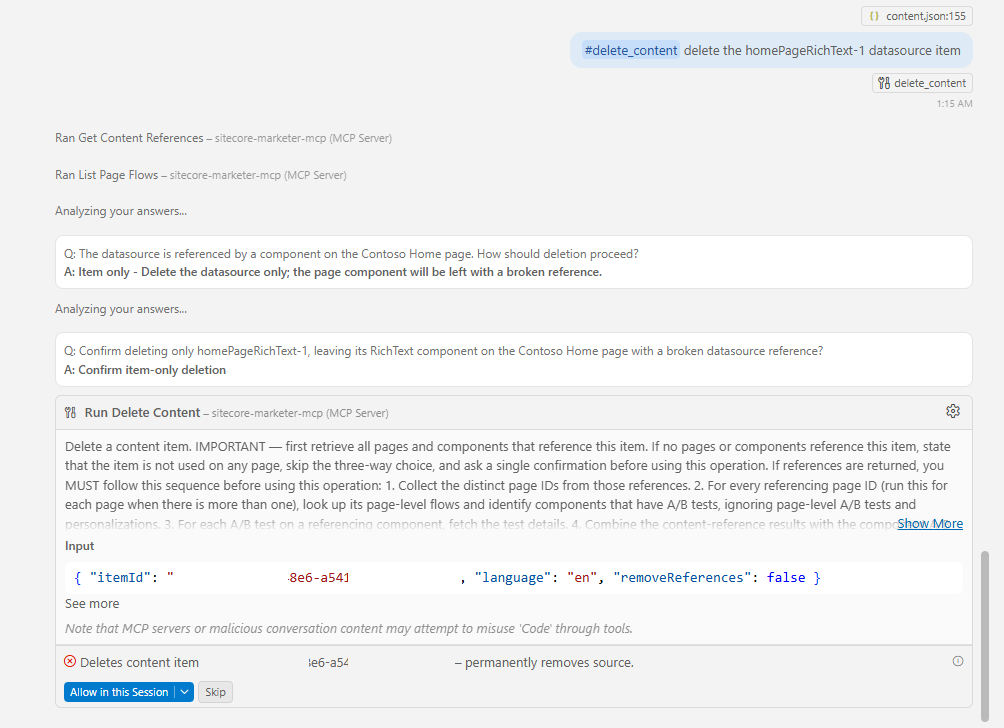
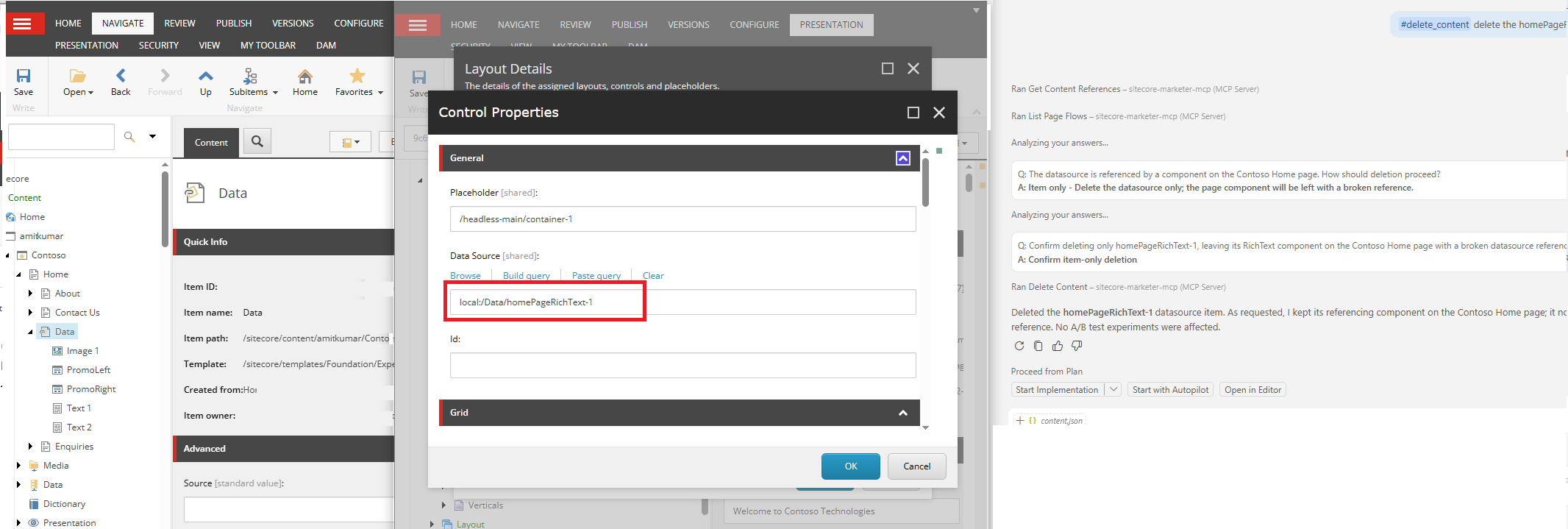
When an AI assistant (such as Copilot Studio, Cursor, or VS Code) deletes content on your behalf, it executes the corresponding delete_content tool over JSON-RPC:
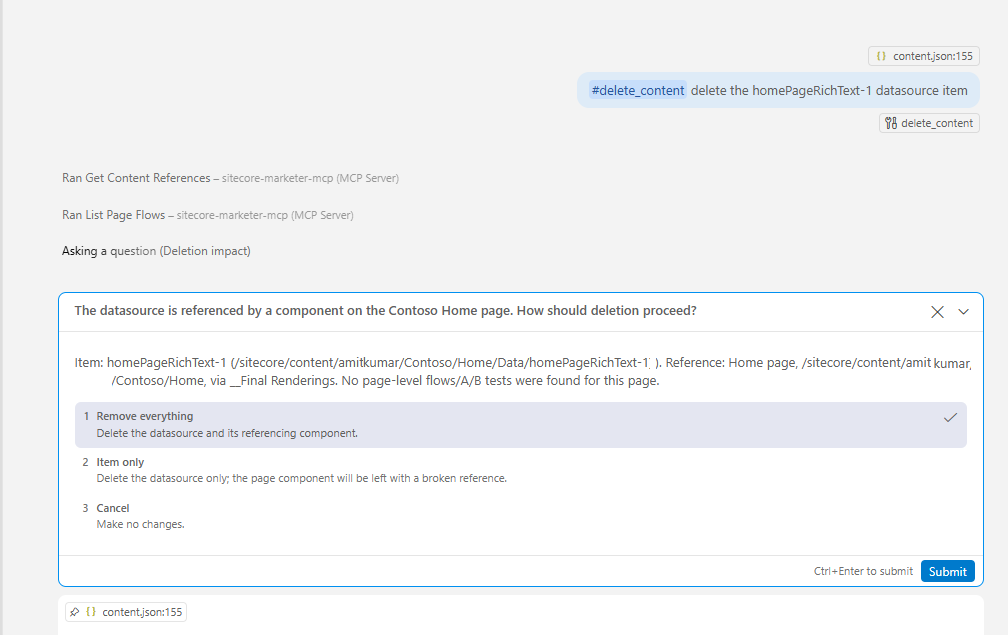
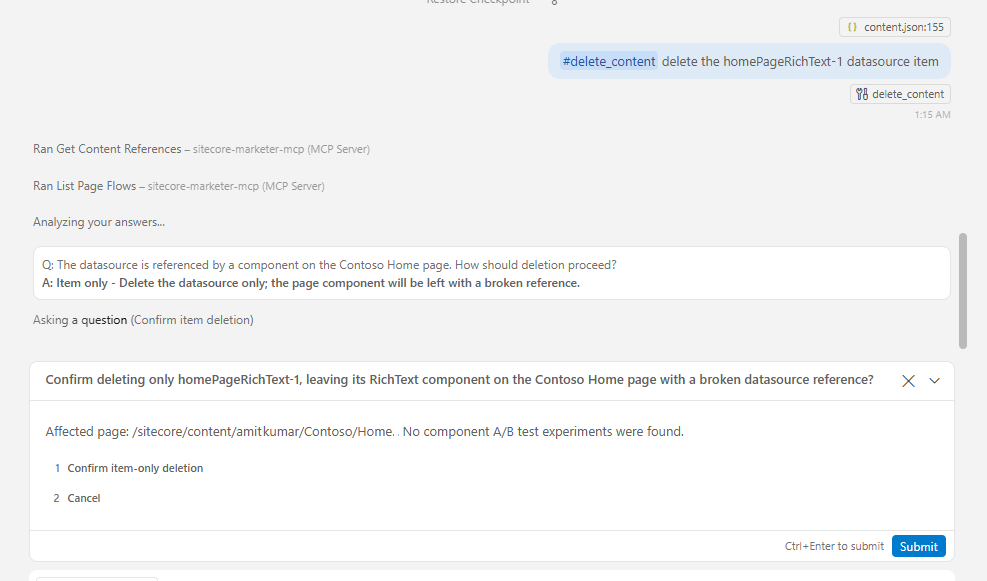
Marketer MCP Tool Prompt:
#delete_content delete the homePageRichText-1 datasource item
Marketer MCP Tool Response:
The remove_component_on_page operation removes a component instance from a page layout.
Unlike a destructive delete that fails if dependencies are active, this endpoint incorporates a governance safeguard: instead of failing the request, it completes the removal and returns an affectedExperiments report so you can review any impacted A/B/n tests.
Locating the Component Instance ID
Retrieving the Target ID:
To remove a component, you need its root componentId (the instance ID). Retrieve it by following the Add a Component Before or After Another section above using the Agent API (Retrieve components on a page) or by prompting the Marketer MCP tool:
“Get the list of components from page /sitecore/content/Tenant/Site/Home and include component instance IDs."
To remove the component programmatically, dispatch a DELETE request to the layout components endpoint:
| Postman Property | Value |
|---|---|
| HTTP Method | DELETE |
| Request URL | {{baseUrl}}/api/v1/pages/{{pageId}}/components/{{componentId}} |
| Headers | Authorization: Bearer {{jwt}}x-sc-job-id: {{jobId}}Accept: application/json |
cURL Equivalent:
curl -i -X DELETE \
  'https://edge-platform.sitecorecloud.io/stream/ai-agent-api/api/v1/pages/00000000-0000-0000-0000-000000000002/components/00000000-0000-0000-0000-000000000101?language=en' \
  -H 'Authorization: Bearer <YOUR_JWT_HERE>' \
  -H 'x-sc-job-id: job-1234'
API Response Status Codes
| Status | Meaning |
|---|---|
| 200 OK | Content deleted successfully and impact report returned. |
| 400 Bad Request | Invalid item ID format or reference cascade violation. |
| 404 Not Found | The specified content item was not found. |
| 403 Forbidden | Your role or credentials lack permission to delete this content item. |
Sample Response Payload (HTTP 200 OK):
{
  "success": true,
  "removedComponentId": "00000000-0000-0000-0000-00000000030171",
  "affectedExperiments": []
}
The Silent A/B Gotcha: Always Read the Response
Removing a component does not fail if an experiment is active!
Where traditional APIs might throw a 409 Conflict or block deletion, the Agent API removes the rendering and returns an HTTP 200 OK with the details in affectedExperiments.
If your CI/CD pipelines or automated scripts delete layout elements, you must actively parse the response payload to ensure you are not invalidating live optimization tests.
When an AI assistant (such as GitHub Copilot, Cursor, or Claude Desktop) removes components, it invokes the remove_component_on_page tool over standard JSON-RPC.
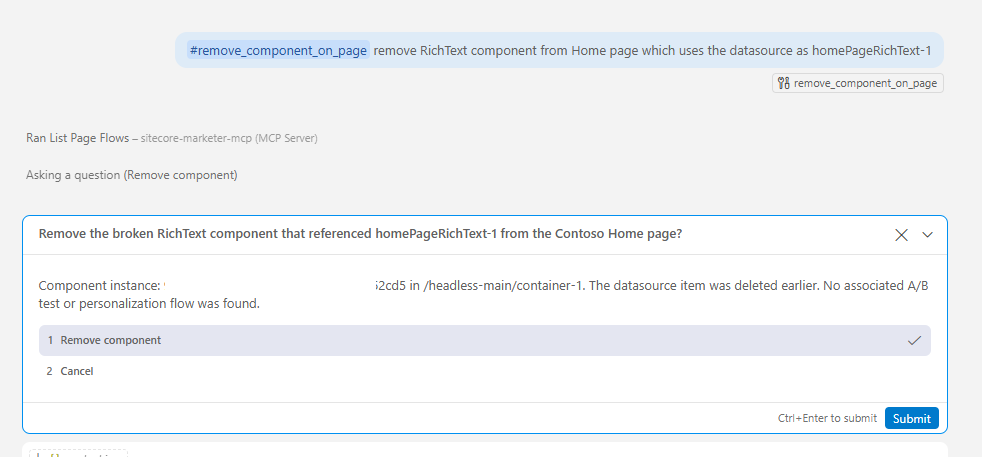
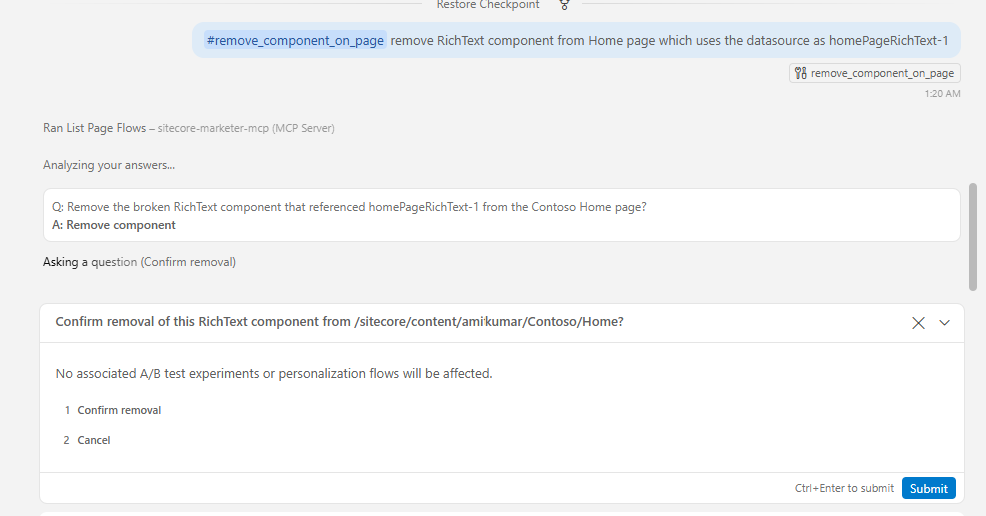
Unlike direct REST API calls, the Marketer MCP tool evaluates the blast radius first—detecting any active A/B experiments and prompting the user for explicit confirmation before altering the layout.
Marketer MCP Tool Prompt:
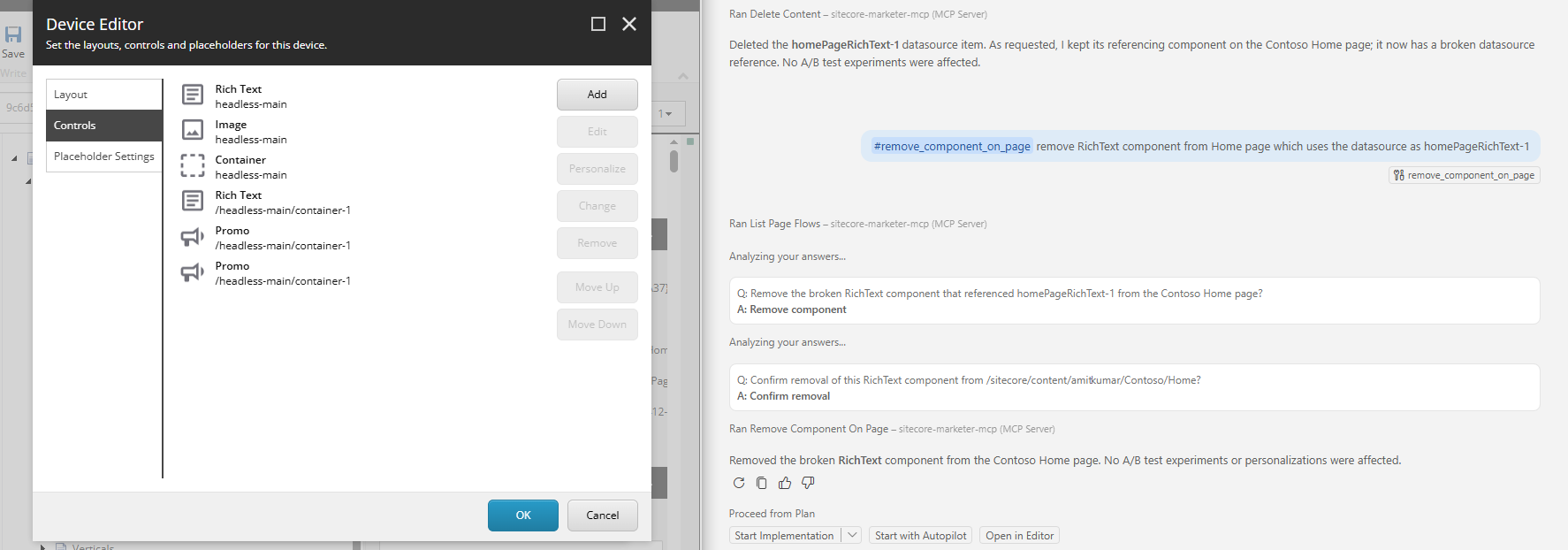
#remove_component_on_page remove RichText component from Home page which uses the datasource as homePageRichText-1
Marketer MCP Tool Response:
🧩 Mutations vs. Cascade:
Removing a component only deletes the presentation rendering reference from the page layout delta (final layout). It does not delete the underlying datasource item-use delete_content (covered above) if you want to eliminate the content item as well.🛡️ Safe A/B Testing Governance:
Both the Agent API and Marketer MCP surface affectedExperiments directly in the response payload instead of aborting the operation with a4xxerror code.🤖 MCP Interactive Safety:
In conversational AI tooling (Cursor, VS Code, Copilot Studio), the MCP server intercepts the call to confirm the removal with the marketer before committing changes to the layout.
| Purpose | Request |
|---|---|
| List what the job did | GET {{baseUrl}}/api/v1/jobs/{{jobId}}/operations |
| Undo the job | POST {{baseUrl}}/api/v1/jobs/{{jobId}}/revert |
The operations call lists each action with its type, status and timestamps. The revert call restores the state before the job ran.
Your safety net
Send the same x-sc-job-id on every related call and you get one revert for the whole change.
This is what makes the rest of this guide reasonable to try on a real tenant.
- 📖 Read before you write: call the referrers endpoint before any delete, and
get_components_on_pagebefore any move so you have real instance IDs. - 🧾 One job ID per logical change: several related calls under one ID means one revert.
- 📍 Prefer anchors to guesses: pass
insertBeforeComponentIdorinsertAfterComponentIdrather than relying on whatever order the page has today. - 📝 Log the response, not just the status:
affectedExperimentsandaffectedComponentsare the real result. - 🧪 Rehearse in a non-production site first: all Agent API requests run against your production environment.
| Pitfall | What Actually Happens |
|---|---|
| Assuming a 409 will stop you | The documented remove response is a 200 with experiment details, not a conflict. Don’t build an agent that relies on being blocked. |
| Mixing up IDs | componentId in remove is the component instance ID, not the rendering ID or datasource ID. |
| Reading null as zero | In the referrers response, total_places: null means unknown. |
| Moving variant content | The move endpoint documents the base page layout, so don’t assume it edits personalization or A/B variants. |
| Forgetting all-language deletion | Delete removes every language version. |
| Placeholder path format | The docs show paths like /main/content with a leading slash, while some older payloads used headless-main. Copy the format from get_components_on_page. |
The Marketer MCP server rate limit is documented as 50 requests per 10 seconds
, so a bulk job that touches hundreds of pages needs throttling. In Postman, use the Collection Runner with a delay between requests. For scripts, batch by page and back off when throttled. The referrers items list is capped, so for impact reports rely on total_places and walk your page list separately.
Rate limit
50 requests per 10 seconds on the Marketer MCP server.
Plan bulk SitecoreAI layout jobs around it.
- 🔑 Protect the client secret: use a secret-type Postman variable or a vault, never a shared collection.
- 🛡️ Permissions still apply: the Agent API follows SitecoreAI’s built-in security and approval rules, and an AI client does not get extra access.
- ♻️ Scope and rotate credentials: create automation credentials for a specific purpose.
- 👀 Review before publishing: layout changes through the API are still changes to your content, subject to your workflow and publishing process.
| Symptom | Likely Cause And Fix |
|---|---|
| 401 Unauthorized | The JWT likely expired. Request a new one. |
| 403 | Your role cannot update that page or item. |
| 404 on move | The page, component instance or anchor was not found. Re-fetch the page components. |
| 400 on move | The target placeholder does not allow that component. Check the allowed components for the placeholder. |
| 422 | A field is missing or malformed. The error detail array points to the field. |
| New tools missing in your MCP client | Confirm you are signed in to the right tenant, refresh the connection, and check your role has access to the tools. |
Say a seasonal banner is ending and you want it gone from every SitecoreAI page that uses it.
- Create a job ID, for example
retire-fall-promo-2026. - Call the referrers endpoint for the banner datasource. Read
total_placesand thepage_urlof each referrer. - Remove the banner on each referencing page, passing the same job ID. Log every
affectedExperimentsentry, because this is where you find the A/B test still pointing at it. - Delete the datasource, using
remove_references=trueonly if you want the cascade. ReadaffectedComponentsfor anyremoved: falseleftovers. - Revert if needed. If something looks wrong, call the revert endpoint for the job ID and start again.
That is the same sequence an agent would follow through the MCP tools, only now you can see every step.
The October 12 update makes SitecoreAI page editing through the Agent API and Marketer MCP much more precise. You can anchor components before or after others, move them, see what references an item before deleting it, and revert a whole job if an agent gets it wrong.
The one thing to remember
The A/B test information in the REST responses is a report, not a block.
Read affectedExperiments every time, and lean on the job ID and revert endpoint as your safety net.
- Build the Postman collection above against a non-production SitecoreAI site.
- Run the retire-a-banner scenario end to end, including a revert.
- Check your MCP client lists the five tools, and test how it handles the confirmation step.
- Add a throttle to any bulk script.
If this saved you time, share it with your SitecoreAI team, and tell me which scenario you would like next. You can browse more in the MCP article series and follow along for the next SitecoreAI release breakdown.