


Connecting SitecoreAI with Microsoft Dataverse: Authentication & Access Configuration
How to Connect SitecoreAI with Microsoft Dataverse: Authentication Guide & Best Practices
 Written by Amit Kumar
Posted on June 30, 2026 • 7 minutes • 1439 words
This article is part of a series.
- Part 1
- Part 2Connecting SitecoreAI with Microsoft Dataverse: Authentication & Access Configuration
- Part 3
- Part 4
- Part 5
Table of contents
- 📊 Introduction
- 🔐 Understanding Dataverse Authentication
- Why Service Principal Over User Credentials?
- Step 1: Create Azure AD App Registration
- Step 2: Create Client Secret or Certificate
- Step 3: Grant Dataverse Access to Service Principal
- Step 4: Determine Required Access Level
- Step 5: Build Dataverse Connection String
- Step 6: Implement Connection in .NET
- Step 7 Verify Connection
- 🐞 Troubleshooting Common Issues
- 👣 Next Steps
- 🧾Credit/References
In the first part of our SitecoreAI and Microsoft Dataverse integration series , we explored the foundational concepts and architecture. Now, let’s dive into the practical aspects of establishing a secure connection between your SitecoreAI (XM Cloud) application and Microsoft Dataverse .
Authentication serves as the foundation for every integration. When linking SitecoreAI to Dataverse, it’s essential to configure your .NET application to securely call Dataverse APIs while upholding enterprise security and compliance requirements. This guide provides a step-by-step overview of authentication options, necessary permissions, and suggested approaches for establishing reliable connections.
What You’ll Learn:
- Authentication options for Dataverse (Service Principal vs. User credentials)
- Setting up Azure AD App Registration
- Configuring service principal permissions in Dataverse
- Building secure connection strings
- Implementing connection code in .NET
- Best practices for credential management
Microsoft Dataverse supports multiple authentication methods, but for server-to-server integration with SitecoreAI, Microsoft Entra ID (formerly Azure AD) Service Principal authentication is the recommended approach.
Why Service Principal Over User Credentials?
| Authentication Method | Use Case | Pros | Cons |
|---|---|---|---|
| Service Principal (App Registration) | Server-to-server, automated workflows | No user interaction, Scalable, Auditable,Doesn’t expire with user | Requires Azure AD admin access |
| User Credentials (OAuth 2.0) | Interactive applications, Power Apps | User-specific permissions, Easy for testing | Requires user sign-in, Not suitable for automation |
| Client Secret | Development/testing | Quick setup | Less secure than certificates, Manual rotation |
| Certificate-Based | Production environments | Most secure, Recommended for prod | Requires certificate management |
For SitecoreAI integration, we recommend:
- Development/Testing: Service Principal with Client Secret
- Production: Service Principal with Certificate
Step 1: Create Azure AD App Registration
An App Registration in Azure AD serves as the identity for your SitecoreAI application when connecting to Dataverse.
1.1 Navigate to Azure Portal
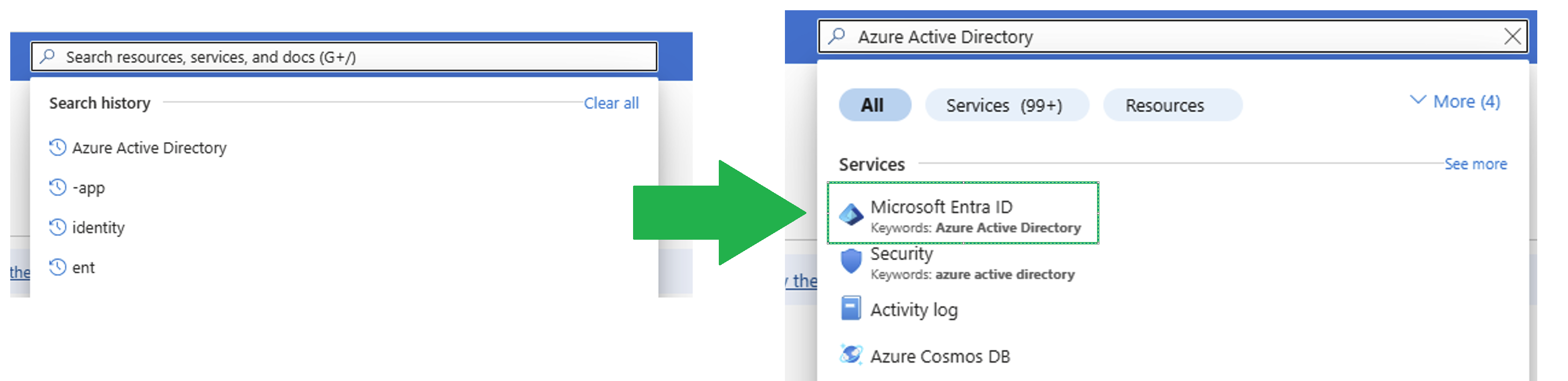
Go to Azure Portal
Search for Azure Active Directory
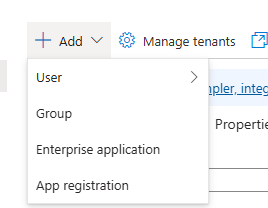
- Select App registrations ➡ New registration
1.2 Register Your Application
Configuration:
Name: SitecoreAI-Dataverse-Connector
Supported account types: Accounts in this organizational directory only (Single tenant)
Redirect URI: Leave blank (server-to-server integration)
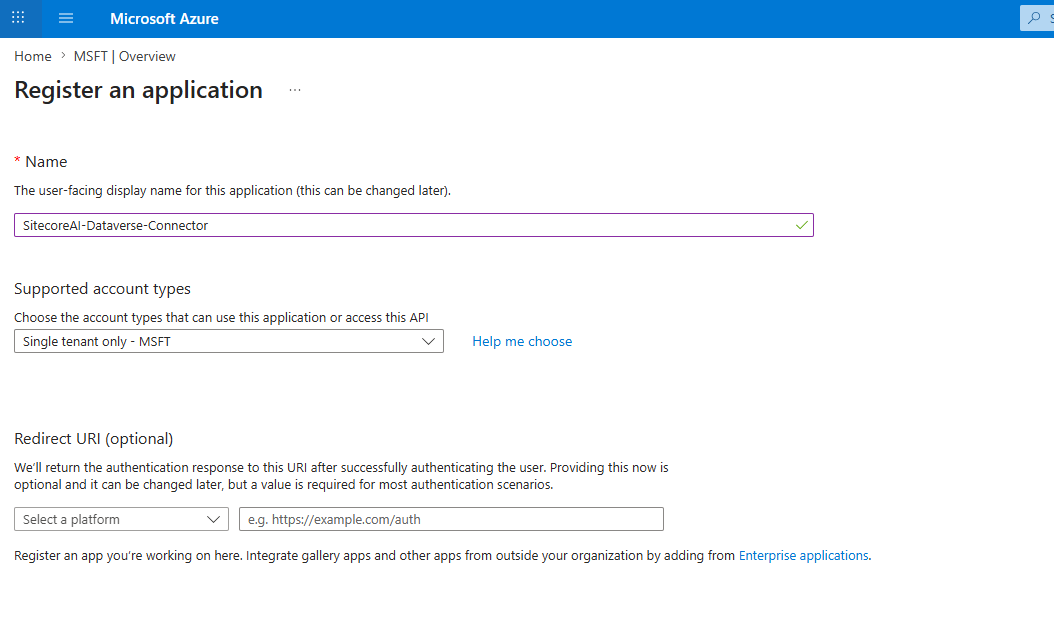
Click “Register”
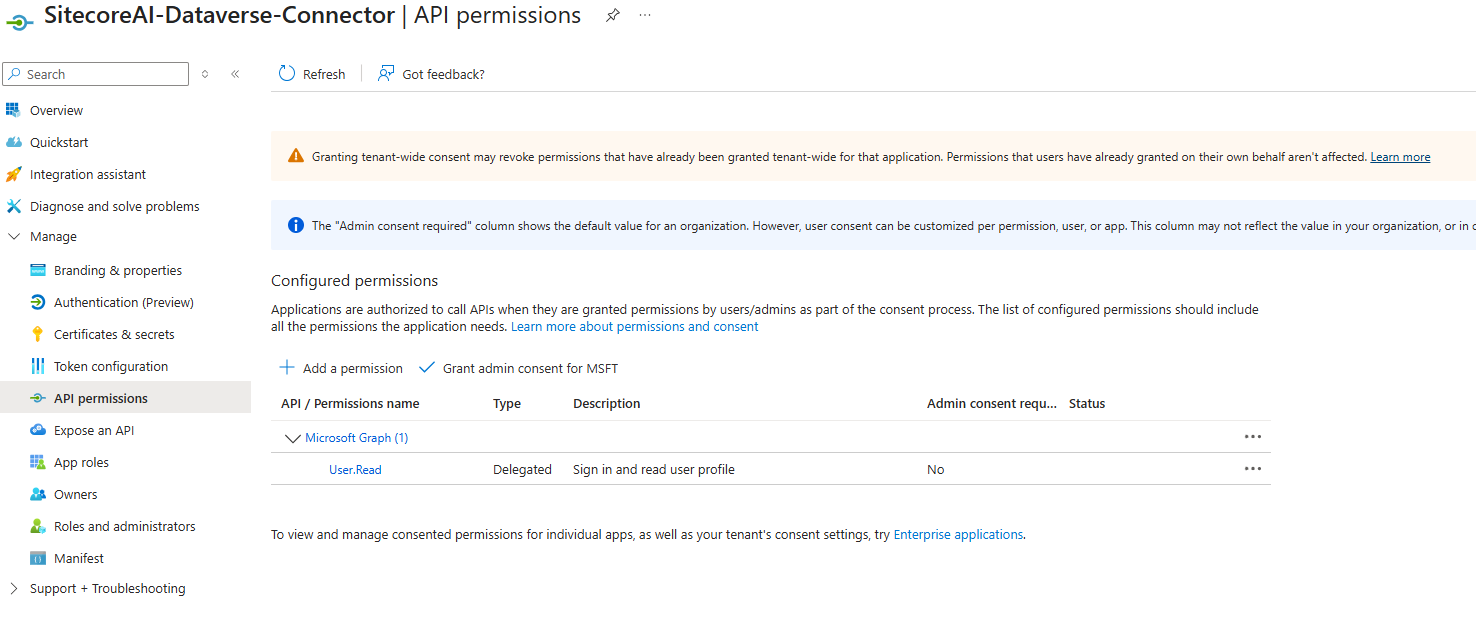
API Permission to read
1.3 Note Critical Information
After registration, record these values (you’ll need them later):
- Application (client) ID
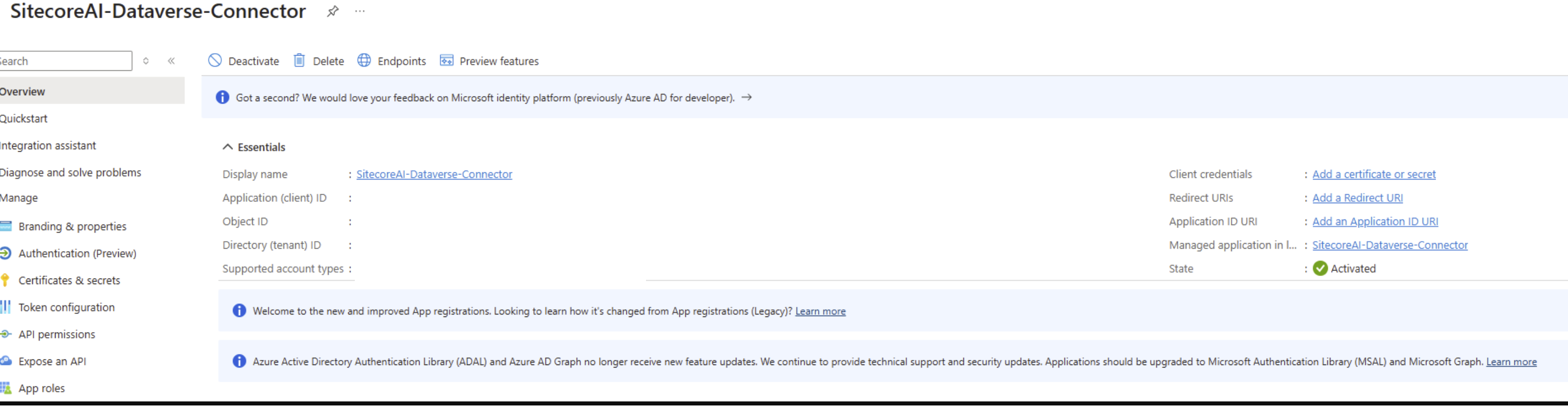
An App Registration in Azure AD serves as the identity for your SitecoreAI application when connecting to Dataverse.
Option A: Client Secret (Development)
- In your App Registration, go to Certificates & secrets
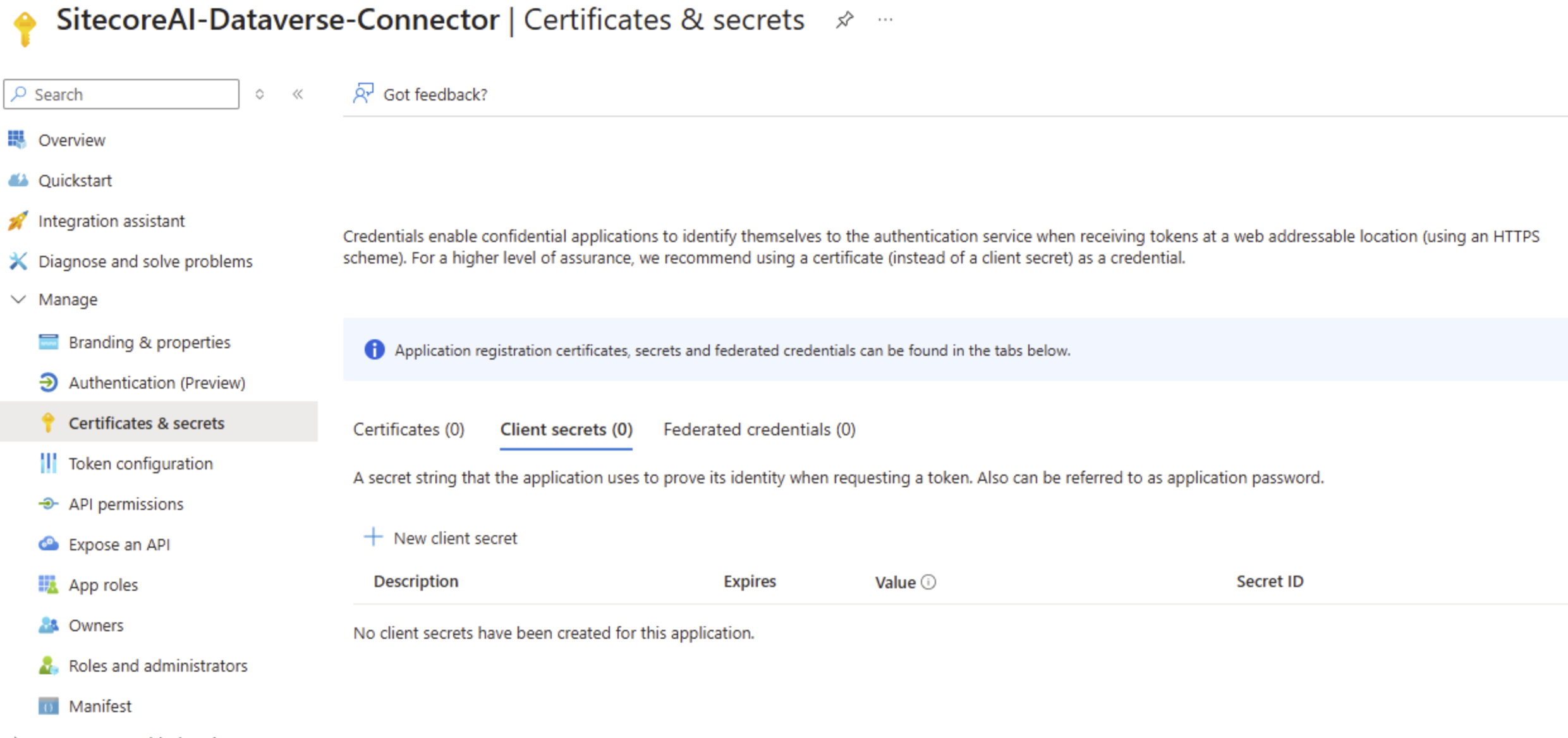
- Click New client secret
Description: SitecoreAI-Dev-Secret
Expires: 12 months (or custom)
Redirect URI: Leave blank (server-to-server integration)
- Click Add
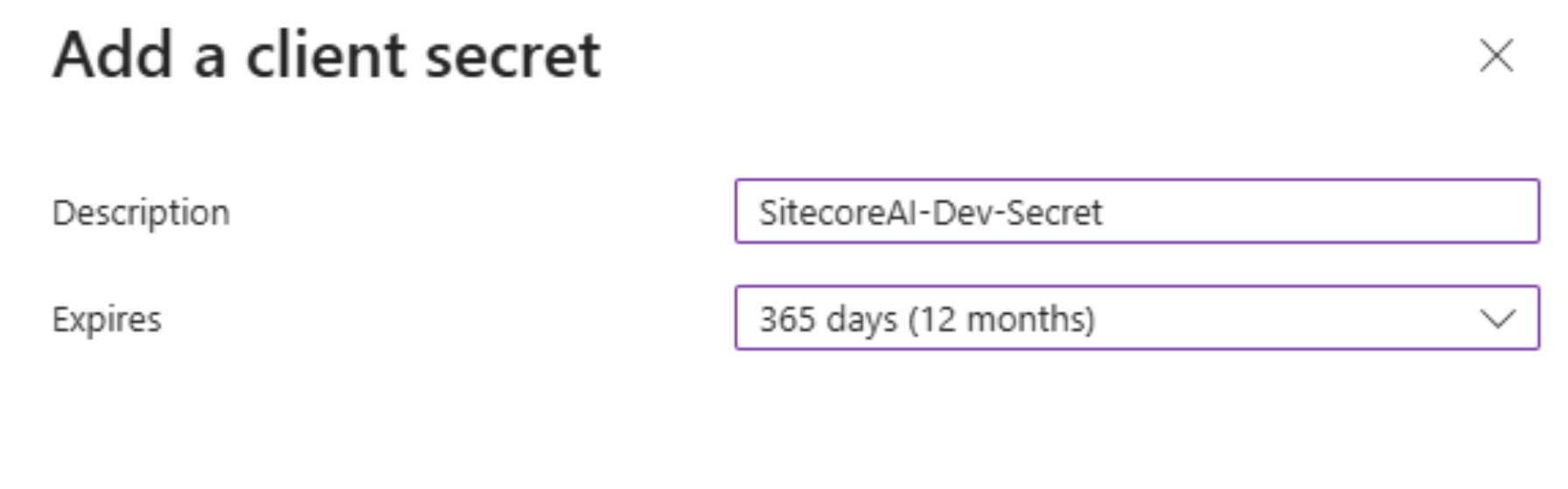
CRITICAL
Copy the secret value immediately (you cannot retrieve it later)
Option B: Certificate (Production - Recommended)
- Generate Self-Signed Certificate (for testing):
# PowerShell script to generate certificate
$cert = New-SelfSignedCertificate `
   -Subject "CN=SitecoreAI-Dataverse" `
   -CertStoreLocation "Cert:\CurrentUser\My" `
   -KeyExportPolicy Exportable `
   -KeySpec Signature `
   -KeyLength 2048 `
   -KeyAlgorithm RSA `
   -HashAlgorithm SHA256 `
   -NotAfter (Get-Date).AddYears(2)

# Export certificate (upload to Azure AD)
Export-Certificate -Cert $cert -FilePath "SitecoreAI-Dataverse.cer"

# Export private key (use in your application)
$password = ConvertTo-SecureString -String "YourStrongPassword" -Force -AsPlainText
Export-PfxCertificate -Cert $cert -FilePath "SitecoreAI-Dataverse.pfx" -Password $password
Upload to Azure AD:
Go to Certificates & secrets → Certificates tab
Click Upload certificate
Select
SitecoreAI-Dataverse.cerClick Add
Now your App Registration exists, but it needs permission to access Dataverse.
3.1 Navigate to Power Platform Admin Center
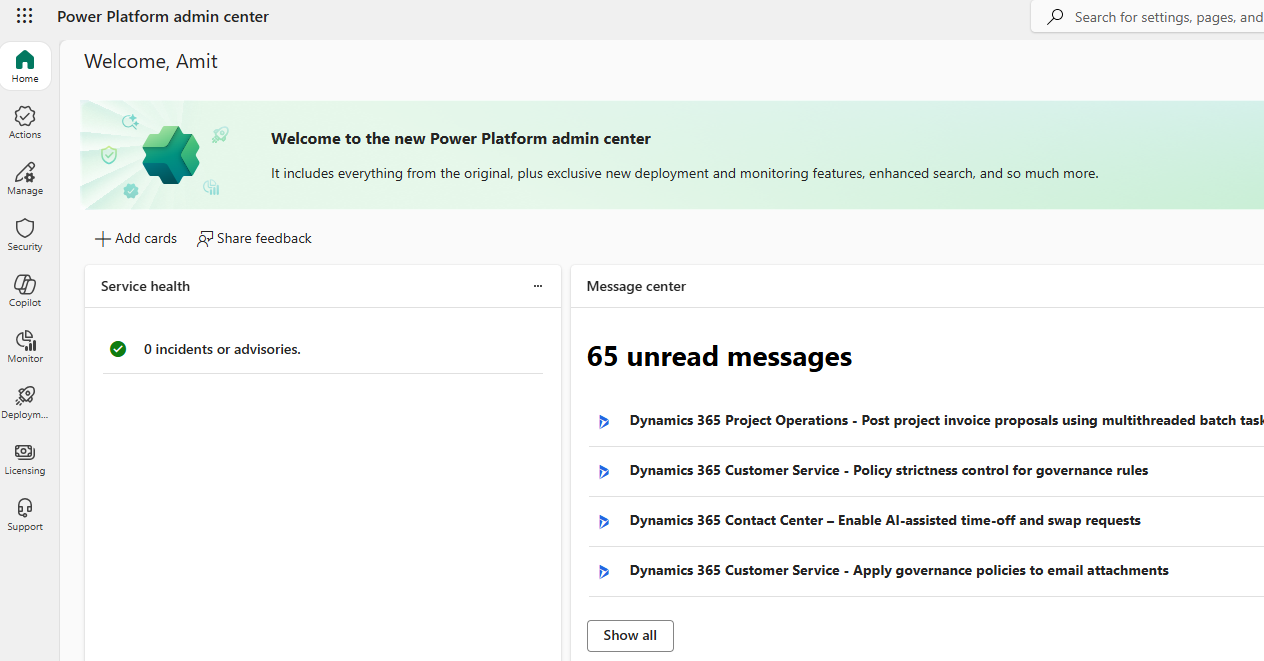
- To create new environment, follow Create and manage an environment
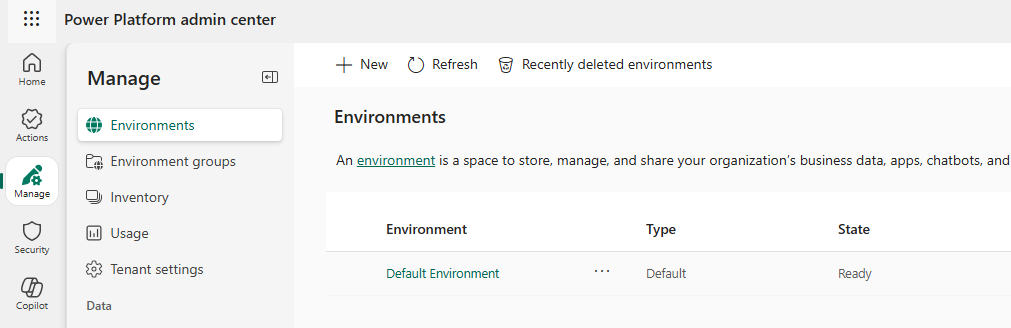
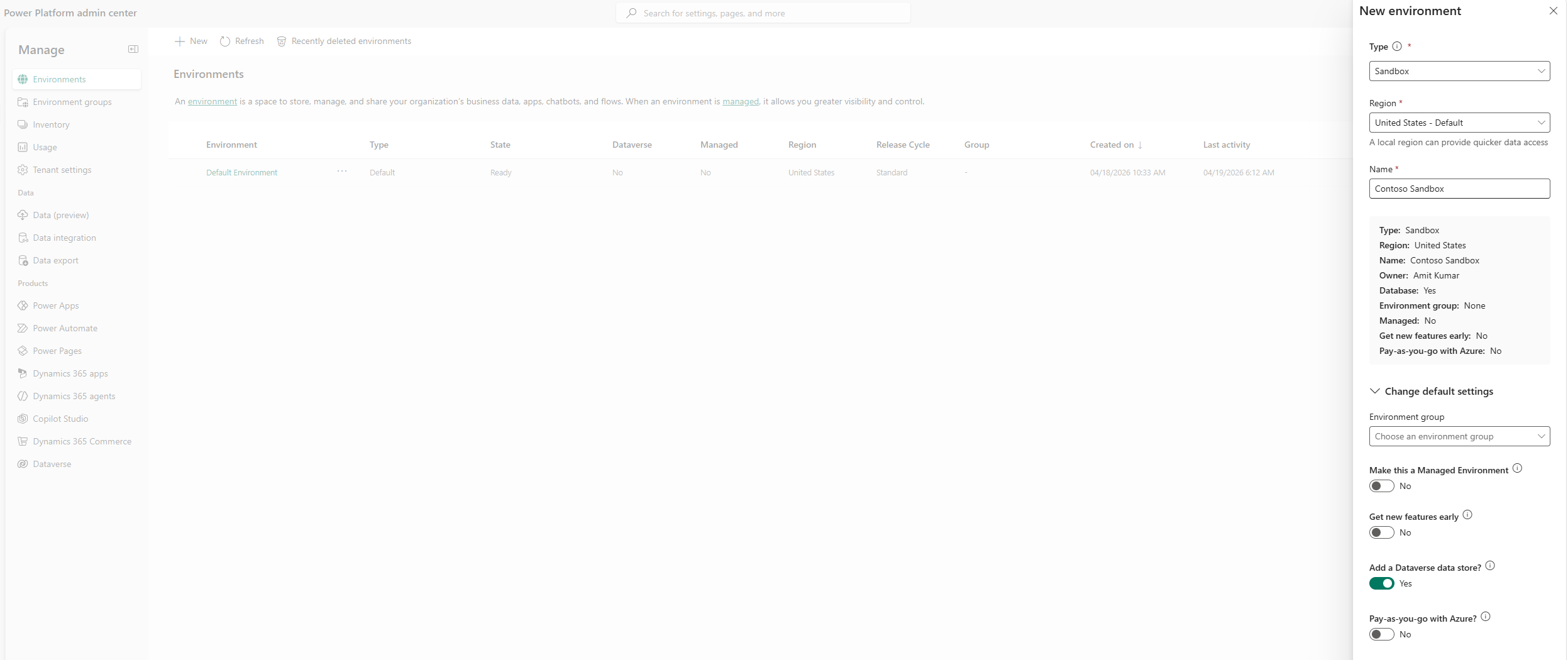
Select your Dataverse environment from Power Platform Admin Center ➡ Manage ➡ Environments
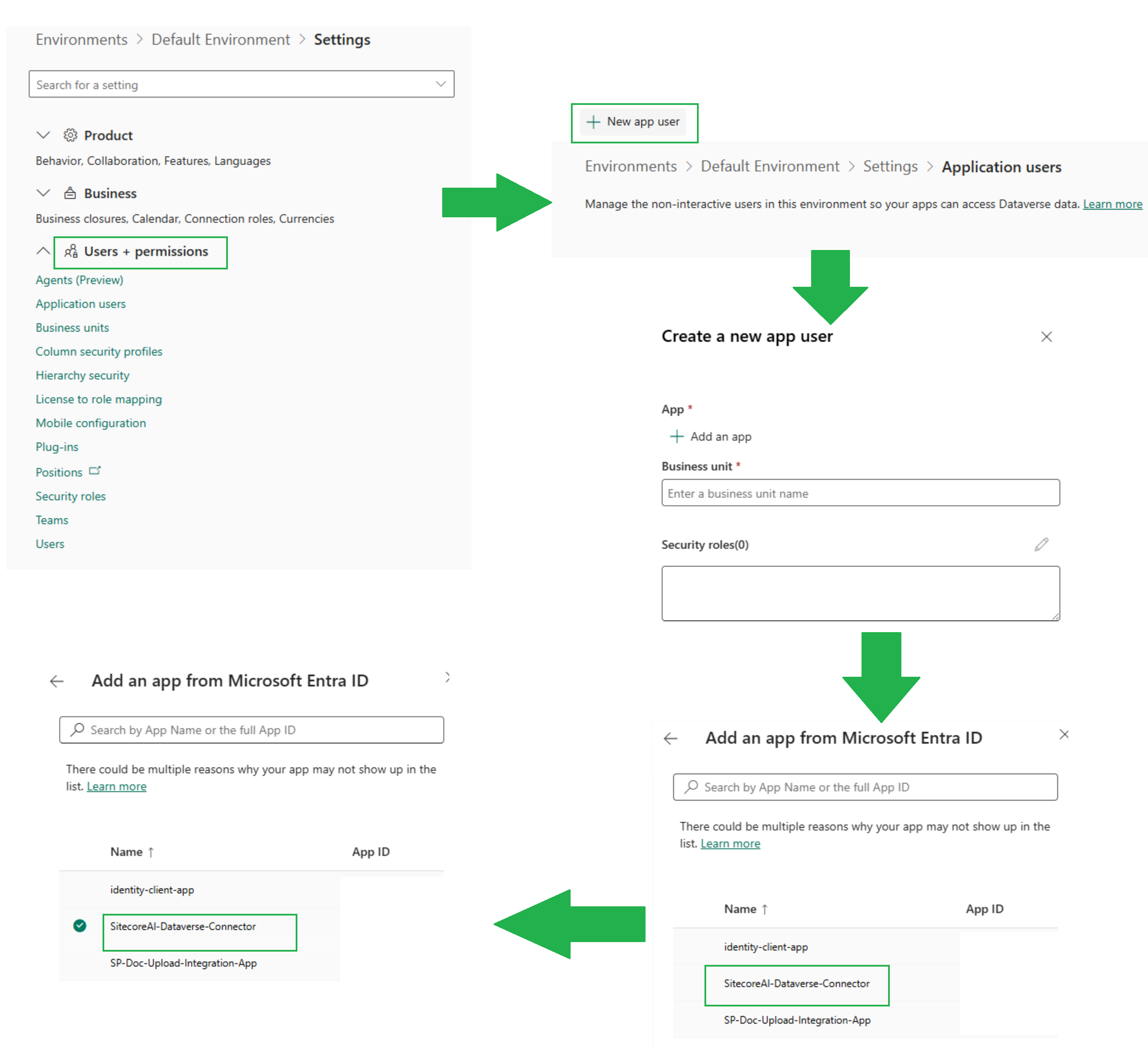
Go to Settings ➡ Users + permissions ➡ Application users ➡ Click New app user
Create and manage environments in Dataverse
You can check details about users and roles within an environment here
Configuration:
App: Select your App Registration (SitecoreAI-Dataverse-Connector)
Business unit: Your organization's business unit
Security roles: System Administrator (or custom role with appropriate permissions)
⚠️ Security Best Practice:
Instead of System Administrator, create a custom security role with minimum required permissions:
Recommended Permissions for SitecoreAI Integration:
Core Records: Create, Read, Update, Delete (as needed)
Business Management: None
Service Management: None
Customization: Read (if reading metadata)
Access levels in Dataverse control what data your application can read/modify.
Access Level Hierarchy
| Access Level | Scope | Example Use Case |
|---|---|---|
| None | No access | Restricted tables |
| User | Only records owned by the app user | Personal data |
| Business Unit | Records in the app user’s business unit | Department-specific data |
| Parent: Child Business Units | Business unit + child units | Multi-department |
| Organization | All records in the environment | Global data access |
For SitecoreAI Form Submissions (typical scenario):
Create: Organization level (allow forms from any site)
Read: Organization level (read any submission)
Update: Business Unit level (only update your records)
Delete: Business Unit level (controlled deletion)
With authentication configured, construct your connection string.
Connection String Components
AuthType=ClientSecret;
Url=https://yourorg.crm.dynamics.com;
ClientId=12345678-1234-1234-1234-123456789abc;
ClientSecret=abc123DEF456ghi789JKL012mno345PQR678stu901VWX234
Component Breakdown:
AuthType:
ClientSecretorCertificateUrl: Your Dataverse environment URL (find in Power Platform Admin Center)
ClientId: Application (client) ID from App Registration
ClientSecret: Secret value (if using client secret)
CertificateStoreName / CertificateThumbprint: (if using certificate)
Certificate-Based Connection String
AuthType=Certificate;
Url=https://yourorg.crm.dynamics.com;
ClientId=12345678-1234-1234-1234-123456789abc;
CertificateStoreName=My;
CertificateThumbprint=ABCDEF1234567890ABCDEF1234567890ABCDEF12
Find Certificate Thumbprint:
Get-ChildItem -Path Cert:\CurrentUser\My | Where-Object { $_.Subject -like "*SitecoreAI*" }
6.1 Install NuGet Package
dotnet add package Microsoft.Data.SqlClient
dotnet add package Microsoft.Extensions.Hosting
dotnet add package Microsoft.PowerPlatform.Dataverse.Client

6.2 Use appsettings.json for Configuration (Recommended for Production)
It is always recommended to use environment variables to store configuration details. This makes it easier to deploy the application to different environments, as the configuration can be updated through environment variables without modifying the application code.
{
  "Dataverse": {
    "DataverseEnvironment": "environmentid.crm.dynamics.com/",
    "ClientId": "client id",
    "ClientSecret": "client secret"
  },
  "Logging": {
    "LogLevel": {
      "Default": "Information"
    }
  }
}
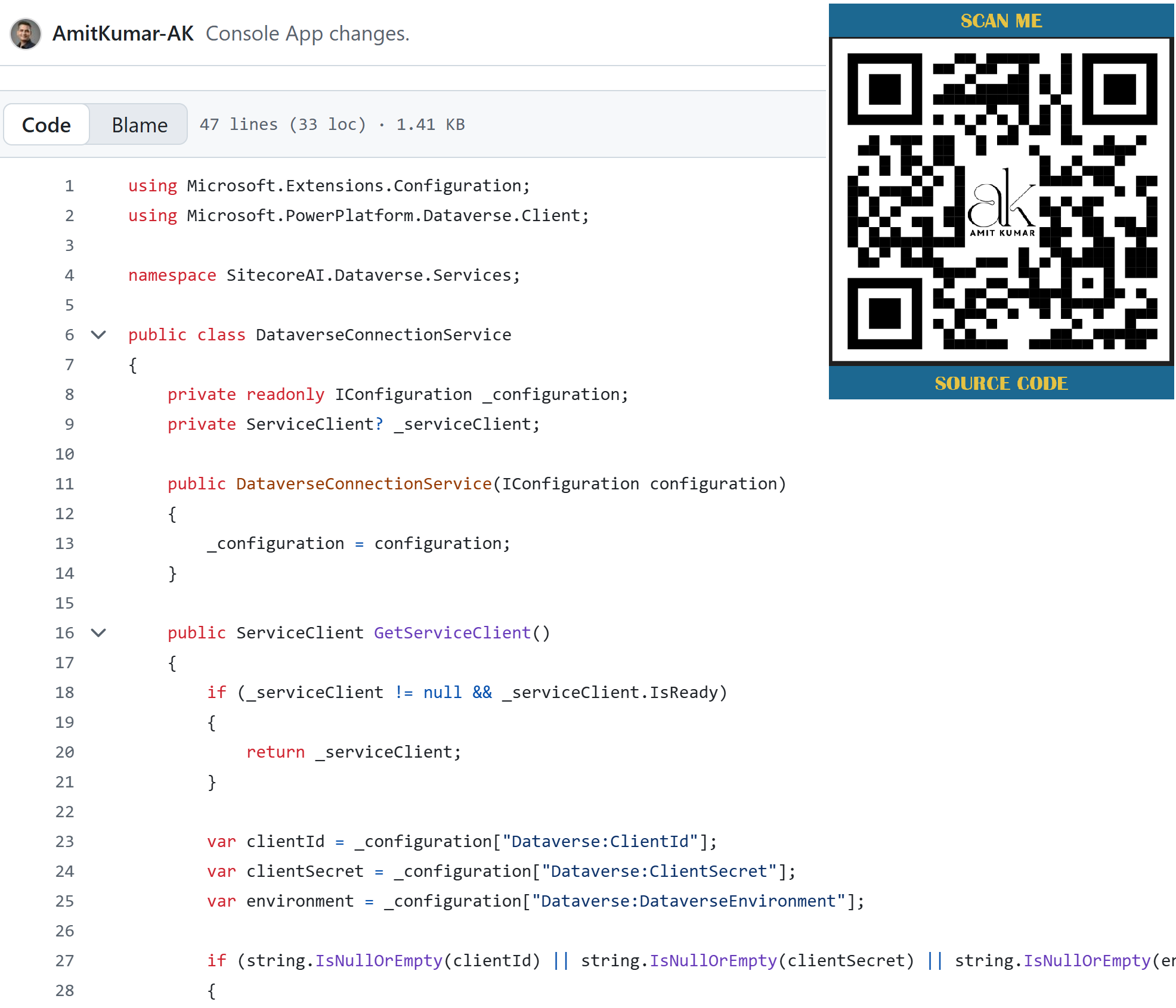
Secure Credential
NEVER hardcode secrets in your code or commit them to source control!
using Microsoft.Extensions.DependencyInjection;
using Microsoft.Extensions.Hosting;
using SitecoreAI.Dataverse.Services;

// Build host with dependency injection
var host = Host.CreateDefaultBuilder(args)
    .ConfigureServices((context, services) =>
    {
        services.AddSingleton<DataverseConnectionService>();
    })
    .Build();

Console.WriteLine("Dataverse Connection Validation");

// Get the service from DI container
var dataverseService = host.Services.GetRequiredService<DataverseConnectionService>();

try
{
    // Get the service client
    var serviceClient = dataverseService.GetServiceClient();
    Console.WriteLine("Connected to Dataverse successfully.");
}
catch (Exception ex)
{
    Console.WriteLine($"Dataverse call failed: {ex.Message}");
    if (ex.InnerException != null)
    {
        Console.WriteLine($"Inner Exception: {ex.InnerException.Message}");
    }
    Console.WriteLine($"\nStack Trace: {ex.StackTrace}");
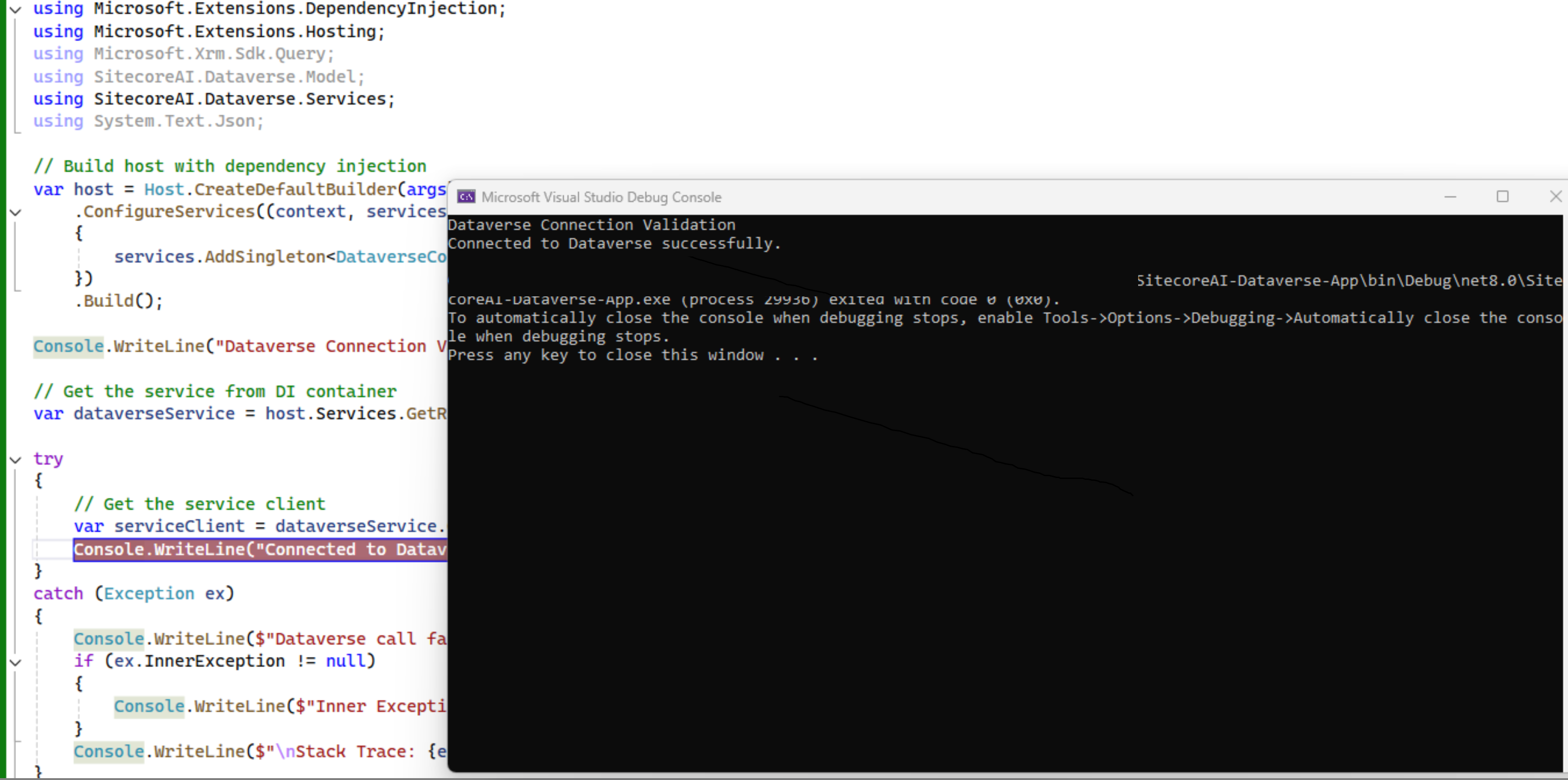
}You can download the code from the SitecoreAI-Dataverse-Connector GitHub repository. After configuring all the required settings, run the project. If the connection to Microsoft Dataverse is established successfully, the success message Connected to Dataverse successfully. will be displayed in the console:
Explore More & Share Your Feedback
📱 Scan to access the complete SitecoreAI-Dataverse-Connector repository
💻 Azure Functions integration, .NET 8 code, authentication setup & CRUD examples

Share your feedback or contribute to support the Sitecore developer community!
Issue 1: “Entity doesn’t contain attribute”
Cause: Using the wrong entity and its attributes
Solution: Verify table name and its fields
System.ServiceModel.FaultException`1: ''crf21_Department' entity doesn't contain
 attribute with Name = 'crf21_ID' and NameMapping = 'Logical'
 (look up attribute by name is case-sensitive).orgIndex: 1514, id:
 123456-c66c-5678-987, logicalName: crf21_department'
Issue 2: “No valid connection string parameter was found”
Cause: Malformed connection string
Solution: Verify format, ensure no line breaks, check for typos
// ❌ Incorrect (line breaks causing issues)
var conn = "AuthType=ClientSecret;
Url=https://yourorg.crm.dynamics.com;
ClientId=...";

// ✅ Correct (single line or use verbatim string)
var conn = @"AuthType=ClientSecret;Url=https://yourorg.crm.dynamics.com;ClientId=...;ClientSecret=...";
Issue 3: “AADSTS7000215: Invalid client secret provided”
Cause: Incorrect client secret or expired
Solution: Regenerate secret in Azure AD, update configuration
Issue 4: “Principal user is missing prvReadAccount privilege”
Cause: Application user lacks necessary permissions
Solution: Update security role in Power Platform Admin Center
Issue 5: “Request failed with status code 401 Unauthorized”
Cause: Service principal not added as Application User in Dataverse
Solution: Follow Step 3.2 to create Application User
Now that you’ve established a secure connection with Dataverse, you’re ready to perform CRUD operations!
In Article 3, we’ll build Azure Functions to interact with Dataverse table:
Implement Add (Create) operations
Implement Update operations
Implement Delete operations
Handle transactions and error scenarios
Stay tuned! 👀
| Authenticate with Microsoft Dataverse web services Comprehensive guide on all authentication methods | Use connection strings in XRM tooling Connection string syntax and examples | Create an application user in Dataverse Step-by-step guide for adding service principals |
| Microsoft.PowerPlatform.Dataverse.Client NuGet Package Latest SDK package for .NET | Azure Key Vault integration with .NET Secure secret management guide | Dataverse Connection Strings - Power CAT Team Blog Real-world connection string examples |
| Sitecore Community - SitecoreAI (XM Cloud) Integration Patterns Sitecore-specific integration discussions | Power Platform Community Forums Community support for Dataverse authentication issues | How SitecoreAI Integrates with Microsoft Dataverse Introduction to SitecoreAI and Microsoft Dataverse Integration |
| Build Custom Sitecore MCP Tools in .NET | Sitecore MCP Server Sitecore Marketer MCP | MCP Server vs Copilot vs GenAI |