


Sitecore Marketer MCP & VS Code Integration
Unlocking the Power of Sitecore Marketer MCP with Visual Studio Code
Posted on January 31, 2026 • 9 minutes • 1831 words
Table of contents
This article explores how to connect Sitecore Marketer MCP (Model Context Protocol) with Visual Studio Code to improve AI-driven content management. It shows how Sitecore Marketer MCP, using the SitecoreAI Agent API , helps with creating and updating content including marketing tasks. The guide explains the benefits of Sitecore Marketer MCP compared to regular Copilot solutions and provides a step-by-step tutorial for easy integration with Visual Studio Code, boosting your content workflows with advanced AI technology.
The Model Context Protocol (MCP) is an open standard that changes how AI tools work by linking AI apps to outside systems like data sources, tools, and workflows. Instead of using fragile, custom connections, it offers a unified, neutral way for any AI that supports MCP to easily connect with MCP servers. With more than 17,000 servers, MCP works with many applications, from web browsing to managing enterprise content.
In enterprise projects like Sitecore implementations , it’s important to use curated, secure, and well-managed MCP servers. Created by Anthropic , MCP sets a standard for how AI models connect to outside systems, ensuring they work well with AI clients like Claude , ChatGPT , and VS Code Copilot . This protocol allows AI models to safely access data, tools, and business workflows, improving flexibility and integration.
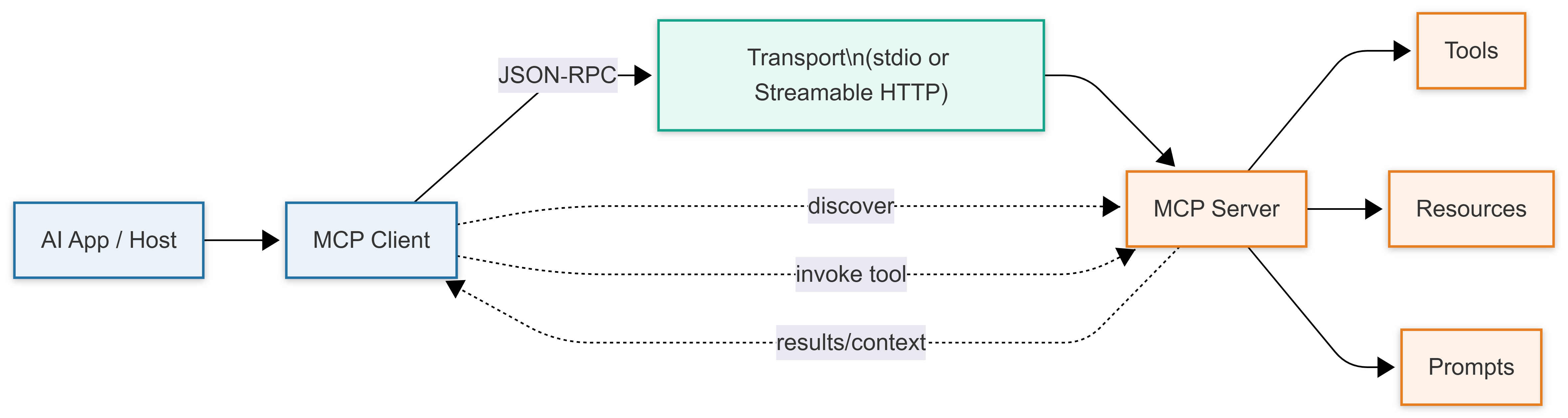
What it shows (at a glance):
- An AI app (host) uses an MCP client to connect to an MCP server.
- Messages use JSON‑RPC over stdio (local) or Streamable HTTP (remote).
- The server exposes three core capabilities: Tools, Resources, and Prompts.
- Basic flow: discover → invoke tool → return results/context
📹 Learn More About MCP
Sitecore Marketer MCP is a powerful tool that changes content management by adding advanced AI features to the SitecoreAI platform. This server uses the SitecoreAI Agent API to allow smooth interactions between AI assistants and Sitecore's marketing tools . It lets users manage content, assets, and data with natural language commands , making workflows easier and boosting productivity. Unlike traditional APIs, it is user-friendly for both developers and marketers, providing a more flexible and secure content management experience.
Built on the open-standard Model Context Protocol (MCP) , Sitecore Marketer MCP lets AI agents safely work with Sitecore’s marketing tools. This integration allows AI to not only offer suggestions but also perform actions like creating or editing content and optimizing campaigns, without needing manual UI navigation or complex API calls. The protocol includes safeguards like scoped permissions and audit trails to ensure secure and efficient operations. By allowing faster experimentation with less risk, Sitecore Marketer MCP helps marketers innovate and adapt quickly, making it a key feature in Sitecore’s latest updates and discussions.
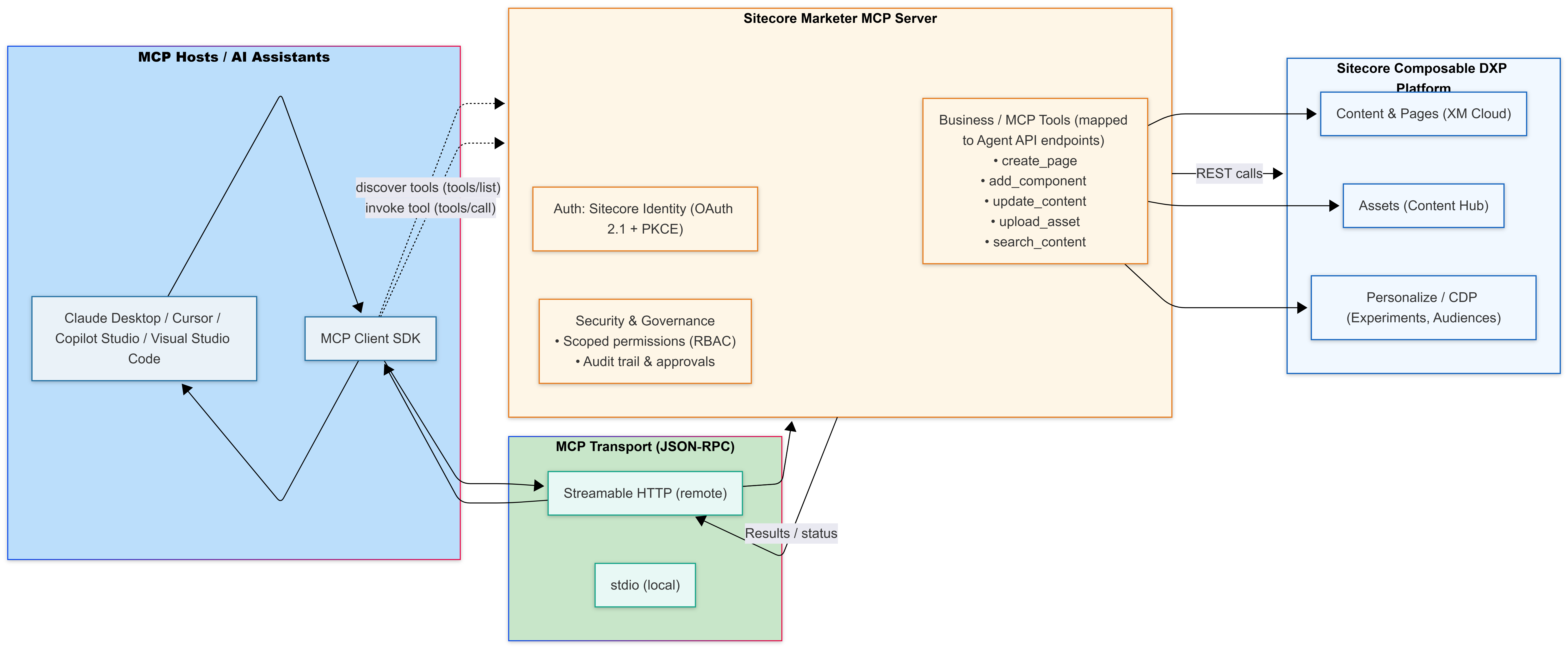
Why these components?:
- Marketer MCP exposes "tools" that directly map to business‑level actions (e.g., create page, add component, upload asset). Those tools proxy to Agent API endpoints, so AI assistants can perform actions from natural‑language prompts - no manual UI or raw API calls.
- Security & governance: operations run under your existing Sitecore roles with auditability and human‑in‑the‑loop approval rules where configured.
- Transport & protocol: Requests flow via MCP (JSON‑RPC) over Streamable HTTP (remote) or stdio (local), following the standard MCP architecture.
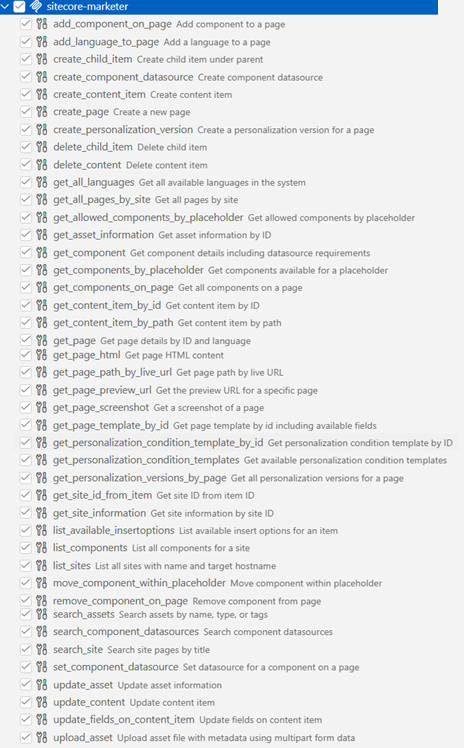
List of available tools from Sitecore Marketer MCP
By default, all the Marketer MCP tools are enabled. To fully use the Marketer MCP, it’s recommended to enable each tool. Each tool matches an endpoint of the Agent API used by the MCP to perform actions in Sitecore.
🗂️ Site Management
| Tool | Description |
|---|---|
| list_sites | Lists all sites available in the tenant. |
| get_site_information | Retrieves detailed information for a specific site. |
| get_site_id_from_item | Retrieves the site ID that is linked to a specific item ID. |
| get_all_pages_by_site | Retrieves a list of pages for a specific site, including the ID and path of each page. |
📄 Page Management
| Tool | Description |
|---|---|
| create_content_item | Creates a new content item using the specified template and field values. |
| update_content | Updates an existing content item. |
| delete_content | Deletes a specific content item. |
| get_content_item_by_path | Retrieves a published content item (Experience Edge) by path. |
| get_content_item_by_id | Retrieves a published content item (Experience Edge) by ID. |
| list_available_insertoptions | Retrieves a list of content templates that you can add as child items under a specific parent item. |
📃 Content Management
| Tool | Description |
|---|---|
| list_sites | Lists all sites available in the tenant. |
| get_site_information | Retrieves detailed information for a specific site. |
| get_site_id_from_item | Retrieves the site ID that is linked to a specific item ID. |
| get_all_pages_by_site | Retrieves a list of pages for a specific site, including the ID and path of each page. |
🛠️ Component Tools
| Tool | Description |
|---|---|
| list_components | Retrieves a list of components available for a specific site. |
| get_component | Retrieves the details of a specific component, including its ID, name, and datasource. |
| create_component_datasource | Creates a new datasource item for a specific component using the given data field values. |
| search_component_datasources | Searches for available datasources that can be used with a specific component. |
🖼️ Asset Management
| Tool | Description |
|---|---|
| search_assets | Searches for digital assets like videos, images, and documents using query terms, file types, or tags. |
| get_asset_information | Retrieves details of a specific asset. |
| update_asset | Updates metadata for an existing asset. |
| upload_asset | Uploads a new digital asset to the system and saves it with the given metadata. |
👤 Personalization
| Tool | Description |
|---|---|
| get_personalization_versions_by_page | Gets all the personalization versions set up for a specific page. |
| create_personalization_version | Creates a new version of a page for personalization, allowing you to set targeting rules for different audiences. |
| get_personalization_condition_templates | Retrieves all the condition templates available for personalization. |
| get_personalization_condition_template_by_id | Retrieves a condition template by ID, including its parameters, to create a personalized version of a page. |
Integrating the Marketer MCP server with Visual Studio Code and GitHub Copilot:
Transforms your development environment into a powerful Sitecore content assistant.
This integration enhances the developer experience by turning VS Code into a comprehensive content-orchestration hub, allowing seamless interaction with Sitecore’s AI-driven features.
With native support for MCP servers through GitHub Copilot and related extensions, users can query Sitecore content, generate code snippets aligned with Sitecore schemas, and automate marketing tasks using natural language prompts.
What is SitecoreAI (FKA XM Cloud)?
To learn more about SitecoreAI (FKA XM Cloud), watch the video below for detailed information.
Step-by-Step: VS Code Configuration
1. Prerequisites:
Visual Studio Code with the GitHub Copilot extension enabled.
Access to the Sitecore Marketer MCP server (typically provided via a specific URL https://edge-platform.sitecorecloud.io/mcp/marketer-mcp-prod from your Sitecore setup).
Ensure your organization’s Copilot administrator has enabled the necessary permissions.
Important
A common hurdle: If the START MCP SERVER option doesn’t appear later, your admin may need to re-enable MCP access in the Copilot admin UI, as noted in related VS Code issues here
2. Configuration in VS Code:
Create or edit a file at .vscode/mcp.json in your project root (or workspace) or a user-level mcp.json (C:\Users\[UserName]\AppData\Roaming\Code\User). Add your MCP server entry. Example for a hosted/remote server (adapt URL to your Sitecore Marketer MCP endpoint):
// Sitecore Marketer MCP Server configuration for AI-driven content management in Visual Studio Code.
// Enables integration with SitecoreAI, and Copilot for advanced marketing automation,
// content orchestration, and secure API access.
// For more details, visit: https://doc.sitecore.com/sai/en/users/sitecoreai/marketer-mcp.html

  {
    "servers": {
          "sitecore-marketer-mcp": {
        "url": "https://edge-platform.sitecorecloud.io/mcp/marketer-mcp-prod",
        "auth": {
          "type": "external"
        },
        "type": "http"
      }
      }
  }
3. Restart and Use:
i) Save the mcp.json file.
ii) Fully restart VS Code and ensure you are signed into Copilot.
iii) Once configured correctly, VS Code should detect it. Look for options like START MCP server or MCP-related commands in the Command Palette (Ctrl+Shift+P) or Copilot Chat.
iv) Visual Studio Code will expose the START MCP server option, allowing Copilot and other AI extensions to interact with the MCP server.
Getting Started with the Sitecore Marketer MCP Demo:
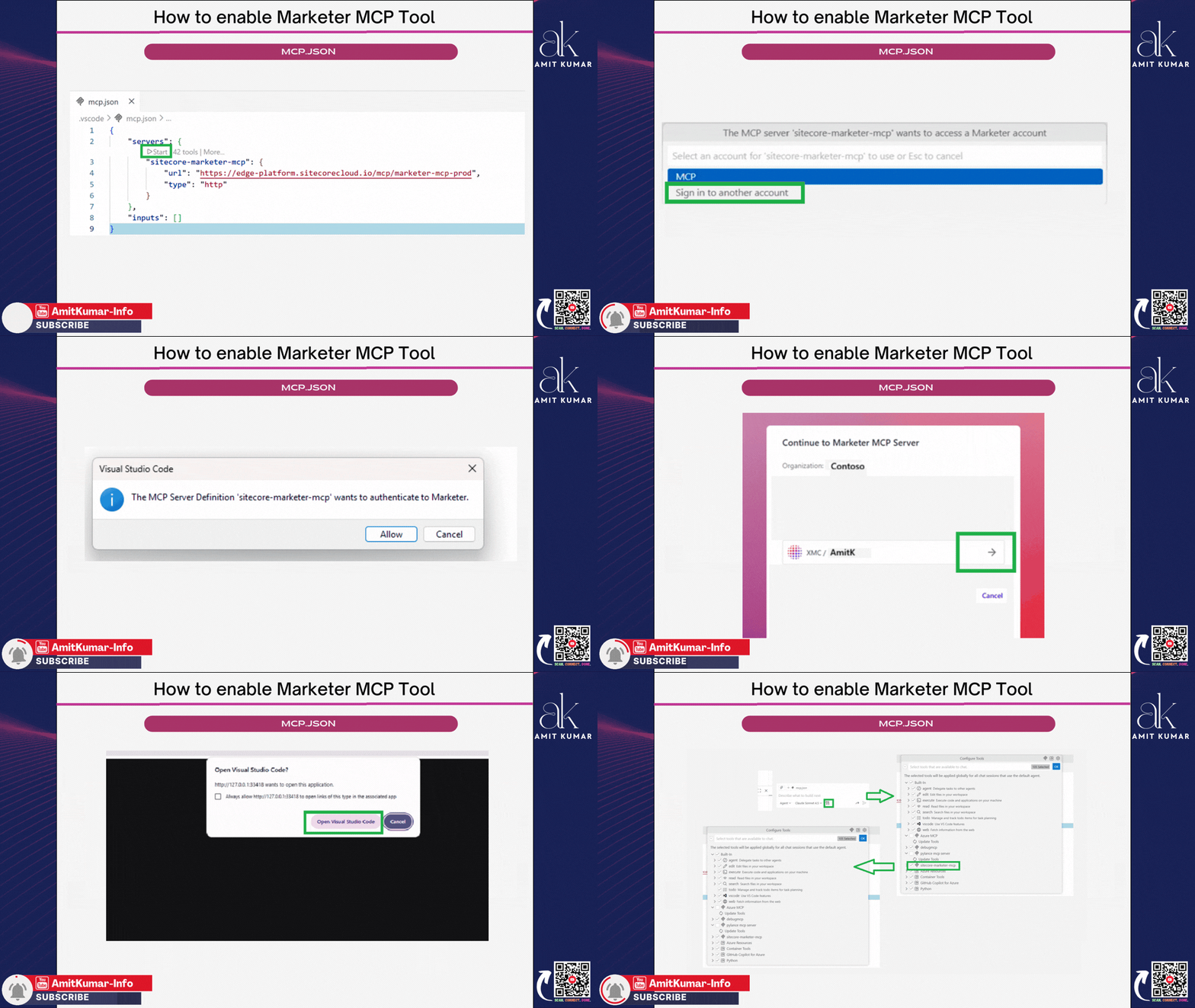
v) The AI in your editor (e.g., Copilot Chat) will now have access to the tools provided by the Sitecore Marketer MCP server.
4. Troubleshooting:
If the START MCP server option does not appear:
Verify that GitHub Copilot is enabled for your account
Ensure your organization has not disabled MCP access
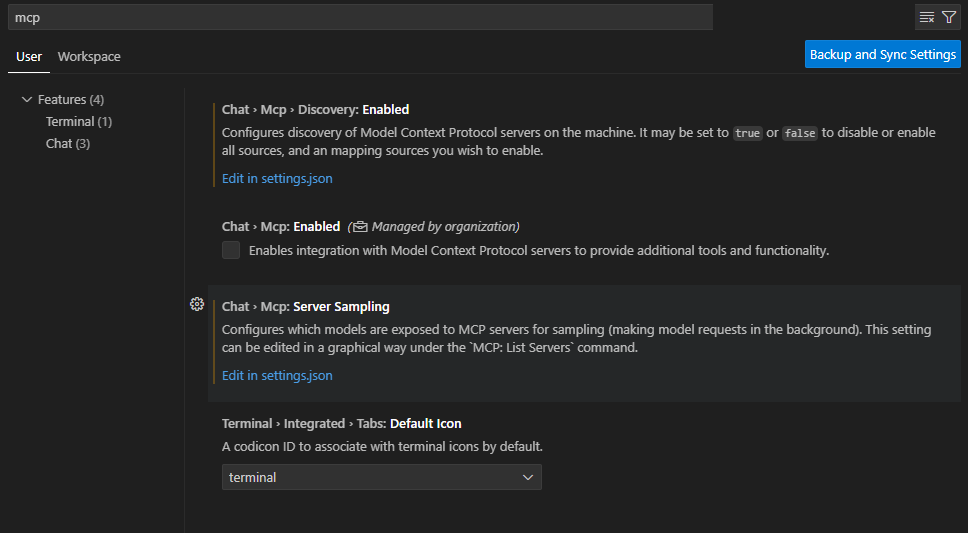
Contact your organization admin to re-enable MCP in the Copilot Admin UI
For official Marketer MCP, confirm your Sitecore account has required permissions and the endpoint is correctly provisioned.
5. Utilization: Once connected:
In GitHub Copilot Chat , use natural language prompts tied to Sitecore, e.g., Create a Sitecore content item for a new blog post or Generate JSS component code for a personalized banner from Sitecore data.
Combine with VS Code’s AI features for code generation.
Safely experiment with AI-driven Sitecore content changes and marketing tasks
Extend to web chatbots or other tools by referencing the same MCP server.
When you use a prompt like Create item with name [Item Name] based on template [template name], followed by Update field on Content Item, the
update_fields_on_content_itemtool is triggered. It will automatically use the newly created Item ID to update the content item with your specified values. The required JSON payload will look like this:
// Example: Update Sitecore content item fields using Marketer MCP tool in VS Code.
// Automate headless CMS workflows, AI-powered content updates, and marketing operations with SitecoreAI,
// Copilot, and Experience Edge.
// Ideal for scalable, secure, and efficient Sitecore content management.
// More info: https://doc.sitecore.com/sai/en/users/sitecoreai/marketer-mcp.html

    {
      "fields": {
        "image": "<image mediaid=\"\" alt=\"Contoso Logo\" width=\"904\" height=\"460\" />",
        "paragraph1": "Lorem ipsum dolor sit amet, consectetur adipiscing elit",
        "title": "Lorem ipsum dolor"
      },
      "itemId": "dd8c3d91-b57b-4f0b-a574-e4c02b683b48"
}- When you use a prompt such as Add Component [Component Name] inside placeholder [Placeholder Name] on Page [Page Name], the
add_component_on_pagetool is triggered. It will generate a JSON payload similar to the following:
// Example: Add a component to a Sitecore page using the add_component_on_page tool.
// Streamline headless CMS personalization, automate component placement, and enhance marketing workflows with
// SitecoreAI and Copilot.
// Supports scalable, AI-driven content management in Experience Edge and JSS environments.

   {
      "componentItemName": "Hero Banner",
      "componentRenderingId": "ccd1c539-a271-4fc0-ae04-0e78fa722b9b",
      "fields": {},
      "language": "en",
      "pageId": "82932c57-15b6-4720-9603-a2c1a397ba5b",
      "placeholderPath": "headless-main"
    }
Enjoyed this guide? Give it a ⭐ and show your support!
Support
If you enjoy this content, consider subscribing 📰 for more updates and insights. Your engagement is very important to me and helps me keep providing valuable resources! 🌟
The Sitecore Marketer MCP revolutionizes content management by integrating AI capabilities through the open Model Context Protocol (MCP) and the safety-focused Agent API. This integration with Visual Studio Code enhances flexibility, safety, and scalability, empowering organizations to innovate rapidly while maintaining control over their Sitecore ecosystem. By adopting Sitecore Marketer MCP early, businesses position themselves at the forefront of AI-driven digital experiences, streamlining content management and bridging code with marketing tasks. For the latest setup, refer to Sitecore’s documentation on Marketer MCP .
Explore More & Share Your Feedback
Find setup guides and ready-to-use Sitecore Marketer MCP prompts in the Sitecore Marketer MCP Prompts & VS Code Integration
GitHub repo. Prompts for SitecoreAI sites, pages, and components are organized in docs/prompts
.
Share your feedback or contribute to support the Sitecore developer community!