


Build Custom Sitecore MCP Tools in .NET C#: A Practical Guide for .NET Developers
How to Build a Custom MCP Server in C# for Agentic AI and Copilot
Posted on March 24, 2026 • 8 minutes • 1696 words
Table of contents
- 📊 Introduction
- 🛠️ Why Create Custom MCP Tools
- 🧱 MCP and .NET: Why C# Is a Strong Fit
- 🏁 Starting Point: The Quickstart Weather Server
- 🏗️ How MCP Server Works in .NET (High Level)
- 📦 Getting Started with MCP in .NET
- 🔩 MCP Tool Structure: The Three Fundamental Elements
- 🔑 Why This Matters for Sitecore / Enterprise Projects
- 🏁 Conclusion: Empowering AI with .NET
- 🧾Credit/References
What if your AI assistant could securely tap into your company’s database, browse your SitecoreAI (FKA XM Cloud) content, query your CRM, or talk directly to your internal business systems - all without you lifting a finger?
That’s exactly what Model Context Protocol (MCP) makes possible. And if you’re a .NET developer, building custom MCP tools in C# is the most practical way to get there.
In my previous articles, I explained:
- How MCP works with Sitecore Marketer MCP
- Why MCP is needed compared to Copilot, GenAI, and Agentic AI
Now the next step is understanding how to create your own MCP tool in .NET C# using the official MCP SDK .
Out-of-the-box MCP servers are useful, but enterprise projects often require custom tools.
Examples:
- Internal APIs
- Sitecore CMS operation / automation
- DevOps utilities
- Data services
- Marketing workflows
- Reporting tools
Creating a custom MCP tool allows AI agents to interact with your system safely.
This becomes important when using:
- Copilot
- AI Agents
- Agentic AI
- Claude / ChatGPT with MCP
- VS Code MCP integration
Microsoft and Anthropic jointly maintain the official MCP C# SDK , making .NET a first‑class platform for MCP development.
With the C# SDK, you can:
- Build MCP servers as simple console apps or ASP.NET services
- Expose tools using familiar .NET patterns
- Integrate cleanly with dependency injection and hosting
- Run locally (stdio) or remotely (HTTP/SSE)
Official Repository
You can explore the official implementation over at the MCP C# SDK on GitHub - it’s the best starting point for .NET developers diving into Model Context Protocol.
📦 NuGet Package
The ModelContextProtocol SDK provides:
- Core MCP protocol implementation (transport layer, message handling)
- Attribute-based tool registration (
[McpServerTool],[McpServerToolType]) - Built-in dependency injection support
- Async/await patterns for I/O operations
- Type-safe parameter handling with validation
The best place to start is the official QuickstartWeatherServer sample from the MCP C# SDK repository - a minimal, well-structured example that shows exactly how to build your first MCP server in .NET.
This sample demonstrates:
- Creating a minimal MCP server
- Registering tools using attributes
- Exposing those tools to MCP clients
- Returning structured responses
Simple by design - but it demonstrates the exact pattern you'll repeat for every custom MCP tool you build.
Basic flow:
- Create MCP server project
- Define tools using SDK attributes
- Register tools in server
- Run MCP server
- Connect from client (VS Code / Copilot / AI Agent)
Example concept:

Below is a high-level overview of how to build a custom MCP server in .NET. For the complete implementation, full source code, and a real-world SitecoreAI (FKA XM Cloud) example, check out the GitHub repository: MCP C# SDK Tutorial with SitecoreAI Example
1. Create a new .NET project Start with a minimal ASP.NET Core or console host:
Target .NET 8 or later, as most MCP examples assume current LTS or preview runtimes.
Add the following package references :
- Microsoft.Data.Sqlite
- Microsoft.Extensions.Hosting
- ModelContextProtocol
2. Register the MCP server and transport Using an approach similar to the examples, you configure MCP in Program.cs:
using Microsoft.Extensions.DependencyInjection;
using Microsoft.Extensions.Hosting;
using Microsoft.Extensions.Logging;
using McpSitecoreAiExample;

var builder = Host.CreateApplicationBuilder(args);

builder.Services.AddSingleton<MonkeyService>();
builder.Services.AddSingleton<SellingService>();
builder.Services.AddSingleton<SitecoreAIService>();

builder.Logging.AddConsole(consoleLogOptions =>
{
    // Configure all logs to go to stderr
    consoleLogOptions.LogToStandardErrorThreshold = LogLevel.Trace;
});

builder.Services
    .AddMcpServer()
    .WithStdioServerTransport()
    .WithToolsFromAssembly();

await builder.Build().RunAsync();
📦 Service Registration
MonkeyService,SellingService,SitecoreAIServiceregistered as Singletons - one shared instance per app lifetime- SitecoreAIService is the key bridge connecting your MCP server to SitecoreAI
📋 Logging Configuration
- All logs redirected to stderr from Trace level upward
- Critical for Stdio transport - keeps stdout clean exclusively for MCP protocol messages
⚙️ MCP Server Wiring
AddMcpServer()- registers MCP into the .NET DI pipeline; server name & version auto-resolved via assembly reflectionWithStdioServerTransport()- sets Stdio as the communication channel; swap with WithHttpTransport() for web-hosted scenariosWithToolsFromAssembly()- auto-discovers all MCP tools via reflection; no manual registration needed
🔐 Optional Authentication
- Plug in API-key authentication via standard ASP.NET Core middleware for production-grade security
🚀 Host Execution
RunAsync()keeps the process alive, listening for MCP messages from AI hosts like Claude Desktop or GitHub Copilot
3. Create the tool class:
This is where your MCP server comes to life. In C#, MCP tools are simply well-designed methods that your AI model can discover and call - think of them as structured entry points into your business logic.
A typical MCP tool class in .NET looks like this:
[McpServerToolType]
public static class SitecoreAITool
{

    [McpServerTool, Description("Retrieves child item details from Sitecore by specifying an item path or ID and language.")]
    public static async Task<string> GetChildDetails(SitecoreAIService sitecoreAIService,
            [Description("The item path (e.g., /sitecore/content/site-name/home) or item GUID (e.g., '{110D559F-DEA5-42EA-9C1C-8A5DF7E70EF9}')")] string path,
            [Description("Language code for the item (e.g., 'en' for English, 'de' for German). Default is 'en'.")] string language = "en",
            CancellationToken cancellationToken = default)
    {
        var childDetails = await sitecoreAIService.GetChildDetails(path, language);
        return JsonSerializer.Serialize(childDetails);
    }
}- A class decorated with
[McpServerToolType]- this tells the SDK it’s a tool container - Individual methods marked with
[McpServerTool], each with a clear Description so the AI understands what the tool does and when to use it
A few design principles worth following:
- Be goal-oriented, not CRUD-driven - instead of exposing a raw
GetSales()method, name and describe it as “Summarise daily sales by channel” so the model can use it intelligently - Separate reads from writes - mark read-only tools clearly and keep write operations minimal and auditable
- Fail gracefully - validate inputs early and return descriptive error messages, this helps the AI model self-correct rather than stall
Explore More & Share Your Feedback
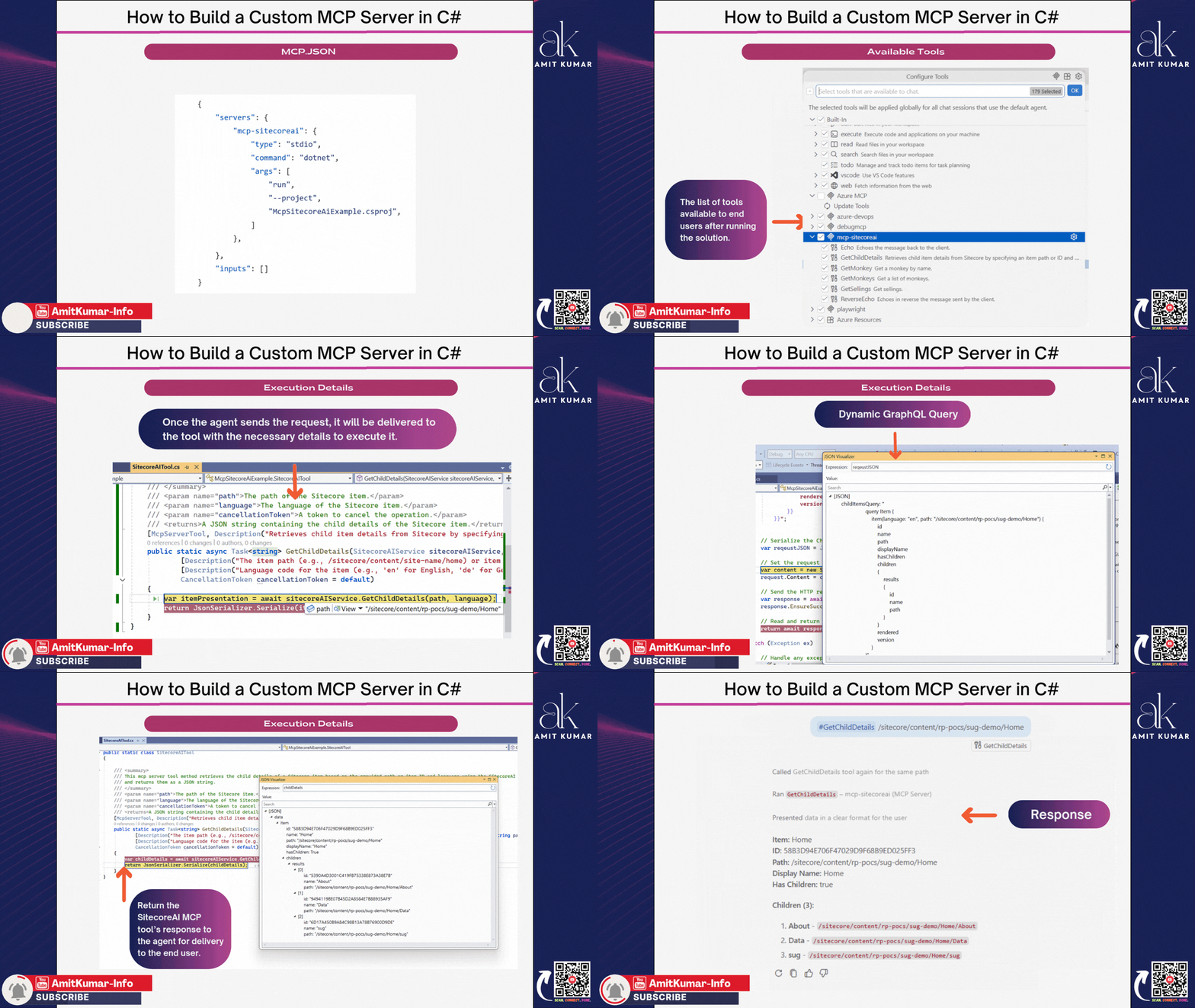
I built the SitecoreAI MCP tool to fetch child item details from Sitecore directly via the configured SaaS Edge GraphQL endpoint - keeping everything clean, secure, and governed through the injected SitecoreAIService.
The tool accepts a required path parameter (either an item path like /sitecore/content/sitename/home or an item GUID) and an optional language code parameter for the item (e.g., ’en’ for English, ‘de’ for German),defaults to “en”. It also supports graceful cancellation via CancellationToken.
Internally, it calls sitecoreAIService.GetChildDetails(path, language) and returns the result as a JSON string - typically containing the child item details along with its metadata.
This tool is ideal when your AI assistant needs to retrieve Sitecore child item information while ensuring the right governance, security controls, and auditable access boundaries are in place. ⬇
4. Run and connect from an AI host:
Once the server is running locally or in a container:
- Configure an MCP‑aware host like Claude Desktop, Gemini CLI or VS Code Copilot to connect to your server via stdio or HTTP.
- Point it at your executable or remote endpoint and provide any required API keys or environment variables.
- Ask natural language queries like Use the .NET MCP server to list the latest orders and highlight any anomalies and watch the host call your tools.
// .vscode/mcp.json
{
    "servers": {
        "mcp-sitecoreai": {
			"type": "stdio",
            "command": "dotnet",
            "args": [
                "run",
                "--project",
				"McpSitecoreAiExample.csproj",
            ]
        }
    },
	"inputs": []
}
Every MCP tool in .NET consists of three essential parts:
- Tool Class with [McpServerToolType] AttributeThis decorator tells the MCP server that this class contains tool definitions.
[McpServerToolType] public class CustomerTools {
// Tool methods go here
}- Tool Methods with [McpServerTool] AttributeEach public method decorated with
[McpServerTool]becomes an AI-accessible tool.
[McpServerTool]
[Description("Retrieves customer information by customer ID")]
public async Task<CustomerData> GetCustomerById(
    [Description("The unique customer identifier")] int customerId,
    CancellationToken cancellationToken = default)
{
    // Implementation here
}- Method Descriptions Using [Description] Attribute
Descriptionsare critical - they tell the AI when and how to use your tool. Write them as if you’re instructing a human colleague.
❌ Bad Description:
[Description("Gets customer")]✅ Good Description:
[Description("Retrieves complete customer profile including contact info, purchase history, and support tickets by customer ID. Use this when the user asks about a specific customer or needs detailed customer information.")]In earlier articles, we explored how Model Context Protocol (MCP) enables AI assistants to perform real, meaningful actions - not just generate text. The Sitecore Marketer MCP server puts that theory into practice with a working, real-world implementation.
With custom MCP tools we can:
- Extend Sitecore automation
- Integrate internal services
- Build developer tools
- Enable AI-driven operations
This makes MCP a key part of modern architecture.
Enjoyed this guide? Give it a ⭐ and show your support!
Support
If you enjoy this content, consider subscribing 📰 for more updates and insights. Your engagement is very important to me and helps me keep providing valuable resources! 🌟
🏁 Conclusion: Empowering AI with .NET
Building custom MCP tools in .NET C# transforms AI assistants from generic chatbots into powerful, context-aware agents that understand your business. With the official C# SDK, dependency injection support, and .NET’s robust ecosystem, you can create production-ready MCP servers that securely bridge AI and enterprise systems.
Key Takeaways:
- MCP tools are simple - Just C# classes with attributes
- Descriptions matter - They guide AI decision-making
- Follow .NET patterns - Async/await, DI, separation of concerns
- Start small, iterate - Begin with 2-3 tools, expand based on usage
- Security first - Never expose credentials, validate inputs, audit access